
Bank Statement Conversion Timeline From PDF Upload To Accounting Import
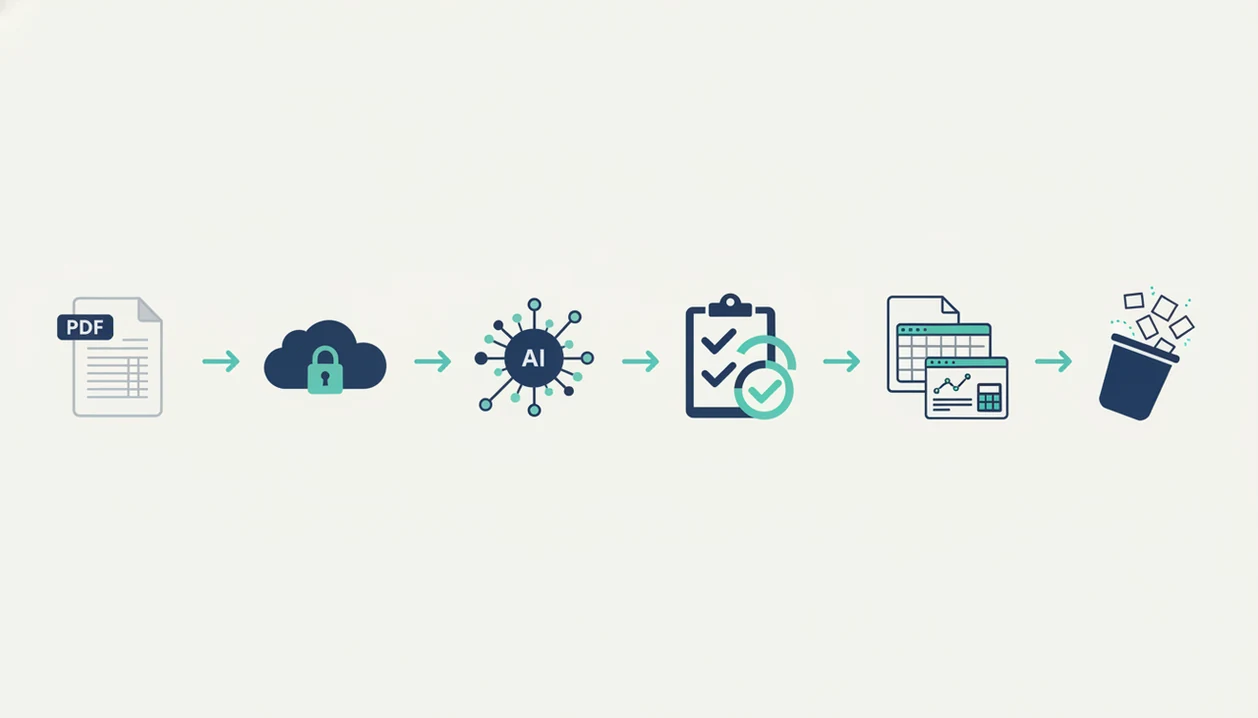
A bank statement conversion timeline usually runs from PDF upload to AI extraction, validation, export, accounting import, and secure deletion in seconds to a few minutes for most standard statements. Larger scanned PDFs, poor image quality, unusual layouts, or high transaction volume can extend the timeline.
> Definition: A bank statement conversion timeline is the end-to-end sequence that turns a PDF bank statement into a validated CSV, Excel, or QBO file ready for accounting import.
TL;DR
- Most clean, native PDF bank statements can move from upload to export in under a minute, while large or scanned files may take a few minutes.
- The core PDF statement conversion steps are upload, extraction, validation, export, import review, and deletion.
- A reliable bank PDF to CSV workflow still requires balance checks, transaction sampling, and import-field mapping before bookkeeping use.
Bank Statement Conversion Timeline Definition For PDF Files
A bank statement conversion timeline is the practical path from uploading a source PDF to receiving an accounting-ready file and deleting sensitive copies. It starts when a user submits a file such as `Chase Checking March 2022.pdf` and ends when the converted output is ready for review, import, and cleanup.
The usual outputs are CSV, Excel, and QBO files. CSV is common for general imports. Excel is useful when someone needs to sort, filter, or inspect rows. QBO is designed for QuickBooks-style bank activity imports.
The timeline should also include deletion. A workflow that stops at “download your file” misses the last privacy step, especially when the source file contains account numbers, balances, and transaction history.
PDF Statement Conversion Steps At A Glance
- Upload: The user submits a native PDF or scanned statement PDF, and upload speed depends on file size, page count, and connection quality.
- Extraction: The converter reads transaction lines, statement metadata, dates, descriptions, amounts, and balances.
- Validation: The converted output is checked for missing fields, duplicate rows, row structure, and sign direction.
- Export: The reviewed data is generated as CSV, Excel, or QBO for import preparation.
- Import: The user maps date, description, amount, debit, credit, and account fields inside accounting software.
- Deletion: The source PDF and generated files should be deleted after delivery or after a disclosed short retention window.
Standard statements are often processed quickly, but not always instantly. Accounting import readiness is different from raw conversion because a file can open cleanly in Excel and still need field mapping before QuickBooks or Xero accepts it.
How Bank Statement Conversion Works Behind The Scenes
Bank statement conversion works by reading the statement layer, extracting transaction data, validating rows, and generating a structured file. Native PDFs are usually faster because the text already exists inside the file. Scanned PDFs need OCR, which means the system first interprets the image before it can parse transactions.
The parsing layer looks for dates, descriptions, deposits, withdrawals, balances, account names, bank names, and statement periods. In plain terms, it turns the statement page into rows and columns. A good PDF bank statement converter also checks whether the column structure is consistent before export.
Validation adds more time, but it is not wasted time. The system may check totals, detect duplicate-looking rows, flag missing descriptions, and compare running balances. Scanned files, two-column statement pages, and merged PDFs with several accounts take longer because the software has to decide where one transaction ends and the next begins.
Messy files show their age fast.
How To Use A Bank PDF To CSV Workflow
A bank PDF to CSV workflow works best when the user treats conversion as import preparation, not finished bookkeeping. The goal is to produce a clean file that can survive review in Excel and mapping inside accounting software.
- Prepare the PDF by checking that the statement period is complete, readable, and not cropped.
- Upload the source file through a converter that supports native PDFs and scanned statements.
- Review extracted transactions for dates, descriptions, debit and credit signs, balances, and missing rows.
- Export the converted output as CSV or Excel, or use QBO when QuickBooks-compatible import is needed.
- Import the file into accounting software through a review screen before posting transactions.
- Delete source PDFs and generated files after delivery, unless a documented retention rule requires otherwise.
For bookkeepers, this workflow is often safer than retyping statement rows because it reduces manual entry while preserving a review checkpoint.
Before You Start: File, Access, And Privacy Checks
Before conversion, make sure the source file, account destination, and privacy expectations are clear. A few checks up front prevent failed uploads, mixed records, and import files that cannot be posted cleanly.
- Confirm that the PDF is a complete, readable, bank-issued statement for the correct account and period. Full downloads from the bank portal are better source records than screenshots, cropped mobile captures, or photos saved as PDFs.
- Unlock password-protected files before upload if the converter cannot process encrypted PDFs. Do not leave passwords in filenames, shared folders, or client message threads.
- Collect the destination accounting account and target import format before converting. CSV, Excel, and QBO each require different review habits, so decide where the file is going first.
- Separate accounts and statement periods when possible. Mixed-account PDFs and merged monthly packets can add review time and make duplicate checks harder.
- Check client-file rules for consent, retention limits, and audit records. If you need proof of handling, document who supplied the statement, when it was converted, and when source files were deleted.
Step 1: Upload The PDF Bank Statement Securely
Does upload time matter in a bank statement conversion timeline? Yes, because upload is the first stage, and it can slow the entire flow before extraction even begins.
Most converters accept native PDF bank statements and scanned statement PDFs. Native PDFs usually arrive from the bank portal as downloaded files. Scanned statements come from paper copies, flatbed scans, or client phone scans. Avoid password-locked, cropped, incomplete, or blurry files where possible.
A password sticky note beside the keyboard is a warning sign, not a workflow.
File size, page count, and network speed all affect upload time. A two-page checking statement may upload quickly, while a 30-page scan can lag. For sensitive files, look for privacy language that describes short-lived processing, deletion timing, and whether uploads are stored after conversion.
Step 2: Extract Statement Transactions And Metadata
Extraction is the stage where the converter turns statement pages into transaction fields. Common fields include date, description, debit, credit, amount, running balance, account name, bank name, and statement period.
Native text extraction reads embedded PDF text directly. OCR is used when the statement is image-based, such as a scanned PDF or a photograph saved as a PDF. OCR can work well, but page skew, faint printing, and tight columns make it slower.
The statement processing timeline grows with transaction volume and page count. A month with 42 transactions is different from a merchant account export with thousands of line items. The value is practical: automation can reduce manual keying in bookkeeping workflows, a role category the U.S. Bureau of Labor Statistics describes as involving transaction posting, accuracy checks, and financial-record preparation (https://www.bls.gov/ooh/office-and-administrative-support/bookkeeping-accounting-and-auditing-clerks.htm).
Tools like Bank Statement Converter App, Docparser, and PDFTables approach extraction differently, so review the output rather than assuming identical results.
Step 3: Validate The Statement Processing Timeline Output
Validation is the checkpoint between “the file converted” and “the file can be trusted for import.” AI conversion does not guarantee 100% error-free accounting data, especially when the source PDF has scans, crowded layouts, or missing pages.
Check the opening balance, closing balance, transaction count, missing rows, duplicated rows, and debit or credit sign direction. Open the converted CSV and confirm whether the first row is a header or the first transaction. That small detail affects import mapping later.
Sample several transactions across the statement period. Compare a rent payment, a deposit, a fee, and the final transaction row against the original PDF. Converters cannot restore transactions that are not present in the source statement. The most reliable conversion workflow is automated extraction followed by human balance review because the bank statement remains the source record.
Step 4: Export CSV, Excel, Or QBO Files For Accounting Import
Export turns validated rows into the format your accounting system can accept. CSV, Excel, and QBO all serve different jobs, and export is not the same as completed bookkeeping.
| Output format | Best use | Review needed |
|---|---|---|
| CSV | General imports into accounting tools, spreadsheets, and cleanup workflows | Confirm headers, date format, amount signs, and account columns |
| Excel | Manual review, filtering, sorting, and cleanup before import | Check formulas are absent, rows are complete, and columns are clean |
| QBO | QuickBooks-compatible bank activity import | Confirm account selection, date range, and duplicate risk |
QuickBooks and Xero both document bank-transaction import workflows that require users to review or map imported statement data before posting it, especially date, description, and amount fields (QuickBooks: https://quickbooks.intuit.com/learn-support/en-us/help-article/import-export-data-files/import-bank-transactions-quickbooks-online/L5EypLRFVUSen_US; Xero: https://central.xero.com/s/article/Import-a-bank-statement). If you need a dedicated walkthrough, the convert bank statement PDF to CSV guide focuses on that narrower export path.
A clean export is a prepared input. It still needs accounting review.
Step 5: Import Converted Bank Statements Into Accounting Software
Import is where converted data enters the accounting system, usually through a review or mapping screen. Map date, description, amount, debit, credit, and account columns carefully before accepting the file.
The familiar QuickBooks import screen asks for column assignments before transactions are accepted. If debit and credit signs are reversed, the file may still import, but the accounting result will be wrong. Use a test company, staging file, or import preview when available.
Duplicate prevention matters when bank feed data already exists. The same January statement may be present through an online bank connection and again through a converted PDF. Reconciliation after import confirms conversion quality by matching the accounting records back to the statement period, balances, and transaction list.
For accountants handling many client files, bulk import preparation is often more important than raw conversion speed.
Step 6: Delete Source PDFs And Converted Bank Files
Deletion is the final stage of the conversion timeline because bank statements contain sensitive financial records. The source PDF and generated CSV, Excel, or QBO files should be removed after delivery or after a clearly disclosed short retention window.
Some tools use ephemeral handling, such as in-memory processing or short-lived file storage. That means the file exists only long enough to extract, validate, export, and deliver the converted output. Other services may keep files longer for account history, audit logs, or troubleshooting.
Read the privacy policy for retention periods, logs, deletion timing, and whether generated files remain available for download. For general data-handling hygiene, the FTC advises businesses to keep sensitive information only as long as they have a legitimate business need and to dispose of it securely when no longer needed (https://www.ftc.gov/business-guidance/resources/protecting-personal-information-guide-business). A good AI bank statement converter app should deliver clean CSV, Excel, and accounting-ready files without storing uploads longer than needed, not create a permanent archive of private bank documents.
Bank Statement Converter App describes its handling in product documentation, but users should still verify the current policy before uploading live client statements.
Common Bank PDF To CSV Workflow Mistakes
Common mistakes usually happen before export, not after. Blurry scans, partial statements, screenshots, and password-protected PDFs can slow extraction or produce incomplete rows.
Wrong debit and credit sign handling is another frequent problem. Some banks show withdrawals as negative amounts. Others separate debit and credit columns. If the converter or import mapping treats both styles the same way, expenses can become deposits.
Do not import without checking balances or duplicates. We have seen a client send another missing PDF by text after the first import looked short. The file was not wrong; the statement set was incomplete.
Privacy assumptions also create risk. Do not assume every converter stores files forever. Do not assume every converter deletes files immediately. Check the policy, especially when client records are involved. For comparison criteria, the best bank statement converter app guide covers privacy, formats, and workflow fit.
Conversion Time Estimates By PDF Statement Type
Conversion time depends on file size, page count, transaction volume, OCR quality, layout complexity, and server load. Clean two-page native PDFs are usually fastest because the text layer is already available. Scanned statements and very large files may take minutes.
These ranges are editorial workflow estimates, not audited benchmark data. If Bank Statement Converter App publishes production telemetry, add median and 95th-percentile processing times by file type here and label the measurement period.
| Statement type | Typical timing range | Why it varies |
|---|---|---|
| Clean 1 to 3 page native PDF | Seconds to under a minute | Embedded text is easier to extract and validate |
| Standard monthly PDF with several pages | Under a minute to a few minutes | More rows require more validation |
| Scanned 10 to 30 page statement | A few minutes | OCR, image cleanup, and layout detection add work |
| Multi-account or merged PDF | A few minutes or more | The system must separate accounts and statement periods |
| High-volume business statement | Several minutes in some cases | Thousands of rows increase parsing and review time |
These ranges are estimates, not guarantees. A warehouse office printer warming up in the background may feel slow, but server load and OCR quality matter more than the room you are sitting in.
Verification Checklist For Import-Ready Bank Statement Files
Use a final checklist before importing converted bank data. Automated conversion reduces manual entry, but it does not remove review responsibility.
- Check opening and closing balances against the original PDF.
- Check row counts against the statement’s transaction list.
- Check statement dates and confirm the full period is present.
- Check for missing descriptions, merged rows, duplicate transactions, and reversed signs.
- Check that deposits and withdrawals land in the expected columns.
- Check the accounting system’s import preview before posting.
One practical test is to compare the ending balance on page 3 of the PDF against the final transaction row in Excel. If those do not match, stop before import. An app that converts bank statements to spreadsheets can reduce the work, but the original statement remains the authority.
Sources And Timing Assumptions
The timing ranges on this page are editorial workflow estimates, not product telemetry or audited performance claims. They describe typical conversion behavior and should be measured against your own files before you rely on them for client deadlines.
For a clean measurement, separate machine time from human work:
- Start upload time when the user submits the PDF and stop it when the file is available to the converter.
- Count extraction time as the automated reading of text, OCR where needed, and transaction parsing into fields.
- Treat validation time as the automated checks for row shape, missing values, duplicates, signs, and balance clues.
- Measure export time as the generation and delivery of CSV, Excel, or QBO output.
- Record import time separately, because accounting software mapping, preview screens, duplicate review, and reconciliation are human-controlled steps.
Accounting import documentation, OCR guidance, and data-handling policies are the main evidence frame for these workflow claims. Automated conversion may finish quickly, while review and reconciliation take longer when balances do not match or an import preview shows reversed signs. Server load, page count, scan quality, skewed images, and unusual bank layouts can all change observed processing speed.
Limitations
- Low-quality scans, handwriting, overlapping text, faded ink, and unusual layouts can reduce extraction accuracy.
- No converter can recover transactions, balances, or statement pages missing from the original PDF.
- Manual validation is still required before accounting import, especially for client books and tax-period records.
- No-storage or short-retention tools may limit long-term history, re-download options, and audit trails.
- Processing speed estimates are not guarantees because file size, OCR quality, transaction volume, and server load vary.
- Password-protected files may need to be unlocked before upload, depending on the converter.
- Screenshots and cropped mobile captures are weaker source files than full bank-issued PDFs.
- QBO export may still require account selection and duplicate checks inside QuickBooks.
- Bank Statement Converter App can assist with conversion workflow, but it does not provide bookkeeping, tax, legal, lending, or investment advice.
Read more
FAQ
How long does bank statement conversion usually take?
Most standard native PDF statements convert in seconds to under a minute. Scanned, long, or high-volume statements can take a few minutes.
What slows down PDF statement conversion?
Large file size, high page count, OCR processing, poor scan quality, many transactions, unusual layouts, and server load can slow conversion. Password locks and partial files can also interrupt the workflow.
Can scanned bank statements be converted accurately?
Scanned bank statements can be converted with OCR when the image is clear. Accuracy drops when pages are blurry, skewed, cropped, or crowded.
Is a converted CSV file ready for accounting import?
A CSV may be import-ready after field mapping, balance checks, duplicate review, and sign verification. Opening cleanly in Excel does not guarantee correct bookkeeping treatment.
What fields are extracted from a bank statement PDF?
Common extracted fields include dates, descriptions, amounts, debits, credits, running balances, account names, bank names, and statement periods. Availability depends on the source PDF.
Do bank statement converters store uploaded PDFs?
Storage practices vary by tool. Check the privacy policy for retention windows, logs, deletion timing, and whether generated files remain downloadable.
Can conversion fix errors in the original bank statement?
No. A converter reflects the source statement and cannot restore missing transactions or correct bank-issued data errors.
Should I review converted transactions before importing them?
Yes. Review balances, sample transactions, duplicates, missing rows, and debit or credit sign direction before importing.
Convert your bank statement PDF now
Convert PDF bank statements into CSV, Excel, QBO, or QFX files with a privacy-first workflow built for accounting review.
Upload your PDF now