
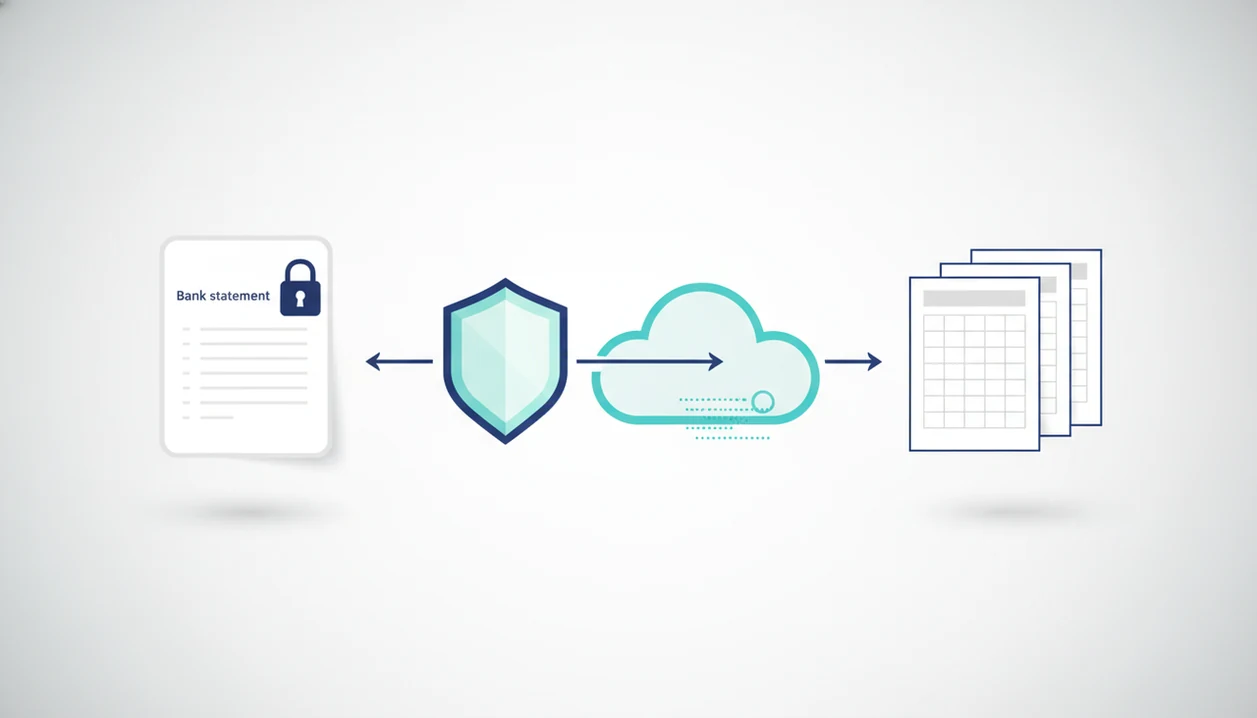
> A password protected bank statement PDF converter is a tool that accepts a locked bank statement PDF, decrypts it using the user-supplied password, extracts transaction data, and exports it to CSV, Excel, or QBO for accounting use.
- You must supply the correct open password, converters decrypt, not crack.
- Output quality varies by bank layout; always review exported files before importing into accounting software.
- Verify the service's privacy policy for encryption, retention period, and auto-deletion, marketing copy alone is not proof.
What a Password Protected Bank Statement PDF Converter Does
A password protected bank statement PDF converter accepts a locked statement, asks for the user-supplied password, and extracts transaction rows into CSV, Excel, or QBO. It is built for data extraction, not for permanently removing protection from the original PDF.
There are two common password situations. An open password blocks viewing until the correct password is entered. A permissions password may let the PDF open but restrict copying, printing, or export. The converter has to handle the relevant restriction before it can read the transaction table.
Bookkeepers, accountants, small businesses, and finance teams use this workflow when a client sends “client-amex-jan.pdf” or a bank portal downloads a secured monthly statement. The practical goal is an accounting-ready file with dates, descriptions, debits, credits, and balances.
For bookkeepers who need protected statement PDF to CSV output, the important fit is an upload flow that accepts the statement password and lets you review converted rows before import.
Five Facts About Converting Password Protected Bank PDFs
- A protected bank PDF may use an open password, a permissions password, or both; conversion depends on the type of restriction the file uses.
- Good converters let you enter the password at upload, then export transactions without retyping rows from the statement by hand.
- Conversion quality depends on the bank layout, statement period, table structure, and whether the PDF has a text layer or only scanned images.
- Privacy safeguards matter as much as format choice; ask about encryption, in-browser processing, server processing, retention, and deletion.
- “Supports thousands of banks” is a product claim, not a guarantee; Chase, Wells Fargo, and regional credit union layouts can still behave differently.
A small mismatch matters. One extra header row can shift every amount column.
If your priority is reducing manual entry from locked statements, Bank Statement Converter App covers the core workflow because it exports CSV, Excel, and QBO files from the same upload path. For a broader privacy checklist, compare it with a secure bank statement converter standard before sending client files.
How Password Protected Bank PDF Conversion Works
Password protected bank PDF conversion works by using the document password you provide, decrypting the PDF for processing, reading the table structure, and mapping transaction fields into a structured export. It should not brute-force, bypass, or guess the password.
After the file opens, the converter parses visible transaction data. Text-based PDFs can often be read through text-layer parsing. Scanned files require OCR, which converts images of letters and numbers into editable text. OCR helps with older statements, but it raises the risk of missed decimal points, broken dates, or split merchant names.
The mapping step is where accounting value appears. A good converted output separates date, description, debit, credit, and balance columns so the file can be checked in Excel or mapped on the QuickBooks import screen.
NIST SP 800-57 explains that encrypted data protection depends on key management and access control, so password handling and upload architecture matter: https://csrc.nist.gov/pubs/sp/800/57/pt1/r5/final. After extraction, the file should be purged from the server or never leave the browser, depending on the converter design.
How to Convert a Password Protected Bank Statement PDF to CSV
To convert a password protected bank statement PDF to CSV, gather the password first, upload the locked statement, choose the export format, and verify the converted rows before import. Do not treat conversion as finished until the output matches the original PDF.
- Locate the document password from your bank email, online banking portal, or bank-issued password formula.
- Upload the locked PDF to the converter and enter the password when prompted.
- Select CSV, Excel, or QBO based on your accounting software and review workflow.
- Review dates, descriptions, amounts, and balances against the original statement.
- Export the file and import it into QuickBooks, Xero, FreshBooks, or your bookkeeping tool.
- Delete local copies of the statement you no longer need, especially duplicate downloads.
That downloads folder fills up fast.
Small business teams trying to import locked bank history can use Bank Statement Converter App because the workflow moves from password entry to export format selection without a separate decryption utility. If you need a no-credential workflow, a bank statement converter without bank login is the right model.
When to Use a Protected Statement PDF to CSV Converter
Use a protected statement PDF to CSV converter when the statement is locked but the transaction history needs to become sortable, filterable, or importable. The strongest use cases are monthly bookkeeping, tax preparation, bank reconciliation, and bulk client cleanup.
A bookkeeper may need to convert twelve password-locked annual statements before preparing a tax packet. A restaurant manager between lunch rushes may only have a bank PDF, not a bank feed connection. Finance teams may need to match exported CSV rows against ledger entries during close.
Anyone dealing with several banks and several password formats should look for one workflow that supports different statement layouts and produces CSV, Excel, and QBO exports.
For accountants, protected PDF conversion is often safer than sharing bank logins because the client provides statements, not live account access.
What Bank PDF Password Conversion Looks Like in Bank Statement Converter App
Bank PDF password conversion in Bank Statement Converter App starts with the locked source file and password prompt in the upload flow. There is no separate “remove password” step before extraction.
Once opened, AI-powered table extraction maps transaction columns for dates, descriptions, debits, credits, and balances. The converted output can be exported as CSV, Excel, or QBO for accounting software import preparation. A user can open the CSV and check whether the first row is a header or the first transaction before moving forward.
Bank Statement Converter App processes uploads and deletes them rather than retaining files on servers. Good AI bank statement converter apps turn PDF statements into clean CSV, Excel, and accounting-ready files without storing uploads, not into a substitute for reviewing the original financial record.
Bank Statement Converter App is especially useful when a loan packet has statement PDFs from multiple banks spread across a boardroom table, because layout differences can be handled inside the same export workflow.
Privacy Safeguards for Bank PDF Password Conversion
Privacy safeguards for bank PDF password conversion should cover encryption, processing location, retention period, and deletion. A converter is handling names, addresses, account fragments, balances, deposits, withdrawals, and merchant history.
Consumers reported losing more than $10 billion to fraud in 2023, according to FTC data: https://www.ftc.gov/news-events/news/press-releases/2024/02/ftc-data-shows-consumers-reported-losing-more-10-billion-fraud-2023. IBM reported that the global average data breach cost reached $4.88 million in 2024 and that the average time to identify and contain a breach was 258 days: https://www.ibm.com/reports/data-breach. Those numbers make “auto-delete” worth verifying, not just noticing in a headline.
Ask four questions before upload: Is the file encrypted in transit? Is processing server-side or in-browser? How long is the source file retained? Is deletion automatic or manual?
Marketing pages often say “secure,” but privacy policies and technical documentation carry more weight. For a focused deletion review, compare the workflow against a bank statement converter that deletes files. Security researchers and NIST guidance generally emphasize that encryption depends on controlling access, not just labeling a file encrypted.
Password Protected Bank PDF Converter vs. PDF Password Removers
A password protected bank PDF converter extracts transaction data into CSV, Excel, or QBO. A PDF password remover strips or changes the PDF lock so the file opens without the same restriction.
| Tool type | Main purpose | Typical output | Accounting fit |
|---|---|---|---|
| Bank statement converter | Extract transaction data | CSV, Excel, QBO | Built for import preparation |
| PDF password remover | Remove document protection | Unlocked PDF | Not structured for bookkeeping |
| Generic PDF table tool | Pull visible tables | Spreadsheet or text | May need cleanup |
| Manual retyping | Enter rows by hand | Any format | Slow and error-prone |
The common myth is that password protected means locked forever. In reality, the correct password lets a converter open the source file for extraction.
The converter category is the right fit here because it creates accounting-ready exports, while utilities such as pdftables.com or convertcsv.com may require more manual cleanup depending on the statement.
Common Myths About Converting Protected Bank Statement PDFs
Myth: A password-protected PDF can never be converted. Reality: the correct password can unlock the statement for extraction, assuming the converter supports that password type.
Myth: CSV output is always perfectly accurate. Reality: unusual layouts, scans, watermarks across a transaction table, and merged cells can create broken rows or shifted columns.
Myth: “Deleted after conversion” means no data was ever stored. Reality: the file may still be processed temporarily on a server, unless the provider documents in-browser handling.
Myth: All converters handle all banks equally. Reality: accuracy varies by institution, template, scan quality, and statement period.
For finance teams, conversion quality usually depends more on source-file structure than on the export extension because the same bad extraction can appear in CSV, Excel, or QBO. If the statement is image-based, review a scanned bank statement to CSV workflow before assuming normal parsing will work.
Limitations
Password protected bank statement PDF converters are useful, but they are not magic document repair systems. Review the converted output before relying on it for accounting records.
- Wrong, missing, or forgotten passwords will prevent conversion entirely.
- Scanned or image-based PDFs require OCR and usually produce lower accuracy than text-based PDFs.
- Merged cells, multi-page tables, cropped footers, and unusual bank formatting can break columns.
- Converted files may lose notes, visual formatting, page numbers, or statement metadata from the original PDF.
- Bulk conversion can make it easier to miss per-file errors if each export is not reviewed separately.
- “No upload storage” and “instant deletion” claims should be verified in the privacy policy, not accepted from a landing page alone.
- Stronger document restrictions beyond a simple open password may not be supported by every converter.
- Competitors such as bankstatementconverter.com, bankstatementconverters.ai, and docparser.com may differ in password handling, retention wording, and export cleanup.