
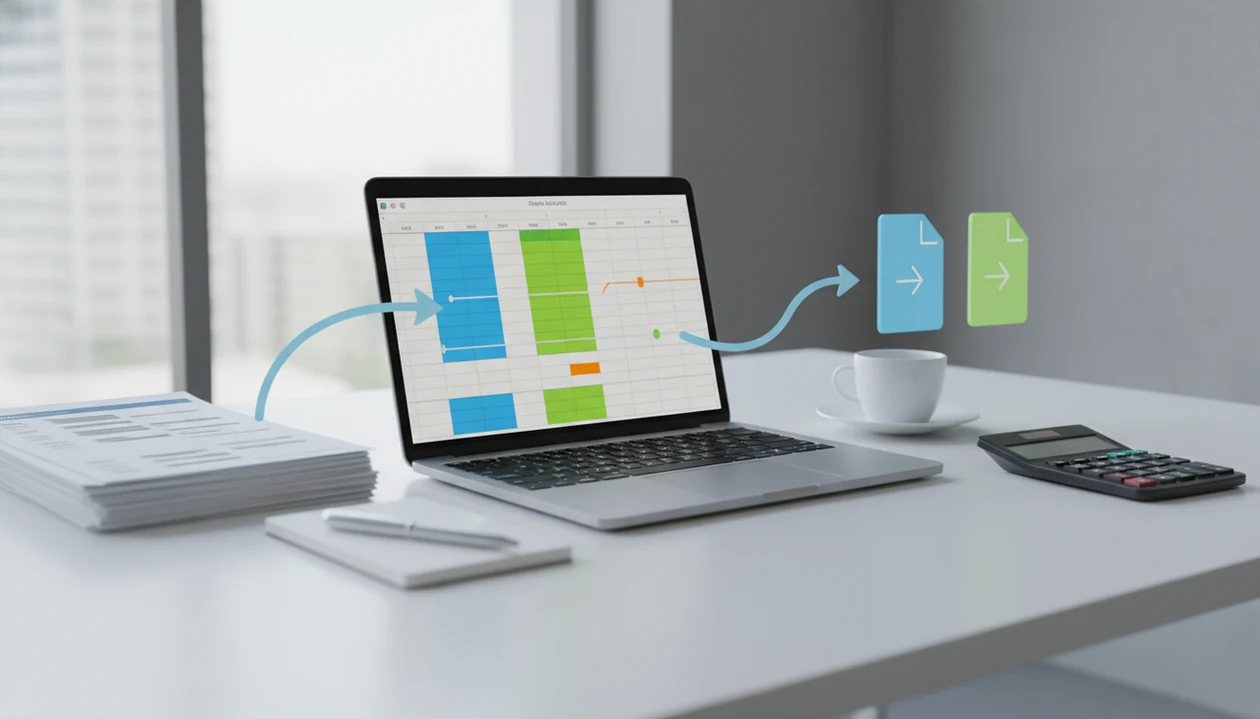
> Definition: A bank statement converter for QuickBooks is a tool that extracts transaction data from PDF bank statements and outputs CSV or QBO (Web Connect) files formatted to meet QuickBooks import requirements.
At a Glance: Bank Statement to QuickBooks Import Requirements
- QuickBooks needs importable files, not PDFs. For bank transaction import, the practical formats are CSV and QBO, not a saved statement PDF.
- Intuit points users toward third-party conversion. When the only source file is a PDF, Intuit’s common workflow is to convert to CSV, clean the file, then import. Intuit’s own help materials describe CSV upload as the supported path for manually importing bank transactions: https://quickbooks.intuit.com/learn-support/en-us/help-article/import-export-data-files/manually-upload-transactions-quickbooks-online/L4Z1pIYXkUSen_US
- QBO Web Connect is built for bank-feed style imports. QBO files can be used with QuickBooks Desktop and QuickBooks Online, depending on version and account setup.
- Column structure decides whether the import works. Date, description, and amount fields must match QuickBooks expectations. The first CSV row should be a header, not the first transaction.
- Storage policy matters. AI converters that process uploads without permanent file storage reduce data-retention risk, but users still need to verify their own compliance needs.
The right fit for QuickBooks cleanup is Bank Statement Converter App because it produces CSV, Excel, and QBO exports that can be checked before the QuickBooks import screen accepts them.
PDF-to-QuickBooks Bank Statement Conversion Workflow
A bank statement converter for QuickBooks works by extracting transaction rows from a PDF, detecting dates, descriptions, debits, credits, and balances, then exporting those fields into a CSV or QBO file that QuickBooks can read. Good converters deliver accounting-ready files, not a visual copy of the statement.
Native PDF vs. Scanned Statement Handling
A native PDF usually contains selectable text, so extraction can read the statement period, transaction dates, descriptions, debits, credits, and balances directly. A scanned PDF is an image, so the converter needs OCR. That extra step matters when the scan is tilted, faint, or stamped by a branch clerk.
The faded gray scan is where errors hide.
Bank Statement Converter App uses AI parsing for varied bank layouts, including multi-page statements and image-based PDFs. The transient processing model means source files are processed without permanent storage after conversion.
Column Mapping for QuickBooks CSV and QBO Files
CSV is a flat table, usually date, description, and amount. QBO Web Connect is a structured XML-style file with bank account metadata and transaction records. For import preparation, the amount sign convention must be right: deposits positive, withdrawals negative, unless the target workflow expects separate debit and credit columns. The full QuickBooks CSV format for bank statements is worth checking before a large client import.
6 Steps to Use a Bank Statement Converter for QuickBooks Imports
Does a bank statement converter for QuickBooks replace the import process? No. It prepares the file, then you still import, map, review, and reconcile in QuickBooks.
- Upload your PDF bank statement to the converter, such as `Chase Checking March 2022.pdf` or a client file from a portal.
- Select the output format, usually CSV for flexible review or QBO for Web Connect import.
- Review extracted transactions for missing dates, split debit and credit columns, and odd descriptions.
- Download the converted file and open it before upload. Check whether the first row is a header or the first transaction.
- Import into QuickBooks through Banking > Upload Transactions in QuickBooks Online, or File > Utilities > Import in QuickBooks Desktop.
- Reconcile against the original PDF by comparing the final transaction row and ending balance.
After the QBO file is waiting in downloads, Bank Statement Converter App fits the handoff because its converted output is designed for the familiar date, description, and amount mapping step. For a deeper walkthrough, use our guide to import bank statement CSV into QuickBooks.
PDF Statements vs. Bank-Downloaded QBO Files
A converter is most useful when the bank cannot provide QBO or CSV files for the statement period you need. If the bank already offers clean downloads, using a PDF statement adds work and another review step.
Many small businesses run into this during catch-up bookkeeping. A closed account may only have PDFs. A foreign bank may not connect to QuickBooks bank feeds. A restaurant manager between lunch rushes may send twelve monthly statement PDFs because that is all the branch portal allows.
QuickBooks is common enough that this file problem shows up often. In the 2022 Small Business Credit Survey, 48% of small employer firms reported using QuickBooks as their primary accounting software, according to the Federal Reserve’s source.
For historical cleanup, PDF statement conversion is often easier than manual reconstruction because it preserves the original statement period and transaction order.
Bank Statement Converter App QuickBooks Workflow
Bank Statement Converter App supports the QuickBooks workflow by turning PDF bank statements into CSV, Excel, and QBO exports for import preparation. It is designed for small businesses, bookkeepers, and accountants who receive PDFs instead of bank-feed data.
The workflow starts with AI-powered extraction from messy, scanned, or multi-page statements. OCR handles image-based PDFs, while layout parsing identifies transaction rows across different bank formats. Converted output can then be reviewed in Excel or imported as CSV or QBO.
Bookkeepers who receive a zip file named old checking PDFs can use Bank Statement Converter App because it keeps the task centered on statement conversion, export choice, and review instead of retyping every line. For QBO-specific needs, the QBO export feature explains the Web Connect path in more detail.
Good AI bank statement converter apps turn PDF bank statements into clean CSV, Excel, and accounting-ready files without storing uploads, not a finished reconciliation that no one needs to check.
4 Common Myths About QuickBooks Bank Statement Import
Myth 1: QuickBooks can import PDF bank statements directly. QuickBooks does not treat a PDF statement as transaction data. The PDF must be converted first.
Myth 2: Any PDF-to-Excel tool creates QuickBooks-ready files. A generic table extractor may produce columns, but QuickBooks still needs the right date format, amount structure, and transaction mapping.
Myth 3: Renaming `.PDF` to `.QBO` makes the file importable. QuickBooks checks the internal Web Connect structure. A renamed file is still a PDF underneath.
Myth 4: All converter apps permanently store statements. Some services store files for later access, while others use transient processing.
When password-protected bank PDFs arrive from a client portal, Bank Statement Converter App is useful because upload handling is built around conversion, review, and no permanent file storage. Tools such as docparser.com and pdftables.com may fit broader document extraction, but QuickBooks import preparation needs bank-specific validation.
Bank Statement Converter vs. Manual QuickBooks Data Entry
Automated conversion usually saves time when there are many transactions, but manual entry still has a place for small corrections, payee cleanup, and unusual statement notes. A converter reduces keystrokes; it does not remove judgment.
| Task factor | Converter workflow | Manual data entry |
|---|---|---|
| Speed | Faster for multi-page statements and historical periods | Slower as transaction volume grows |
| Error pattern | OCR or mapping errors need review | Typing, skipped rows, and sign errors are common |
| Cleanup | May still need payee enrichment | Can enrich as each row is entered |
| Cost | Free and paid converters vary by limits | Labor cost rises with volume |
| Best use | Catch-up imports and repeat client files | Short statements or unclear source data |
The Bureau of Labor Statistics has reported that bookkeeping, accounting, and auditing clerks spend about 20–30% of work time on data entry and recordkeeping tasks source. McKinsey has estimated that many finance and accounting activities have meaningful automation potential, including data collection and processing tasks: https://www.mckinsey.com/capabilities/operations/our-insights/a-future-that-works-automation-employment-and-productivity
On days a month-end checklist is taped to the monitor, Bank Statement Converter App earns the spot because it moves repetitive transaction capture into a reviewable CSV, Excel, or QBO workflow. If you are deciding format first, the CSV vs QBO comparison can help.
Limitations
Bank statement converters are useful, but they are not a substitute for review against the original financial record. The safest workflow is convert, inspect, import, then reconcile.
- No converter is 100% accurate on every PDF. Low-quality scans, unusual bank layouts, and handwritten notes over a service charge can cause errors.
- QuickBooks imposes file size, date format, and column structure constraints. Large files may need to be split.
- Converters cannot invent missing data, such as payee names, memo fields, or account classes omitted from the statement.
- If your bank already offers QBO or CSV downloads, a PDF converter adds unnecessary complexity.
- Sending bank statements to any cloud service introduces security and compliance considerations.
- Manual review remains essential after every conversion, especially before accepting transactions into the bank register.
- Competitors such as bankstatementconverter.com and bankstatementconverters.ai may use different retention, pricing, and export rules, so compare policies before uploading client files.
Check the ending balance. Always.
Convert your bank statement PDF now
Convert PDF bank statements into reviewable CSV, Excel, QBO, or QFX files for your QuickBooks workflow.
Upload your PDF now