
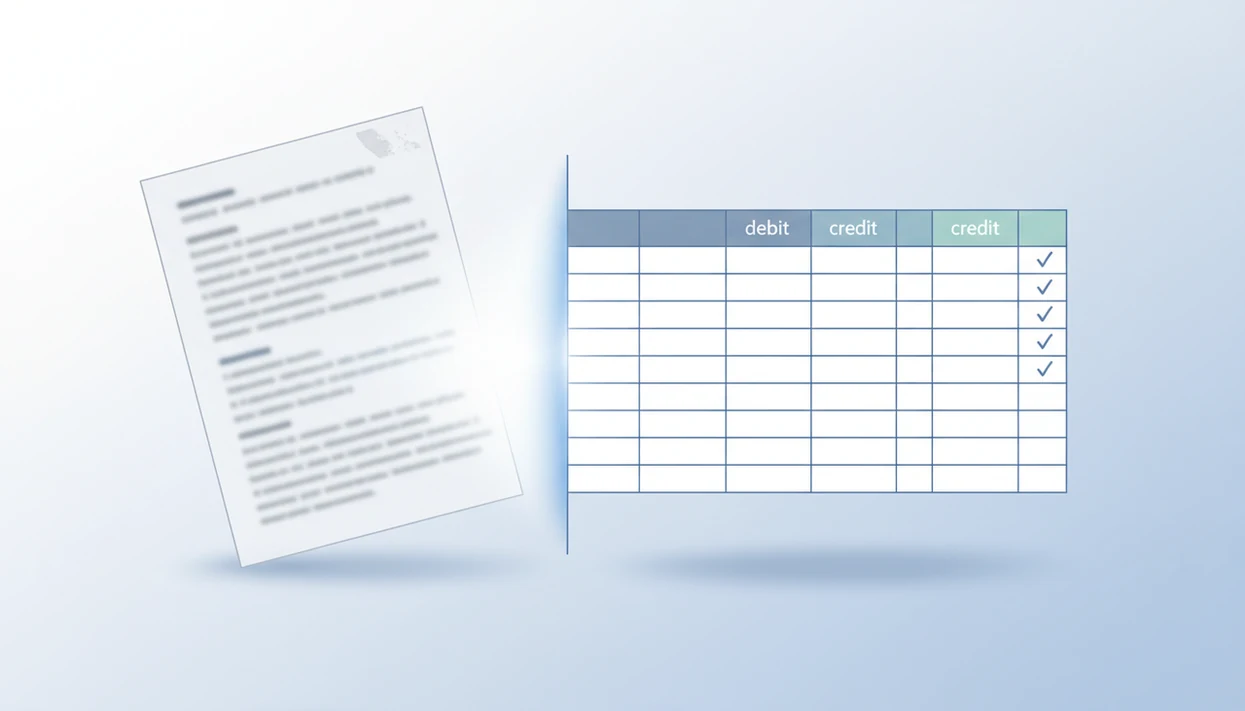
Definition: A scanned bank statement to CSV converter is a tool that uses optical character recognition (OCR) and AI-based structure parsing to extract transaction data from image-only PDF or photographed bank statements and output it as a clean, row-per-transaction CSV file.
5 Facts About Scanned Bank Statement to CSV Conversion
- Scanned statements need OCR and structure recognition. Image-only PDFs contain pixels, not selectable text, so a converter must first read characters and then rebuild transaction rows.
- Bank layouts are not stable. Chase, Wells Fargo, Bank of America, and regional banks use different columns, footers, and running balance styles. Those layouts also change without warning.
- OCR is not a substitute for review. Even when character accuracy is high on clean scans, validation against opening balance, closing balance, and transaction totals is still mandatory.
- Privacy is part of the workflow. Safer upload handling means encryption, in-memory processing where possible, and no long-term retention of uploaded statements.
- CSV output must be normalized. Dates, descriptions, debit and credit signs, and one-row-per-transaction structure all matter before import preparation.
A scanned PDF statement converter should produce an accounting-ready file, not a pile of copied text from page images.
What Bank Statement Converter App Does for Scanned Bank Statements
Bank Statement Converter App supports OCR bank statement extraction for image-only PDFs and photographed statements, then prepares the results for CSV, Excel, or QBO export. It is meant to turn scanned pages into reviewable transaction data, not to remove the need for checking the numbers.
A typical workflow looks like this:
- Upload your scanned PDF or clear statement photo so OCR can read the page image and detect transaction text.
- Review the previewed rows for dates, descriptions, debits, credits, and balances before you download anything.
- Choose the export format that fits the next step, whether that is CSV for spreadsheets, Excel for cleanup, or QBO for QuickBooks import preparation.
- Reconcile the output against opening balance, closing balance, row count, and large transactions.
- Verify accuracy yourself before importing into accounting software, because the app prepares structured data but cannot guarantee every OCR character, sign, or row judgment is correct.
That preview-and-review step matters most on photographed pages, faint scans, and older statements where headers, shadows, or folded paper can affect extraction.
What Makes Scanned PDF Statements Different From Native PDFs
A native PDF bank statement contains machine-readable text, while a scanned PDF is a flat image of the statement page. That single difference determines whether ordinary PDF extraction works.
Native PDFs often let you select a deposit line, copy the description, or search for a check number. Scanned statements do not. They come from branch scanners, phone photos, faxes, photocopies, or old archive systems. A generic PDF-to-CSV tool may return blank output or jumbled fragments because it is looking for embedded text that is not there.
OCR is the bridge. It converts pixel patterns into characters, then a parser decides whether “01/14,” “POS PURCHASE,” and “-43.18” belong in the same transaction row. If you are working with mixed native and scanned files, a dedicated bank statement OCR software workflow usually reduces manual sorting.
The blank file is a clue.
How OCR Bank Statement to CSV Conversion Works
OCR bank statement to CSV conversion works by improving the page image, recognizing characters, detecting the statement table, and then normalizing transactions into CSV columns. The OCR market was estimated at about 9.5 billion USD in 2022 and projected to exceed 32 billion USD by 2030, which reflects wider use of OCR in document workflows. Source: Grand View Research, Optical Character Recognition Market Size Report, https://www.grandviewresearch.com/industry-analysis/optical-character-recognition-market.
Image Preprocessing and Character Recognition
Preprocessing usually deskews tilted pages, removes noise, sharpens contrast, and separates text from background shadows. OCR engines perform best on clean, high-resolution scans. Published OCR evaluations often report very high character accuracy on clean printed text, but results vary sharply by scan quality and layout; see NIST OCR resources: https://www.nist.gov/itl/iad/image-group/optical-character-recognition-ocr.
We see this most clearly when a two-column statement on legal paper scans slightly crooked. The dates read correctly on page one, then the service charges drift into the wrong amount column on page two.
AI Layout Parsing for Bank Statement Tables
After OCR, layout parsing identifies headers, footers, transaction tables, running balances, and multi-line descriptions. Then normalization converts “Jan 3,” “01/03/24,” and “3-Jan” into one date format and assigns amounts to debit or credit columns.
Good AI bank statement converter apps that turn PDF bank statements into clean CSV, Excel, and accounting-ready files without storing uploads deliver structured extraction and validation support, not automatic bookkeeping judgment.
Requirements Before You Convert a Scanned Statement
Before conversion, prepare the source file so OCR has enough visual information to read it. A 300 DPI scan is the usual minimum recommendation for reliable OCR on bank statement text. For text-heavy documents, digitization guidelines commonly use 300 PPI or higher as a baseline for legible capture; see FADGI technical guidelines: https://www.digitizationguidelines.gov/guidelines/digitize-technical.html.
Use straight, uncropped pages. Avoid cut-off edges, dark shadows, and phone photos taken at a steep angle. If part of the transaction table is blurred, redacted, or physically missing, the converter cannot reconstruct it from context.
Keep the statement’s opening and closing balance nearby. You will need both after the converted output is ready. Common upload formats include PDF, TIFF, JPEG, and PNG, depending on the converter. For multi-page statements, PDF is usually easier to manage than separate image files named Statement (1).pdf and Statement (2).pdf.
A clean scan saves review time later.
How to Convert a Scanned Bank Statement to CSV
To convert an image bank statement to a spreadsheet, use an OCR workflow first, then validate the converted output before import. For bookkeepers, OCR conversion is often faster than manual entry because it creates rows for review instead of requiring every transaction to be typed from scratch.
- Scan or photograph your paper statement at 300 DPI or higher, keeping every page straight and fully visible.
- Upload the image-only PDF to an OCR bank statement converter that supports scanned files.
- Let the AI parse the layout and extract dates, descriptions, debits, credits, and balances.
- Review the preview against the original PDF, especially dates, amounts, and multi-line descriptions.
- Download the normalized CSV, Excel, or QBO export and reconcile totals before importing it into accounting software.
Tools like Bank Statement Converter App, Docparser, and PDFTables can fit different parts of this workflow, but the key test is whether scanned OCR and bank-specific table parsing are both supported.
Who Should Use a Scanned Bank Statement to CSV Converter
A scanned bank statement to CSV converter is best for teams that have real statement images but no clean bank feed or downloadable transaction file. It helps when the job is to create reviewable rows from paper, photocopies, image-only PDFs, or old archives.
The strongest fit is a bookkeeper processing client statements that arrived as scans instead of native PDFs. Accountants also use this workflow when they need CSV or QBO files for import review, cleanup, or handoff, while still checking balances before anything reaches the ledger. Small businesses benefit when they are rebuilding records from prior years, catching up after a messy period, or preparing a cleanup project from boxes of older bank paperwork.
Use this decision path before converting:
- Choose OCR conversion when the statement is scanned, photographed, or image-only and you need structured rows.
- Use a bank download when the bank still offers complete CSV, QBO, OFX, or QFX history for the same period.
- Enter transactions manually when there are only a few lines, the scan is badly damaged, or important amounts are cut off.
- Review the export when OCR is the right choice, because conversion saves typing but does not replace accounting judgment.
Common Mistakes When Converting Image Bank Statements to Spreadsheets
The most common mistake is using a PDF-to-CSV tool that does not include OCR. If the PDF is image-only, text extraction alone has nothing to extract.
Another mistake is skipping reconciliation. Open the converted CSV and check whether the first row is a header or the first transaction. Then compare high-value deposits, fees, and transfers against the original page. A highlighted deposit line on page three should land in the same amount column every time.
Low-resolution scans also cause trouble. So do skewed phone photos and compressed email attachments. Import errors create a second layer of risk, especially in the QuickBooks screen where date, description, and amount columns must be mapped before the file is accepted. If conversion fails often, the causes are covered in more detail in why bank statement conversion fails.
Price is not the security model. Architecture, encryption, and retention policy matter more than whether a tool is free or paid.
Verification Checklist After Scanned PDF Statement Conversion
After conversion, verify the CSV against the original statement before you import it. OCR-based capture has reduced manual keying error rates in controlled government data-entry workflows, but statement conversion still needs human review.
Use this checklist:
- Compare row count. Match the number of CSV transactions to the transaction count on the original statement.
- Check opening and closing balances. Recalculate whether the extracted transactions bridge the two balances.
- Review total debits and credits. Confirm that signs and debit/credit columns did not flip.
- Spot-check 3 to 5 high-value transactions. Verify date, description, and amount against the scanned page.
- Inspect date formats. Make sure every row uses the same format before Excel, QuickBooks, or ERP import.
- Look for duplicates. Page headers, footers, and carried-forward balances can be misread as transactions.
For accountants handling long statements, a multi page bank statement converter should still be paired with this checklist.
Myths About OCR Bank Statement Converters
Myth: Any PDF-to-CSV tool works on scanned statements. It does not. Scanned files need OCR before table extraction can begin.
Myth: OCR converters are set-and-forget. They are review tools, not final authority. Ending balances and transaction samples still need checking.
Myth: Free online converters are always less secure than paid ones. Security depends on encryption, upload handling, deletion timing, and retention practices. A paid tool with vague retention language is not automatically safer.
Myth: CSV output automatically matches your accounting software. QuickBooks, Excel, and other systems may expect different date formats, amount signs, or debit and credit columns.
When a statement includes handwritten notes over a service charge, OCR may read the annotation as part of the description. For harder layouts, a messy bank statement PDF to Excel workflow may be more practical before final CSV cleanup.
Limitations
OCR conversion is useful, but it has clear limits. Treat the converted output as a draft dataset until reconciliation is complete.
- OCR accuracy drops with low-resolution scans, angled photos, shadows, and heavy PDF compression.
- Complex statements with multiple accounts, investment sweeps, or foreign currency sections may need manual cleanup.
- No converter guarantees 100% correctness; human reconciliation is always required before accounting import.
- Cut-off, blurred, redacted, or physically missing information cannot be recovered by AI.
- Banks change PDF layouts without notice, which can temporarily reduce extraction accuracy.
- Handwritten notes, stamps, and annotations can confuse character recognition and row detection.
- Page headers, subtotals, and carried-forward balances may be mistaken for transactions on long statements.
- CSV files may still need mapping before QuickBooks accepts date, description, and amount fields.
Bank Statement Converter App can help convert scanned statements into CSV, Excel, and QBO exports, but users should still verify the converted output against the original PDF.
Convert your bank statement PDF now
Convert scanned bank statements into review-ready CSV files with Bank Statement Converter App. No bank login required, in-memory processing, and immediate file deletion after conversion.
Download Bank Statement Converter App