
CSV vs Excel Bank Statements for Bookkeeping Review
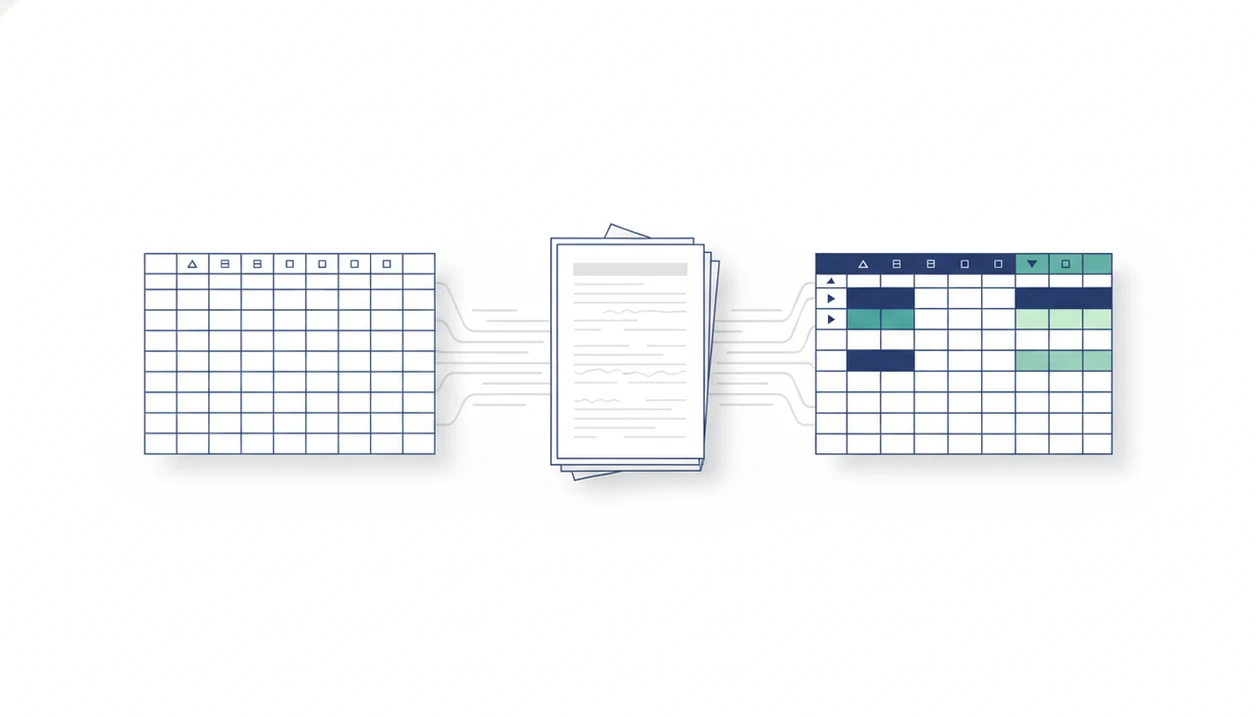
Choose CSV for accounting imports and Excel for human review: CSV vs Excel bank statements is mainly a downstream workflow decision, not a data-quality contest. CSV is usually safer for clean uploads, while Excel is better when you need formulas, filters, formatting, and reconciliation notes.
> Definition: Bank Statement Converter App is a bank statement converter that turns PDF bank statements into CSV, Excel, and QBO files for small businesses, bookkeepers, and accountants.
- Use CSV when the bank statement file needs to import into QuickBooks, accounting software, budgeting tools, databases, or bulk upload templates.
- Use Excel when a bookkeeper, accountant, or finance reviewer needs formulas, filters, highlighting, pivot tables, or multi-sheet working papers.
- For PDF statement conversion, export both when possible: treat CSV as the import file and Excel as the review file, then verify dates, totals, and transaction counts against the original PDF.
CSV vs Excel Bank Statements at a Glance
CSV is the safer default for imports because it is plain text and widely accepted by accounting systems. Excel is stronger for review because it supports formulas, filters, colors, multiple sheets, and notes.
| Comparison point | CSV bank statement | Excel bank statement |
|---|---|---|
| File structure | Plain-text rows and columns | .XLSX workbook with cells, sheets, and metadata |
| Import compatibility | Usually stronger for uploads | Depends on the platform |
| Cleanup effort | Needs strict column names | Easier to inspect and annotate |
| Human readability | Basic, especially in text editors | Better for filtering and review |
| Formulas | Not stored | Supported |
| Audit risk | Lower if kept unchanged | Higher if users edit cells |
| File safety | Simple structure, fewer hidden elements | Can contain hidden rows, formulas, or tabs |
Both formats can contain the same extracted transaction data, but they behave differently once opened. A CSV may import cleanly, while the matching Excel file helps explain why “client-amex-jan.pdf” had two service charges marked for review.
How CSV and Excel Bank Statement Formats Work
A CSV bank statement is a plain-text transaction table with rows, columns, delimiters, and usually one transaction per row. An Excel bank statement is an.XLSX workbook that can store cell types, formulas, formatting, filters, multiple sheets, and workbook metadata.
CSV does not remember colors, hidden rows, formulas, merged cells, comments, or multiple tabs. That simplicity is why import tools like it. Excel adds working-paper features, but it may also reinterpret dates, long numbers, currency symbols, leading zeros, and decimals depending on regional settings. Microsoft documents that Excel can change how imported CSV data displays, including leading zeros and long numbers, unless fields are imported or formatted carefully: https://support.microsoft.com/en-us/office/keeping-leading-zeros-and-large-numbers-1bf7b935-36e1-4985-842f-5dfa51f85fe7.
Small settings matter.
In reconciliation, structured transaction files let a reviewer compare the statement period, transaction count, and ending balance against the original PDF. Bank Statement Converter App supports that workflow because it can export the same source file into CSV, Excel, and QBO outputs, then let the user verify the converted output before import preparation.
CSV Bank Statement Imports for Accounting Software
CSV is usually the safer choice for accounting imports because it is lightweight, predictable, and easy for software to parse. Import screens tend to want clear fields, not workbook features.
- CSV files are accepted by many accounting, budgeting, analytics, and database tools.
- Import templates often expect columns such as Date, Description, Debit, Credit, Amount, Balance, and Account.
- CSV avoids Excel-specific issues such as hidden rows, formulas, merged cells, filters, and extra workbook tabs.
- The Federal Reserve’s 2016 Payments Study reported more than 117 billion U.S. ACH and card noncash payments in 2015, which shows why standardized electronic transaction data matters for reconciliation: https://www.federalreserve.gov/paymentsystems/2016-payments-study.htm.
- CSV is not automatically correct; mapping, totals, and transaction counts still need validation.
For bookkeepers who receive a cloud folder before deadline, Bank Statement Converter App fits the import job because it can create a clean CSV from a PDF statement and preserve the column structure needed by destination software. The detailed bank statement CSV format guide covers common import columns.
Excel Bank Statement Workbooks for Bookkeeper Review
Excel is often better for bookkeeper review because it gives humans room to inspect, mark, sort, and explain transaction data. A raw CSV can be accurate and still feel cramped during cleanup.
- Excel supports filtering by vendor, sorting by amount, and adding reconciliation notes beside transactions.
- Formulas, pivot tables, conditional formatting, freeze panes, comments, and multiple sheets help organize review work.
- Excel is easier to inspect than raw CSV text or a strict import template.
- A reviewed workbook can hold separate tabs for uncategorized expenses, duplicate checks, and questions for the client.
- Manual edits can change the working data, so the reviewed workbook should not be treated as untouched source data.
After a crooked scan is straightened on screen, the Excel file is where reviewers usually notice odd descriptions and missing balances. Bank Statement Converter App supports Excel review because its excel export creates a workbook that can be checked before any accounting upload.
CSV or Excel Bank Statements by Workflow
Should you choose CSV or Excel for bank statements? Choose CSV for import, choose Excel for review, and choose both when the workflow includes conversion, cleanup, and software upload.
Use CSV for QuickBooks imports, budgeting platforms, database loads, and bulk upload templates. Use Excel for accountant review, audit support, expense categorization, cash-flow analysis, and cleanup after PDF conversion. If the file must be accepted by QuickBooks Web Connect style workflows, QBO may be better than either CSV or Excel.
If you are unsure, use this rule: if another system will read the file first, choose CSV; if a person will inspect the file first, choose Excel. For QuickBooks-heavy teams, Bank Statement Converter App fits because it can output CSV, Excel, and QBO from the same PDF extraction workflow. A good AI bank statement converter should deliver accounting-ready files, not a decorative spreadsheet that still needs manual retyping.
CSV and Excel Bank Statement Export Workflow
A safe export workflow keeps the original PDF, the review workbook, and the import file separate. That reduces silent changes when a file moves from review to upload.
- Convert the original PDF statement into structured outputs such as CSV, Excel, and QBO.
- Open Excel for review and compare dates, descriptions, amounts, balances, and transaction counts against the PDF.
- Keep or create a clean CSV for import with the exact column names the destination system expects.
- Import into accounting software or upload to the target platform only after validation.
- Archive the original PDF, reviewed Excel workbook, and final import CSV using names like `Chase Checking March 2022 - reviewed.xlsx` and `Chase Checking March 2022 - import.csv`.
When month-end leaves a downloads folder full of `Statement (1).pdf` and `Statement (2).pdf`, Bank Statement Converter App helps because it can output clean CSV, Excel, and QBO files without storing uploads. For PDF-first work, start with convert bank statement PDF to CSV when the import file is the priority.
Bank Statement Spreadsheet Format Cleanup Issues
Spreadsheet cleanup issues usually come from small format differences that become large import errors. The converted output should always be checked against the original PDF before it enters accounting records.
- Date formats can flip meaning, especially MM/DD/YYYY versus DD/MM/YYYY, and Excel may reinterpret dates after opening a CSV.
- Thousand separators, decimal separators, currency symbols, negative signs, parentheses, and separate debit or credit columns can change how amounts are read.
- Leading zeros, account numbers, check numbers, and long IDs may be altered if Excel treats them as numbers.
- CSV delimiters vary by region, including comma, semicolon, and tab.
- Beginning balances, ending balances, totals, and transaction counts should match the source statement.
For accountants who process contractor files from a truck cab laptop, Bank Statement Converter App is useful because the review step can catch format drift before the import CSV is uploaded. For screen-by-screen import guidance, use the bank statement converter for QuickBooks workflow.
CSV and Excel Bank Statement Myths
Several CSV Excel comparison myths lead teams to pick the wrong bank statement spreadsheet format. The better question is what the file must do next.
Myth 1: Excel is always better than CSV. CSV is often better for accounting imports because it carries plain transaction data without workbook features.
Myth 2: CSV and Excel exports always behave identically. Dates, decimals, currency symbols, and long numbers can display differently after opening.
Myth 3: Excel removes the need for CSV. Many accounting imports still prefer CSV as the interchange format.
Myth 4: AI converters must store bank statement uploads. Secure conversion workflows can process files transiently, minimize retention, and keep the output focused on accounting-ready data.
If upload handling is the concern, Bank Statement Converter App fits privacy-conscious workflows because it is designed around converted outputs rather than long-term storage of sensitive source files.
Evidence Behind the CSV vs Excel Recommendation
The evidence supports a workflow recommendation: use CSV when software needs a plain transaction table, and use Excel when people need to review the file. It does not prove that either format makes converted bank data automatically accurate.
Accounting import behavior generally favors predictable rows and fields. CSV keeps the file close to an interchange table, which fits bulk upload screens and mapped columns such as date, description, and amount. Federal Reserve payment research also shows the scale of electronic transaction activity that must be reconciled, which is one reason consistent structured data matters. On the other side, Microsoft’s own guidance warns that spreadsheets can reinterpret CSV content, including dates, long numbers, and leading zeros, if fields are opened or formatted casually.
A practical control sequence is simple:
- Export a clean CSV for the destination accounting system.
- Open an Excel workbook for review, not as the untouched source.
- Check dates, totals, transaction counts, leading zeros, and long IDs against the PDF.
- Use filters, notes, highlighting, and formulas to explain exceptions.
- Upload only the validated CSV or QBO file.
Excel helps humans catch reconciliation problems; validation still has to happen.
Limitations
CSV and Excel are useful formats, but neither one removes the need for review. Automation can reduce manual cleanup, yet it cannot turn a poor source file into guaranteed accounting data.
- CSV cannot store formulas, colors, comments, formatting, multiple sheets, pivot tables, or review notes.
- Excel can introduce errors through manual edits, hidden rows, accidental formulas, filters, and changed cell types.
- OCR and AI extraction can make mistakes with low-quality scans, non-standard layouts, handwriting, watermarks, or unusual bank formats.
- Regional date formats, delimiters, decimal separators, and currency symbols can cause import errors.
- Neither CSV nor Excel replaces reconciliation against the original PDF or official bank records.
- The 2018 AFP Payments Fraud and Control Survey reported broad exposure to attempted or actual payments fraud, including checks and ACH debits, which supports careful review of converted transaction files: https://www.afponline.org/publications-data-tools/reports/survey-research-economic-data/Details/2018-payments-fraud-and-control-survey-report
- McKinsey has estimated that many finance activities can be partly automated, but conversion output still needs verification before it becomes accounting record data: https://www.mckinsey.com/capabilities/operations/our-insights/the-next-acronym-you-need-to-know-about-rpa
Competitors such as docparser.com, pdftables.com, and bankstatementconverters.ai may handle some conversions well, but users should still compare deletion practices, export formats, and validation steps.
FAQ
Is CSV or Excel better for bank statements?
CSV is better for imports into accounting software and upload templates. Excel is better for review, formulas, filters, and reconciliation notes.
Can Excel open CSV bank statement files?
Yes, Excel can open CSV bank statement files. It may reinterpret dates, long numbers, decimals, and leading zeros, so check the result before saving.
Do banks export CSV files for statements?
Many banks offer CSV downloads for transaction activity or statements. Availability, date range, and column structure vary by bank.
What is a CSV bank statement?
A CSV bank statement is a plain-text transaction table with rows and separated columns. It usually stores one transaction per row.
What is an Excel bank statement?
An Excel bank statement is transaction data stored inside an.XLSX workbook. It can include filters, formulas, formatting, comments, and multiple sheets.
Which bank statement format imports into QuickBooks?
CSV is commonly used for QuickBooks imports. QBO may be required or preferred for some QuickBooks Web Connect workflows.
Can CSV bank statement files contain formulas?
CSV files cannot store formulas, formatting, colors, comments, or multiple worksheets. They store plain text values separated into rows and columns.
Should I export bank statements as both CSV and Excel?
Export both when you need review plus import. Use Excel to verify the data, then use CSV or QBO for the final upload.