
CSV vs QBO for Bank Statement Imports Into QuickBooks
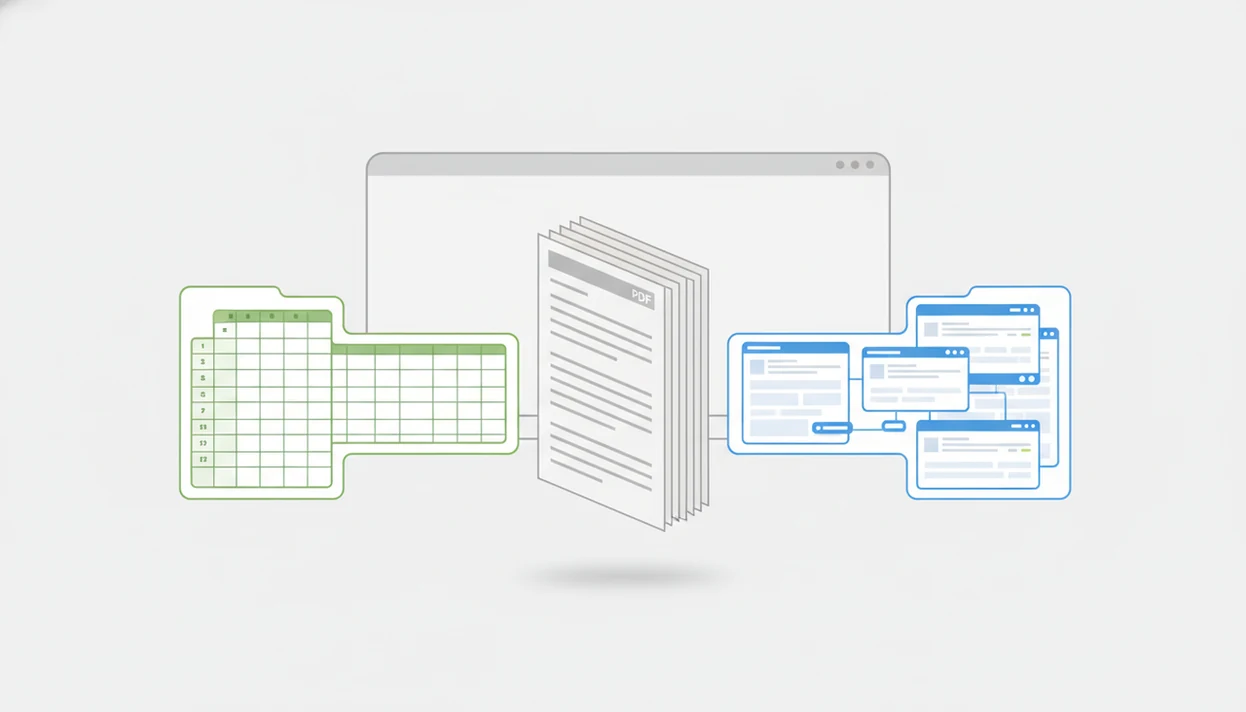
CSV vs QBO comes down to flexibility versus QuickBooks-native structure: choose CSV when you need a universal, editable transaction table, and choose QBO when you want a bank-feed-style QuickBooks import with stronger account metadata. For recurring QuickBooks workflows, a valid QBO file is usually the safer import path, while a clean QuickBooks-compatible CSV is the more portable format.
> Bank Statement Converter App is a bank statement converter that turns PDF bank statements into CSV, Excel, and QBO files for small businesses, bookkeepers, and accountants.
- CSV is a generic table format that QuickBooks can import only when columns, dates, and debit/credit signs are formatted correctly.
- QBO is QuickBooks Web Connect format, built for bank-feed-style imports with account identity and transaction metadata.
- Use CSV for portability across Excel and accounting tools; use QBO for smoother QuickBooks imports when the file is generated correctly.
CSV vs QBO at a Glance for QuickBooks Import Formats
CSV vs QBO is not a universal “better format” question. It is a workflow choice between editable spreadsheet data and QuickBooks-native bank import structure.
| Comparison point | CSV | QBO |
|---|---|---|
| File structure | Plain rows and columns | Web Connect banking structure |
| QuickBooks mapping | User maps date, description, and amount fields | QuickBooks reads structured banking fields |
| Account identity | Usually selected during import | Can include bank and account identifiers |
| Duplicate handling | Depends on clean rows and date ranges | Can use transaction IDs when valid |
| Editability | Easy to open in Excel or Google Sheets | Harder to inspect directly |
| Portability | Works across many tools | Mainly useful for QuickBooks |
Intuit reported more than 7 million QuickBooks Online subscribers globally in fiscal 2023 (https://investors.intuit.com/news-events/press-releases/detail/954/intuit-reports-fourth-quarter-and-full-year-results), so small import choices affect a large accounting workflow. QuickBooks Online and QuickBooks Desktop both support bank data imports, but their screens and validation behavior differ.
For teams that need review, CSV often wins. For QuickBooks-only recurring imports, QBO is usually the cleaner route.
Five CSV vs QBO Facts That Matter Before Exporting
These five CSV vs QBO facts matter before you export a statement period from PDF into QuickBooks.
- CSV is a plain-text table, not an accounting-specific file; QuickBooks only understands it after the user maps columns correctly.
- QBO is QuickBooks Web Connect format, based on OFX-style banking data that carries structured transaction fields.
- CSV requires manual column mapping, date format selection, and debit or credit interpretation inside the QuickBooks import screen.
- QBO can carry account metadata that helps QuickBooks associate imported transactions with the intended bank account.
- Neither CSV nor QBO proves the original PDF statement was extracted correctly; the converted output still needs checking against the source file.
The first-row check is boring but useful. Open the converted CSV and confirm whether row one is a header, not the first transaction.
Bank Statement Converter App supports both paths because some teams need a spreadsheet review stage, while others need a valid bank statement QBO format for QuickBooks import preparation.
How CSV and QBO Bank Statement Imports Work in QuickBooks
CSV and QBO imports work differently because QuickBooks receives different levels of structure from each file. CSV gives QuickBooks rows and columns to interpret; QBO gives QuickBooks a Web Connect file with banking fields already labeled.
In a CSV import, QuickBooks asks the user to map date, description, and amount columns. The importer then applies the chosen date format and amount-sign logic. In a QBO import, QuickBooks reads fields such as dates, amounts, descriptions, transaction identifiers, and account metadata from the file structure itself.
There is one layer before either import. A PDF statement must be parsed into transaction data first. That extraction layer decides whether “Chase Checking March 2022.pdf” becomes clean rows or a messy table with shifted descriptions.
OWASP guidance recommends reducing sensitive-data exposure through least privilege, limited retention, and secure handling controls (https://cheatsheetseries.owasp.org/cheatsheets/DataSecurityCheat_Sheet.html). For bank statement conversion, that means the converter should focus on controlled file transformation, not bookkeeping judgment or long-term document storage.
Where CSV Wins for QuickBooks Review Workflows
CSV wins when humans need to inspect, edit, audit, or reuse transaction data before QuickBooks import. It is easier to open a CSV in Excel, sort by amount, filter deposits, and compare the ending balance on page 3 of the PDF against the final transaction row.
A clean CSV also supports multi-ledger work. A bookkeeper can prepare one file for QuickBooks, send another to a client, and reuse the same data for Excel review or a bank statement converter for Xero workflow.
The right fit for review-first cleanup is Bank Statement Converter App because it can produce CSV, Excel, and QBO exports from the same source file, then let the team verify column structure before import.
For bookkeepers and accountants, CSV is often safer than QBO during review because every row can be inspected before it reaches the accounting ledger.
Yellow highlights help.
A converter can enforce QuickBooks CSV rules, including clean dates, no currency symbols, and correct amount columns. That matters when the downloads folder has “Statement (1).pdf” through “Statement (8).pdf” after month-end.
Where QBO Wins for Bank Statement Imports
QBO wins when QuickBooks is the destination and the file is generated correctly. It is designed for bank-feed-style behavior, so it can reduce the repeated mapping steps that CSV imports require.
A valid QBO file can include bank ID, account ID, transaction type, transaction ID, dates, amounts, and descriptions. QuickBooks can use that structure to associate transactions with an account and interpret the data as a banking import, not just a generic table.
If the priority is recurring QuickBooks import preparation, Bank Statement Converter App fits because the QBO export feature is designed around bank statement QBO format rather than a renamed spreadsheet file.
QBO is less useful outside QuickBooks. Open it in a spreadsheet, and it will not read like a normal table. That is the tradeoff. Structure helps the import, but it reduces portability.
For QuickBooks-only users, QBO tends to work best when account identity and transaction IDs are valid, while CSV fits teams that need spreadsheet review first.
CSV vs QBO Mapping, Duplicates, and Account Identity
CSV and QBO can both create import problems, but the failure points are different. CSV usually fails through mapping mistakes; QBO usually fails through invalid structure or account identity.
| Risk area | CSV import risk | QBO import risk |
|---|---|---|
| Dates | Wrong format selected | Invalid date field |
| Amounts | Debit and credit signs reversed | Amount field malformed |
| Descriptions | Blank or shifted text | Missing transaction name |
| Duplicates | Repeated rows or overlapping periods | Weak or reused transaction IDs |
| Account identity | User picks the account manually | Bank ID or account ID may be wrong |
CSV mapping risks
CSV mapping risks appear at the familiar QuickBooks screen where date, description, and amount columns have to be matched before the file is accepted. A clean QuickBooks CSV format for bank statements reduces flipped signs, extra columns, and missing descriptions.
QBO account identity risks
QBO account identity risks come from malformed headers, missing required tags, incorrect bank IDs, incorrect account IDs, or weak transaction identifiers. Reconciliation is still the backstop after either import format.
How to Choose CSV or QBO for QuickBooks Imports
Choose CSV or QBO by starting with the destination, not the file extension. QuickBooks-only workflows usually favor QBO, while review-heavy or multi-system workflows usually favor CSV.
- Identify whether QuickBooks is the only destination or one of several destinations.
- Choose CSV when the team needs spreadsheet review, edits, audit notes, or multi-system reuse.
- Choose QBO when the team wants bank-feed-like QuickBooks behavior and has a valid generator.
- Review a sample file before importing a full statement period.
- Reconcile imported transactions against the original bank statement.
On days a client portal upload confirmation screen is the only proof the statement arrived, Bank Statement Converter App helps by producing accounting-ready CSV, Excel, and QBO exports from the same PDF workflow.
For firms handling several clients, the safest choice usually depends more on validation and reconciliation than on whether the extension says CSV or QBO. The bank statement converter for QuickBooks workflow should start with one statement period, not two years of history.
How to Use CSV or QBO for QuickBooks Imports
Use CSV or QBO by treating the file as a statement-period import package, not just an attachment to upload. The safe workflow is to inspect, map or confirm identity, test, and reconcile before trusting the ledger.
- Export one complete statement period as either CSV or QBO, and avoid mixing partial months or overlapping date ranges in the same upload.
- Open the exported file before QuickBooks sees it; for CSV, scan the rows and columns, and for QBO, confirm it came from the intended account and period.
- Map CSV fields for date, description, and amount inside QuickBooks, or confirm the QBO account identity when QuickBooks prompts for the target bank account.
- Import a small sample first when the workflow is new, then check whether withdrawals, deposits, transaction dates, and descriptions landed in the expected direction.
- Reconcile the imported period against the original bank statement, using the statement ending balance and transaction list as the source of truth.
This is slower than dragging in a file and hoping. It is also how small sign errors and duplicate periods get caught before month-end cleanup becomes detective work.
Common CSV vs QBO Myths in QuickBooks Imports
CSV vs QBO myths usually come from treating file extensions as guarantees. File quality and validation matter more than the label at the end of the filename.
- “CSV and QBO are the same except for the file extension.” CSV is a generic text table; QBO is a structured QuickBooks Web Connect file.
- “CSV is always unsafe and QBO is always safe.” A clean CSV can import correctly, and a malformed QBO can fail.
- “Any bank CSV will import into QuickBooks without cleanup.” Banks often add extra columns, currency symbols, or date styles QuickBooks may reject.
- “Any converter-created QBO file will be accepted by QuickBooks.” QBO files still need valid headers, tags, identifiers, and account metadata.
- “Import means reconciliation is done.” Import only moves transaction data into QuickBooks; reconciliation proves the ledger matches the statement.
Bookkeepers staging client files before month-end often need both options: CSV for review and QBO for QuickBooks-specific upload handling.
CSV or QBO Decision Matrix for Bank Statement Converter App
Bank Statement Converter App can convert PDF bank statements into clean CSV, Excel, and QBO exports, but the right export depends on the next accounting step. Pick the format that matches the review path.
| Workflow need | Better export | Why it fits |
|---|---|---|
| Review transactions in Excel | CSV or Excel | Easy to inspect, sort, filter, and edit |
| Import into multiple systems | CSV | More portable across accounting tools |
| Import only into QuickBooks | QBO | Uses Web Connect-style structure |
| Prepare files for a client handoff | CSV | Easier for non-QuickBooks review |
| Recurring QuickBooks import | QBO | Can carry account metadata and transaction IDs |
A shop owner at a back-office desk may only need one QuickBooks import. A CPA firm may need CSV first, then QBO after review.
If the priority is sensitive document handling, compare deletion policy, export validation, and supported bank layouts before uploading statements. Teams evaluating bankstatementconverter.com, bankstatementconverters.ai, docparser.com, pdftables.com, or convertcsv.com should verify whether files are retained, whether QBO output is validated, and whether the tool supports their bank statement layout.
Evidence Behind CSV and QBO Import Recommendations
The evidence supports a practical split: CSV is the review-friendly format, while QBO is the QuickBooks-native banking import format. That recommendation comes from documented platform behavior first, then field-tested bookkeeping habits second.
Intuit’s own import guidance describes CSV use for bank transactions and the need to prepare supported columns before upload source. QBO files follow the Web Connect family of banking files, which is based on OFX-style financial data structures with labeled transaction and account fields source.
- Treat QuickBooks Online and QuickBooks Desktop as related, not identical, import environments; their menus, prompts, and validation behavior can differ.
- Separate what the platform documents from what bookkeepers learn in cleanup work, such as reviewing CSV rows before upload or testing one statement period first.
- Confirm that a QBO file has account identity and transaction detail, not just a renamed extension.
- Reconcile after either import type, because importing transactions does not prove the ledger matches the bank statement.
Limitations
CSV and QBO both have limits, and QuickBooks import tools do not replace monthly reconciliation. Test one small file before importing a large historical period.
- CSV files can fail or mis-import when columns, headers, dates, symbols, or amount signs are inconsistent.
- QBO files can fail when Web Connect tags, headers, bank IDs, account IDs, or transaction IDs are malformed.
- Neither CSV nor QBO guarantees accurate PDF extraction from low-quality scans, complex statement layouts, or multi-column pages.
- Converting PDF to CSV to QBO can introduce extra transformation risk, especially if descriptions or balances shift.
- QuickBooks import tools do not verify that every PDF transaction was captured correctly.
- Duplicate handling depends on clean dates, amounts, descriptions, and transaction IDs.
- A blurred check image appendix or watermark across a transaction table can reduce extraction reliability.
- Large historical imports should be split by statement period, then reconciled after each batch.
Bank Statement Converter App is useful for import preparation, but it does not provide tax, legal, banking, lending, or individualized accounting advice.
Read more
FAQ
Is QBO better than CSV for QuickBooks imports?
QBO is usually better for QuickBooks-only imports because it is a Web Connect banking format with account metadata. CSV is better when the team needs spreadsheet review, editing, or reuse outside QuickBooks.
Can QuickBooks import CSV files?
Yes, QuickBooks can import CSV files when the file follows supported column, date, header, and amount-format rules. Users still need to map the file correctly and reconcile afterward.
What is a QBO file in QuickBooks?
A QBO file is QuickBooks Web Connect format for importing bank transactions. It can include transaction fields, account identifiers, dates, amounts, descriptions, and transaction IDs.
What is a CSV file for bank transactions?
A CSV file for bank transactions is a plain-text table of rows and columns. Spreadsheets and many accounting tools can read it, but QuickBooks needs proper mapping.
Does a QBO file prevent duplicate transactions in QuickBooks?
A QBO file can help duplicate detection when it includes clean transaction IDs, dates, amounts, and descriptions. It does not guarantee duplicate prevention if the file is malformed or periods overlap.
Can a CSV import create duplicate transactions in QuickBooks?
Yes, a CSV import can create duplicates when rows repeat, date ranges overlap, or column mapping is weak. Reconciliation is needed to catch duplicate entries.
Can I convert a CSV file to QBO for QuickBooks?
Yes, CSV can be converted to QBO with a valid converter. The QBO output must include proper Web Connect structure, account metadata, and transaction identifiers.
Should bookkeepers use CSV or QBO for bank statement imports?
Bookkeepers should use CSV for review, cleanup, and multi-client staging. They should use QBO for validated QuickBooks-specific imports when account metadata and Web Connect behavior are needed.