
QuickBooks CSV Format For Bank Statements And Imports
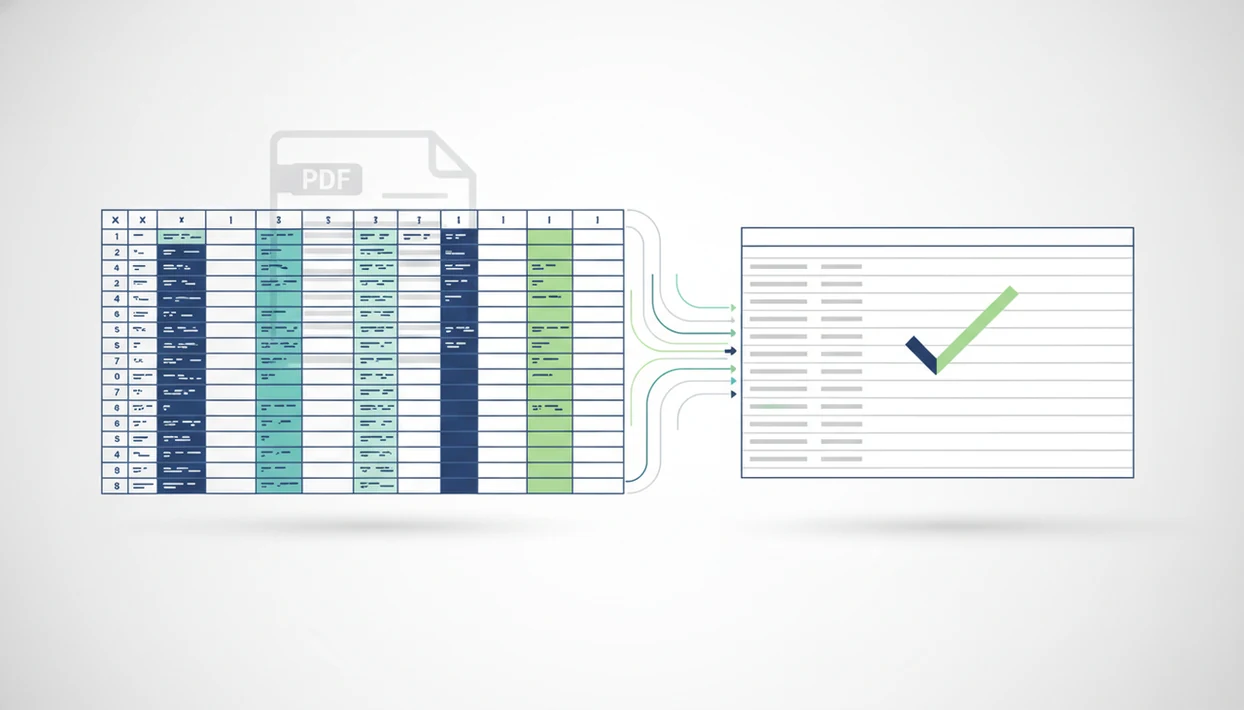
QuickBooks CSV format for bank statements is a clean transaction file that QuickBooks can map to fields like Date, Description, and Amount before import. The safest layout uses a header row, consistent date formatting, clear descriptions, and either one signed amount column or separate debit and credit columns.
> Definition: A QuickBooks bank statement CSV is a spreadsheet file of bank transactions prepared so QuickBooks Online can map each row into an account feed or import review screen.
TL;DR
- QuickBooks Online can import CSV bank transactions, but you still need to map the columns correctly.
- QuickBooks Desktop usually relies on QBO/Web Connect for bank transaction imports, so CSV may need conversion first.
- Check dates, signs, duplicates, account selection, and debit/credit logic before importing converted statement files.
QuickBooks CSV Format For Bank Statements: Required Fields
A QuickBooks bank statement CSV needs transaction rows that can be mapped to accounting fields, not a universal template copied from every bank. QuickBooks does not use one fixed bank statement CSV format for every import path, bank, or product version.
The practical minimum is usually Date, Description, and Amount. Some files use separate Debit and Credit columns instead of one signed amount column. Intuit’s QuickBooks Online support documentation describes manual bank-transaction uploads as a mapped import and lists CSV layouts using Date, Description, Amount, or separate money-in and money-out columns: source. The import screen matters more than the spreadsheet label, because that is where you connect each column to QuickBooks fields.
Open the file first. We often check whether row 1 is a real header or the first transaction, especially with exports named `Statement (1).pdf` or `Chase Checking March 2022.csv`. For Online workflows, the detailed upload flow is covered in our guide to import bank statement CSV into QuickBooks.
Five QuickBooks Bank Import Format Facts
- QuickBooks Online accepts mapped CSV bank transactions. It reads the file, then asks you to map columns such as Date, Description, and Amount.
- QuickBooks Desktop is different. Desktop bank transaction workflows commonly rely on QBO/Web Connect files, so a CSV may need conversion before import.
- Headers reduce mistakes. A clear first row helps you spot Date, Description, Amount, Debit, and Credit before the mapping screen.
- There is no single bank CSV standard. A Chase export, a Wells Fargo download, and a converted PDF can all use different column structures.
- Import review is still required. Check duplicates, sign conventions, and account assignment after upload.
For bookkeepers, a mapped CSV is often easier than manual entry because the transaction dates and descriptions stay in rows that can be filtered before import. Still, the quiet office after payroll cutoff is not the time to trust a file without scanning the final balance.
How QuickBooks CSV Columns Work During Import
QuickBooks CSV import works by reading spreadsheet rows and asking the user to connect each column to an accounting field. The technical step is column mapping, which simply means telling QuickBooks which spreadsheet column contains the date, payee text, and money amount.
A Date column becomes the transaction date. A Description column becomes the bank text used for matching and categorization. A single Amount column is usually interpreted as positive for deposits and negative for withdrawals, depending on the selected mapping. Separate Debit and Credit columns split money out from money in.
CSV import does not make the transactions fully categorized or reconciled. Most imported rows still move into a review workflow, where they must be matched, excluded, or assigned to categories. The familiar QuickBooks import screen makes this plain: date, description, and amount columns must be mapped before the file is accepted.
QuickBooks Online CSV Format Versus QuickBooks Desktop Import Format
QuickBooks Online supports CSV bank transaction import with column mapping, while QuickBooks Desktop workflows commonly require QBO/Web Connect files for bank transactions. This difference matters before you spend time cleaning a CSV.
For Desktop workflows, Intuit’s Web Connect guidance centers on importing downloaded bank files in .QBO format, which is why a plain CSV often has to be converted before Desktop bank-feed import: source.
| Workflow | Typical file type | Mapping | Typical use case |
|---|---|---|---|
| QuickBooks Online bank import | CSV | User maps Date, Description, and Amount | Uploading bank transactions for review |
| QuickBooks Desktop bank feeds | QBO/Web Connect | File carries bank-feed structure | Importing bank activity into Desktop |
| CSV-to-QBO conversion | CSV source, QBO output | Converter preserves fields for Desktop | When a CSV must become Web Connect |
A CSV-to-QBO conversion is needed when the target QuickBooks workflow does not accept your bank statement CSV directly. The CSV vs QBO distinction is worth checking before you prepare a month of files from a shared cloud folder before deadline.
Before You Start: QuickBooks CSV Import Requirements
Before you prepare a QuickBooks CSV import, confirm the product, source file, amount structure, date range, and destination bank account. These checks prevent the common mess: a clean-looking spreadsheet uploaded to the wrong workflow or account.
- Confirm whether the file is headed for QuickBooks Online or QuickBooks Desktop. Online can use mapped CSV bank imports, while Desktop bank-feed work may require QBO/Web Connect instead.
- Save an untouched copy of the original bank statement before converting, editing, or sorting anything. If the CSV later looks wrong, that file is your reference point.
- Choose either one signed Amount column or separate Debit and Credit columns. Do not mix both approaches unless the import screen specifically expects it.
- Compare the statement dates with the period you plan to import, including the first and last transaction rows.
- Unlock any password-protected PDF before conversion or extraction, then identify the exact QuickBooks bank account before uploading the CSV.
How To Use A Bank Statement CSV QuickBooks Import
Use a bank statement CSV QuickBooks import by preparing the source file, checking the spreadsheet, then mapping columns inside QuickBooks. Review before upload, because a clean-looking CSV can still carry reversed signs or duplicate rows.
- Export transactions from your bank when a CSV is available.
- Convert PDF bank statements into CSV, Excel, or QBO where needed.
- Open the converted output and verify the header row, dates, descriptions, and amounts.
- Map Date, Description, and Amount, or Debit and Credit, in the QuickBooks import screen.
- Review imported rows for duplicates, account selection, and category suggestions before accepting them.
Bank Statement Converter App is a bank statement converter that turns PDF bank statements into CSV, Excel, and QBO files for small businesses, bookkeepers, and accountants. Use the converted file as a preparation file, not the final authority: compare the first transaction, last transaction, and ending balance against the original bank statement before importing into QuickBooks. Good AI bank statement converter apps turn PDF bank statements into clean CSV, Excel, and accounting-ready files without storing uploads, not finished books that no one needs to review. For QuickBooks-specific PDF workflows, a bank statement converter for QuickBooks can be useful.
Date, Description, Debit, Credit, And Amount Column Mapping
Choose one amount column or separate debit and credit columns based on how the source statement is structured. The goal is not to make the file look tidy; it is to keep deposits and withdrawals from reversing during import.
Single amount column
A single Amount column usually uses signed values. Money out is commonly negative, and money in is positive. A row for `-84.19` should import as an outflow, while `2500.00` should import as a deposit. Mixed signs are a problem. One positive withdrawal hidden near the bottom can turn a payment into income.
Separate debit and credit columns
Separate Debit and Credit columns put outflows in one column and inflows in another. This can be easier when the PDF statement already separates charges and deposits. Keep descriptions readable enough for matching later, not just short codes from the bank. Comparing the ending balance on page 3 of the PDF against the final Excel row catches many quiet errors.
Common QuickBooks CSV Format Myths
- Myth 1: QuickBooks has one universal CSV bank statement template. Fix it by preparing columns that match the import screen, not a random sample file.
- Myth 2: Any CSV imports directly into QuickBooks Desktop. Fix it by using QBO/Web Connect where Desktop requires it, or by using a qbo export workflow.
- Myth 3: CSV import cleans and categorizes everything. Fix it by reviewing matches, exclusions, and categories after the rows enter QuickBooks.
- Myth 4: Date and amount formatting does not matter. Fix it by using one consistent date style and one clear amount convention.
We see this most often with `client-amex-jan.pdf` converted twice, once into Excel and once into CSV. The rows look similar, but one file has credits as positive values and the other has a blank credit column. Small difference. Large cleanup.
QuickBooks Bank Statement CSV Verification Checklist
“Is my bank statement CSV ready for QuickBooks?” It is ready only after you verify headers, dates, signs, transaction range, duplicates, and the target account.
Check the header row first. Then confirm one date format across the whole statement period. Review amount signs or debit/credit placement, especially refunds and transfers. Match the first and last transaction rows against the source statement, not just the downloaded filename. Look for duplicates created by bank feeds that already contain the same activity. Finally, confirm the QuickBooks account selected during import.
Clean banking data matters because online banking is now routine. Pew found that 76% of U.S. adults used online banking in the prior 12 months, and 41% used online banking websites or apps daily or almost daily in 2024 source. More downloads means more files named `Statement (2).pdf`.
Limitations
CSV import and PDF-to-CSV conversion can speed preparation, but they do not replace bookkeeping review. Treat the converted output as a draft accounting-ready file.
The same verification rule applies whether the file came from Bank Statement Converter App, DocuClipper, MoneyThumb, a bank download, or a manual spreadsheet export.
- CSV import is not a one-click finished bookkeeping process.
- QuickBooks still requires column mapping and post-import review.
- Low-quality PDFs can produce conversion errors, missing lines, or merged transaction rows.
- Password prompts can block extraction until the statement is unlocked.
- QuickBooks Desktop may need QBO/Web Connect instead of CSV.
- Incorrect signs can reverse deposits and withdrawals.
- Duplicates can occur if the bank feed already contains the same transactions.
- AI conversion speeds formatting but does not remove the need to verify the final file.
- Scanned statements need extra checking because OCR can misread dates, cents, and minus signs.
The Federal Reserve reported that 91% of U.S. adults had a bank account in 2021 source. That scale makes careful import preparation boring, but important.
Read more
FAQ
What CSV format does QuickBooks need?
QuickBooks commonly needs a CSV with Date, Description, and Amount columns, or Date, Description, Debit, and Credit columns. The columns must be mapped during import.
Does QuickBooks have a CSV template?
QuickBooks does not provide one universal bank statement CSV template for every bank and workflow. The required layout depends on the product, file source, and import path.
Can QuickBooks Online import CSV files?
Yes, QuickBooks Online can import CSV bank transactions. Users still need to map the file columns before completing the import.
Can QuickBooks Desktop import CSV files?
QuickBooks Desktop bank transaction imports usually rely on QBO/Web Connect rather than direct CSV import. A CSV-to-QBO conversion may be needed.
What columns does QuickBooks require?
Common columns are Date, Description, and Amount. Some imports accept separate Debit and Credit columns instead of one signed Amount column.
Should debits be negative in QuickBooks?
In a single amount column, withdrawals are usually negative and deposits are usually positive. With separate Debit and Credit columns, signs may not be needed.
Can Excel files import into QuickBooks?
Excel files can often be saved as CSV for QuickBooks Online bank transaction import. Some related QuickBooks workflows also support Excel-style imports for non-bank data.
How do I convert CSV to QBO?
Convert CSV to QBO by using a tool that preserves transaction dates, descriptions, and amounts for Web Connect import. Bank Statement Converter App can create QBO files from supported statement workflows.
Can PDF statements become QuickBooks CSV?
Yes, PDF bank statements can become QuickBooks CSV files if transaction rows are extracted and checked carefully. Bank Statement Converter App can convert PDF statements into CSV, Excel, and QBO outputs.
Convert your bank statement PDF now
Use Bank Statement Converter App to turn PDF bank statements into CSV, Excel, QBO, or QFX files for bookkeeping review. No bank login is required, files are processed securely, and uploaded files are deleted immediately after processing.
Upload your PDF now