
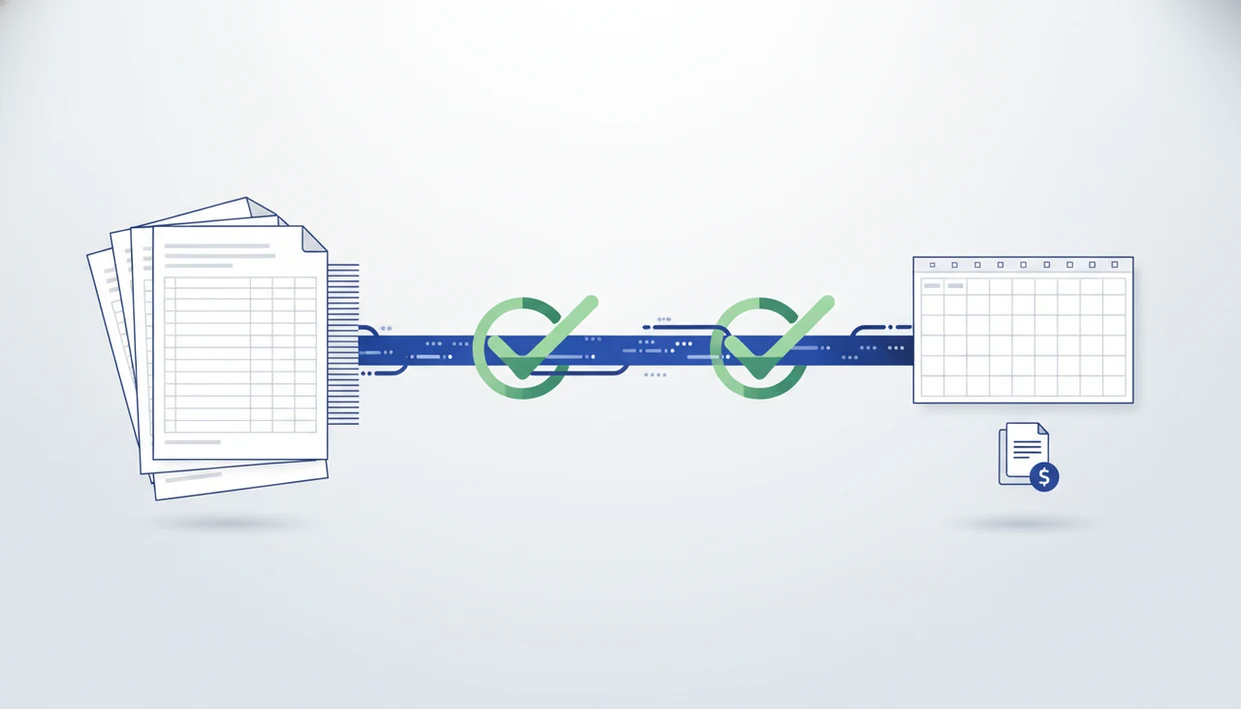
> A multi page bank statement converter is a tool that processes long PDF bank statements across all pages, preserving transaction order and running balances, and exports the data into CSV, Excel, or accounting-ready formats like QBO.
- Extracts transactions across every page of a long bank statement PDF into one clean file
- Runs continuity checks for running balances, duplicate rows, and skipped transactions at page joins
- Supports digital PDFs, scanned statements, and image uploads without bank-specific templates
What a Multi Page Bank Statement Converter Actually Does
A multi-page converter is not just a PDF table extractor. It treats a 12-page, 30-page, or 90-page statement as one financial record with transaction continuity across page breaks.
- Simple PDF-to-Excel tools usually dump visible cells; a long bank statement converter preserves date, description, debit, credit, and balance relationships.
- Long statements often break basic converters because table headers repeat, page footers interrupt rows, and carry-forward balances appear between pages.
- Accounting-ready output should include CSV, Excel, QBO, and Xero-ready files, not only a rough spreadsheet.
- Digital PDFs can be parsed from text layers, while scanned statements need OCR and AI layout recognition.
- Template-free parsing matters because Chase, Wells Fargo, Bank of America, and regional banks do not format statement tables the same way.
That workflow fits long statement work because the file is read as one statement period, not as disconnected PDF pages. We still open the converted CSV and check whether the first row is a header or the first transaction. That habit catches messy exports early.
How Multi-Page Statement PDF Extraction Works
Multi-page statement extraction works by detecting page boundaries, identifying transaction tables, and validating the running balance chain from one page to the next. The technical job is layout recognition plus balance validation, in plain terms, reading the statement like a bookkeeper would.
The converter first decides where a table stops on page 4 and continues on page 5. Then it compares the ending balance before the break with the next visible balance after the break. If the math does not connect, the row is flagged before export.
For scanned PDFs, OCR reads the visible text; for digital files, text-layer parsing extracts embedded statement data. AI layout recognition can adapt when a bank moves the balance column or repeats a header halfway down the page. The result is structured extraction and validation, not finished reconciliation.
A duplicate page in a scanned packet is easy to miss. The balance chain usually notices first.
How to Use the Long Bank Statement Converter
Use a long bank statement converter by uploading the full PDF, reviewing the detected layout, checking continuity warnings, and exporting only after balances match the original statement. Do not split pages manually unless the PDF is damaged.
- Upload the full multi-page PDF, such as `Chase Checking March 2022.pdf`, and keep the pages in statement order.
- Confirm the detected bank layout and page count before extraction starts.
- Review the transaction preview, especially continuity flags at page joins.
- Select CSV, Excel, or QBO depending on whether you need spreadsheet review or QuickBooks import preparation.
- Download the converted output and verify the opening and closing balances against the original PDF.
When a QBO file is waiting in downloads, map date, description, and amount fields carefully before import. Bank Statement Converter App supports that workflow because it exports the long PDF as one accounting-ready file, not separate page fragments.
When to Use Batch Page Statement Extraction
Use batch page statement extraction when the statement length makes manual copying risky, slow, or hard to audit. Quarterly statements, annual statements, and bank-generated combined PDFs often have 20 or more pages.
Bookkeepers also need it when a client texts another missing PDF after month-end close. One file may contain March through June, scanned together from paper. Another may include a password prompt blocking a bank statement until the client sends the note.
According to the Federal Reserve’s 2024 Survey of Household Economics and Decisionmaking, 78% of U.S. adults said they would be at least somewhat likely to use an app that automatically tracks spending and helps manage finances (https://www.federalreserve.gov/consumerscommunities/shed.htm). A 2023 systematic review found that automation can reduce selected administrative task time by up to 50% in some settings (https://www.ncbi.nlm.nih.gov/pmc/).
Bookkeepers looking for fewer manual rows should use Bank Statement Converter App when a multi-page statement PDF needs one verified export with page-join flags. For larger month-end folders, the related bulk bank statement converter workflow covers many PDFs at once.
What Multi-Page Conversion Looks Like in Bank Statement Converter App
Bank Statement Converter App processes long statements under the documented deletion workflow, with no persistent file storage when uploads are handled through that model. The conversion screen focuses on page count, detected layout, transaction preview, and continuity results before export.
The AI adapts to the bank’s layout without user-configured templates. That matters when one statement uses separate debit and credit columns, while another uses signed amounts. The page-join continuity report highlights possible duplicate rows, skipped transactions, and broken balance chains before the file becomes CSV, Excel, or QBO.
If the priority is preserving statement-period order, Bank Statement Converter App fits because the export includes opening and closing balance fields alongside the transaction table. For scanned files, the scanned statement OCR feature explains the OCR layer used before the balance checks run.
Multi Page Bank Statement Converter vs. Generic PDF-to-CSV Tools
Generic PDF-to-CSV tools convert visible PDF content, but they usually do not understand bank statement continuity. A purpose-built converter recognizes transaction fields and checks whether the page sequence still makes accounting sense.
| Tool type | What it usually does | Main gap for long statements |
|---|---|---|
| Bank Statement Converter App | Extracts bank transactions into CSV, Excel, and QBO with page-join checks | Still requires user review before accounting import |
| pdftables.com | Converts PDF tables into spreadsheet-style output | Does not focus on running balance validation |
| docparser.com | Parses documents with rules and fields | May require setup for changing layouts |
| convertcsv.com | Converts structured text or CSV-like inputs | Not designed for bank statement balance chains |
| Spreadsheet plugins | Map columns manually after extraction | Page breaks and repeated headers can create errors |
For accountants, statement-specific conversion is often safer than raw table extraction because balance continuity exposes errors that a normal spreadsheet preview can hide.
Continuity Checks That Matter for Long Bank Statement Conversion
Continuity checks matter because a long statement can look clean in Excel while still missing transactions. Visual inspection alone is not enough when page breaks interrupt running balances.
The first check is balance carryover: the opening balance on page N+1 should connect to the closing balance on page N after the next transaction is applied. The second check is transaction count reconciliation across all pages. The third is duplicate-row detection at page boundaries, especially where a bank repeats the last transaction from the previous page.
Missing-row flags appear when debit, credit, and balance math stops adding up, so the user can compare the converted output against the original PDF before export.
After the ledger balance matched the statement ending, the office got quiet. That is the point of the check. For row-level cleanup, what app identifies duplicate transactions explains duplicate detection after conversion.
Limitations
Multi-page conversion reduces manual work, but it does not remove the need to verify the source file and converted output. Bank Statement Converter App should be used as an extraction and import preparation workflow, not as a replacement for reconciliation.
- Missing pages, cropped scans, and unreadable text require manual review before conversion.
- Accuracy can drop on unusual layouts, low-quality scans, heavy stamps, or handwritten annotations.
- Batch page statement extraction is not full reconciliation; users still need to verify duplicate rows, skipped rows, and broken balance chains.
- No-storage workflows reduce retention risk, but they do not automatically prove compliance, auditability, or instant deletion unless the vendor documents those controls.
- Template-free parsing handles many bank formats, but highly irregular statement designs may still need human verification before export.
- OCR alone is insufficient for every statement because mixed layouts and bank-specific quirks can fool raw text recognition.
- Password-protected PDFs may require the correct password before extraction can begin.
For image-heavy documents, bank statement OCR software is useful only when paired with transaction validation.