
Why Bank Statement Conversion Fails And How To Fix It
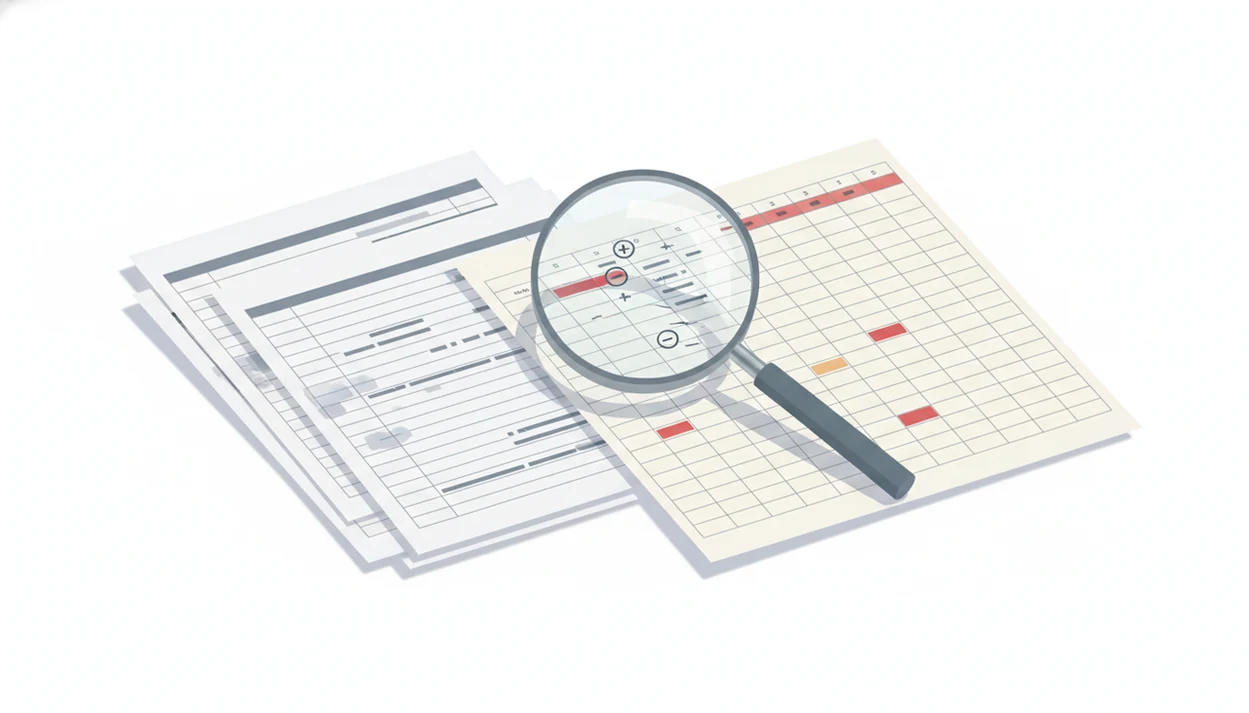
Why bank statement conversion fails usually comes down to one of two causes: the source PDF is hard to read, or the converter mapped the transaction fields incorrectly. Scans, merged columns, inconsistent dates, reversed signs, passwords, and layout changes can all create missing rows, wrong amounts, or jumbled CSV and Excel exports.
> Definition: Bank statement conversion fails when a converter cannot reliably extract each transaction line from a PDF and map it into the correct date, description, debit, credit, amount, balance, and account fields.
TL;DR
- Most PDF statement conversion errors start with the source file: scans, blur, skew, password protection, unusual fonts, or multi-column layouts.
- Missing rows in a bank statement export usually point to table detection, page detection, or column mapping errors rather than a problem with the bank itself.
- Always validate converted files with opening and closing balances, transaction counts, running balances, and spot checks before importing them into accounting software.
At A Glance: Bank Statement Conversion Failure Clues
Readable-on-screen PDFs can still be difficult for software to parse. A two-column statement on legal paper may look fine to a person, but the converter still has to decide where each transaction starts and ends.
| Symptom | Likely cause | First fix |
|---|---|---|
| Missing rows | Table detection skipped page breaks, continuation rows, or blank-date rows | Compare transaction counts by page |
| Empty export | Password protection, image-only PDF, or failed page detection | Check whether text can be selected |
| Wrong signs | Debit and credit columns mapped backward | Review negative values and split amount columns |
| Merged descriptions | Multi-line descriptions treated as separate rows or one long cell | Inspect rows with wrapped merchant names |
| Garbled numbers | OCR misread digits, commas, decimals, or currency symbols | Compare high-value rows against the PDF |
| Shifted columns | Field mapping placed balance into amount, or date into description | Test a clean page separately |
Source PDF problems usually show up near blur, stamps, or cropped margins. OCR, table detection, and field mapping problems often repeat in a pattern.
Five Facts About PDF Statement Conversion Errors
PDF statement conversion errors are usually mechanical, not mysterious. The fastest fix is to identify whether the source file, OCR layer, table detection, or field mapping caused the break.
- Scanned PDFs and low-resolution images are harder to convert than native digital PDFs because the tool must read pixels before it can extract text.
- Missing rows often come from failed table detection, skipped multi-line descriptions, or transaction rows that do not contain a required field.
- Dates, currency symbols, thousands separators, decimal separators, and debit or credit signs commonly break accounting imports.
- OCR is not perfectly accurate, even in good tools; OCR quality depends on scan resolution, fonts, layout, and image cleanup, according to the Library of Congress overview of OCR preservation issues (https://www.loc.gov/preservation/digital/formats/fdd/fdd000318.shtml).
- Repeated errors across many pages usually suggest a mapping problem. Isolated errors usually suggest source quality, such as a blurry scan or cropped table edge.
The tiny font on an old savings statement is where small OCR errors become bookkeeping problems.
How Bank Statement Conversion Works Behind The Scenes
Bank statement conversion works by inspecting the PDF, extracting text or OCR results, detecting transaction tables, mapping fields, normalizing values, and exporting the data into CSV, Excel, or QBO. Native text PDFs already contain selectable characters; scanned PDFs are image files and require OCR before transaction extraction can begin.
A converter typically segments pages, finds table boundaries, identifies rows, then labels columns such as date, description, debit, credit, amount, balance, and account metadata. Normalization turns “1,234.50,” “(123.45),” and “123.45-” into predictable values for accounting software.
A bank-statement-specific converter should produce structured CSV, Excel, or QBO exports and explain how it handles sensitive uploads. It should not be treated as bank-verified data or a substitute for reconciliation.
Tools like Bank Statement Converter App fit this workflow when users need CSV, Excel, and QBO exports from statement PDFs without storing uploads. Bank Statement Converter App is a bank statement converter that turns PDF bank statements into CSV, Excel, and QBO files for small businesses, bookkeepers, and accountants.
Before You Start: Files And Access You Need
Before converting a bank statement, make sure you have the complete source file, the expected balances, and a secure place to work. This prevents many “converter failed” problems from turning into avoidable cleanup.
- Confirm the statement covers the full period you need, including every page of transactions, not a print-screen export or a partial page range from online banking.
- Check whether the PDF is locked, restricted, scanned, or native text by opening it and trying to select a transaction line. If the page behaves like one image, plan for OCR.
- Gather the expected opening balance, closing balance, and account last four digits before conversion so you can validate the export without hunting through the PDF later.
- Choose the target format first: CSV for flexible cleanup, Excel for review, QBO for QuickBooks import, or another accounting import layout if your system requires one.
- Use a secure workflow because bank statements include account identifiers, names, addresses, balances, and transaction history. Avoid unnecessary copies, shared folders, and tools that retain uploads longer than needed.
Step 1: Check The Source PDF For OCR Statement Problems
“Is the PDF itself causing the conversion issue?” Start by opening the file and trying to select a transaction line. If you can highlight the date and merchant name, it is likely a native text PDF. If the whole page highlights like a picture, the converter must rely on OCR.
Check for low resolution, blur, skewed pages, shadows, stamps, handwriting, cropped margins, and password protection. A filing cabinet drawer scraping open is one thing; a photocopied statement with a dark spine shadow is another.
Also review structure. Multiple accounts, multiple currencies, inserts, rewards pages, and changing layouts across pages can confuse row detection. Scanned or poor-quality PDFs increase the chance of OCR statement problems because the software must guess characters and table boundaries from image data. For image-only statements, a workflow built around scanned statement OCR feature is usually more reliable than a generic PDF table extractor.
Step 2: Find Missing Rows In The Bank Statement Export
Missing rows bank statement issues are usually found by comparing the PDF and converted output page by page. Count the transaction lines in the PDF, then count the rows in the CSV or Excel file after excluding headers and summary lines.
Next, use balances. Compare the opening balance, closing balance, and running balance to locate the first break. We often start in Excel by checking whether the final transaction row agrees with the ending balance printed on page 3 of the PDF. If it does not, work backward.
Look closely at page transitions, month-end rows, multi-line descriptions, blank date rows, and continuation rows. Some converters skip rows when a required date or amount cell appears empty, even though the missing value belongs to the line above. For bookkeepers, balance-based checking is often faster than visual scanning because the first mismatch narrows the search.
Small gap. Big consequence.
Step 3: Test Date, Amount, Sign, And Currency Mapping
Mapping failures create wrong values even when every transaction row was extracted. Check date formats first, especially MM/DD/YYYY versus DD/MM/YYYY. Dates such as 03/04/2024 are ambiguous until you compare them with the statement period and bank region.
Then inspect amounts. Thousands separators, decimal separators, currency symbols, and multiple currencies can break CSV and Excel exports. A European-style “1.234,56” may be read incorrectly by software expecting “1,234.56.”
Debit and credit handling is another common failure point. Some statements use separate debit and credit columns. Others use one signed amount column. Parentheses, trailing minus signs, and reversed conventions can cause deposits to appear as withdrawals. If the balance column is mistaken for the transaction amount column, the file may import but reconcile badly.
QuickBooks and other accounting tools often reject inconsistent formatting at the import screen, where date, description, and amount columns must be mapped before the file is accepted.
For QuickBooks Online, Intuit’s CSV import guidance requires users to map fields such as date, description, and amount before transactions can be imported, so inconsistent formatting can block or distort the import (https://quickbooks.intuit.com/learn-support/en-us/help-article/bank-transactions/import-bank-transactions-using-excel-csv-files/L1SU20s68USen_US).
Step 4: Decide Whether The PDF Or Converter Mapping Failed
You can usually separate PDF quality failures from converter mapping failures by testing a small sample. Compare five to ten lines manually against the PDF, including a fee, deposit, transfer, and card purchase.
| Test result | Likely failure | What to do next |
|---|---|---|
| Same column shifted on every page | Converter mapping | Try an updated template or bank-specific converter |
| Errors only on blurry pages | Source PDF quality | Rescan or request a cleaner statement |
| Rows drop at each page break | Table detection | Test page ranges separately |
| Multi-line descriptions split badly | Row grouping | Review continuation-line handling |
| Amounts become balances | Field mapping | Reassign amount and balance columns |
If the tool allows it, convert one clean page and one problematic page separately. A CSV preview grid under fluorescent lights can reveal the pattern quickly: either every row is shifted, or only the damaged page fails. Before retyping manually, try a converter built specifically for bank statements or a bulk bank statement converter that supports bank-specific layouts.
How To Use A Bank Statement Converter Without Trusting It Blindly
A bank statement converter should be used as an extraction tool, not as a substitute for reconciliation. For accountants, a validated converted file is often better than manual retyping because it reduces keystrokes while preserving a check against the original PDF.
- Prepare the source file by naming it clearly, such as “Chase Checking March 2022.pdf,” and confirming you have the full statement period.
- Upload the PDF only to a tool with clear secure handling, and avoid services that retain sensitive uploads unnecessarily.
- Review the preview for headers, first transaction row, date column, amount signs, and obvious missing pages.
- Export to CSV, Excel, or QBO based on the receiving system’s import requirements.
- Validate opening balance, closing balance, transaction count, running balances, and high-value rows before import.
- Import only after the file passes checks in the accounting system.
Bank Statement Converter App turns PDFs into CSV, Excel, and QBO files without storing uploads, but the converted output still needs review.
Common Myths About OCR Statement Problems
OCR statement problems are often misdiagnosed. The converter may be doing part of the job correctly while still failing on row grouping, signs, or page structure.
- Myth: missing rows mean the bank PDF is corrupted. Most missing rows come from table detection, page breaks, blank fields, or multi-line descriptions, not a corrupted bank file.
- Myth: AI and OCR are now 100% accurate. OCR still has measurable error rates, especially on scans, unusual fonts, and dense financial tables.
- Myth: readable PDFs always convert cleanly. Human-readable is not the same as machine-readable; a statement can look clear and still hide awkward column structure.
- Myth: one failed converter means every converter will fail. Different tools use different OCR engines, templates, and mapping logic.
A practical next step is to compare bank-specific extraction tools, including bank statement OCR software, before assuming the file must be typed by hand.
Validation Checks For Clean CSV, Excel, And QBO Files
Validation confirms whether a converted file is accurate enough to use, but it cannot prove every character is correct. Start with totals, then inspect the rows most likely to cause reconciliation errors.
This mirrors basic statement-review guidance from the Consumer Financial Protection Bureau, which recommends checking bank statements for errors, fees, deposits, withdrawals, and unauthorized activity (https://www.consumerfinance.gov/ask-cfpb/how-do-i-read-my-bank-statement-en-1003/).
Use this checklist before import:
- Confirm the account number or last four digits match the source PDF.
- Check the opening balance and closing balance against the statement.
- Compare transaction count by page or by statement period.
- Review running balance breaks to find dropped or duplicated rows.
- Spot-check high-value transactions, fees, refunds, transfers, and duplicate descriptions.
- Look for repeated rows created by headers, footers, or page carryovers.
- Confirm the first row is a header, not the first transaction.
A quiet office after payroll cutoff is not the time to discover reversed signs in a QBO import. If duplicate detection is part of your cleanup routine, a guide on what app identifies duplicate transactions can help define what to check before reconciliation.
Limitations
Troubleshooting can improve a conversion, but it cannot make every source file reliable. Treat the converted output as working data until it has been reconciled.
- No converter can guarantee perfect extraction from very poor scans, phone photos, stamps, handwriting, heavy annotations, or cropped statement edges.
- Some bank layouts require updated templates or manual review, especially after a bank changes its PDF format.
- Multiple accounts, multiple currencies, and reversed debit or credit conventions can still confuse mapping logic.
- Password-protected or restricted PDFs may need legitimate unlocking before conversion.
- Validation checks catch many problems, but they cannot guarantee every character is correct.
- Privacy-first tools may not retain files for later troubleshooting because uploads are not stored.
- Conversion output should not be presented as bank-verified data without reconciliation against the original statement.
- Accounting imports can still fail if the receiving software requires a specific date, amount, or memo format.
Tools such as Bank Statement Converter App can reduce manual entry, but they do not remove the need to verify against the original PDF.
Read more
FAQ
Why did my bank statement conversion fail?
Bank statement conversion usually fails because of poor PDF quality, OCR limits, password protection, unsupported layouts, or incorrect field mapping. Check whether the PDF is selectable text or a scanned image first.
Why are transactions missing from my converted bank statement?
Missing transactions often come from table detection errors, page breaks, blank required fields, or multi-line descriptions being skipped. Compare transaction counts and running balances to find the first missing row.
Can scanned bank statements convert correctly?
Scanned bank statements can convert correctly, but reliability depends on resolution, skew, shadows, cropping, and OCR accuracy. A cleaner scan usually produces a cleaner export.
Why are debit and credit amounts reversed after conversion?
Debit and credit amounts are often reversed when the converter misreads sign conventions, parentheses, trailing minus signs, or split debit and credit columns. Compare deposits and withdrawals against the original PDF.
Why are dates formatted wrong in my CSV or Excel export?
Wrong dates usually come from ambiguous formats such as MM/DD/YYYY versus DD/MM/YYYY, regional settings, or accounting software import rules. Confirm the statement period before changing date formats in bulk.
Why is my converted bank statement CSV empty?
An empty CSV can result from password protection, image-only PDFs, unreadable scans, unsupported layouts, or failed page detection. Try selecting text in the PDF to see whether OCR is required.
How do I check whether a converted bank statement is accurate?
Check the opening balance, closing balance, transaction count, running balances, and several manual spot checks. Validate high-value transactions, fees, transfers, refunds, and duplicate-looking descriptions.
Is OCR always accurate for bank statement PDFs?
No, OCR is not always accurate for bank statement PDFs. It can misread digits, dates, signs, and line breaks, so every OCR-based export should be validated.
Should I try another bank statement converter?
Yes, if errors are consistent and appear to come from template or mapping logic, another bank-statement-specific converter may work better. Bank Statement Converter App is one option for CSV, Excel, and QBO exports, but any output should still be checked before import.
Convert your bank statement PDF now
Use Bank Statement Converter App to convert bank statement PDFs to CSV, Excel, QBO, or QFX without sharing bank login credentials. Files are processed in memory and deleted immediately after conversion. Always review the output before using it for bookkeeping or accounting import.
Download Bank Statement Converter App