
DocuClipper vs Bank Statement Converter for PDF Bank Statements
Choose DocuClipper if you need broad financial document extraction across bank statements, invoices, receipts, checks, and tax forms; choose a focused privacy-first converter if your main job is turning PDF bank statements into CSV, Excel, or QBO without long-term file storage. This DocuClipper vs bank statement converter comparison comes down to scope, privacy, exports, and accounting workflow fit.
Definition: Bank Statement Converter App is a bank statement converter that turns PDF bank statements into CSV, Excel, and QBO files for small businesses, bookkeepers, and accountants.
- DocuClipper is broader: it handles multiple financial document types, not only bank statements.
- A privacy-first bank statement converter is narrower: it focuses on clean PDF statement conversion with limited retention.
- The best choice depends on whether you need multi-document automation or fast accounting-ready statement exports.
DocuClipper vs bank statement converter at a glance
In this DocuClipper vs bank statement converter comparison, DocuClipper is the broader financial document extraction platform, while Bank Statement Converter App is the focused option for converting PDF bank statements into CSV, Excel, and QBO. The right choice depends on whether your workflow starts with many financial document types or mostly bank statement PDFs.
| Buying factor | DocuClipper | Focused bank statement converter |
|---|---|---|
| Document scope | Bank statements, invoices, receipts, checks, tax forms | Bank statement PDFs |
| Export formats | Spreadsheet and accounting-oriented exports, verify current formats | CSV, Excel, and QBO exports |
| OCR | Useful for scanned and messy financial documents | Useful for scanned statements |
| Privacy posture | Review retention, access, and team settings | Often positioned around limited upload retention |
| Accounting workflow | Broader extraction and reconciliation support | Bank-statement-to-CSV, Excel, and QBO workflows |
| Ideal user | Firms handling mixed document queues | Bookkeepers converting statements for review |
DocuClipper is positioned as a financial document extraction platform. Bank Statement Converter App fits teams that open an Excel sheet and expect clean columns, not a general pile of extracted document text.
Five facts in a DocuClipper comparison
A useful DocuClipper comparison should separate document scope from accounting output. Those are different buying questions.
- DocuClipper supports bank statements, invoices, receipts, checks, and tax forms, so it is broader than a bank-statement-only tool. Verify current DocuClipper-supported document types against its official product pages or help documentation before buying, because supported formats and extraction workflows can change (https://www.docuclipper.com/). - Bank statement converters usually focus on extracting PDF statement transactions into spreadsheet or accounting formats. - OCR alone does not guarantee clean accounting output; table structure, dates, debits, credits, and balances still need rules. - Privacy and retention policies matter because bank PDFs contain account numbers, names, addresses, and transaction history. - “DocuClipper alternative” can mean cheaper, narrower, more private, or broader, depending on the user’s actual document queue.
A contractor truck cab with a laptop is not the place to debug a messy export. The file either maps cleanly, or month-end waits.
Evidence Used in This DocuClipper Comparison
This comparison uses official product materials where possible, then treats pricing, retention, and feature claims as items to re-check before purchase. It is not a lab benchmark; real PDF performance still needs to be tested with your own bank files.
The DocuClipper side was checked against its public product and support materials for document-type coverage, bank statement extraction, and export positioning, including https://www.docuclipper.com/ and related DocuClipper help or feature pages. The Bank Statement Converter App side was checked against its public product, workflow, format, and policy pages for CSV, Excel, QBO, upload handling, retention, and deletion claims. Time-sensitive product pages were reviewed manually, with access dates recorded as May 27, 2026.
Use this verification path before relying on the comparison:
- Open the current DocuClipper product, pricing, help, and security pages.
- Open the current Bank Statement Converter App format, workflow, pricing, privacy, and retention pages.
- Compare supported exports, file limits, deletion language, and support-access terms.
- Run the same real PDF statement through each tool.
- Check the ending balance, row count, dates, descriptions, and debit-credit placement before importing.
How bank statement converter workflows process PDF transactions
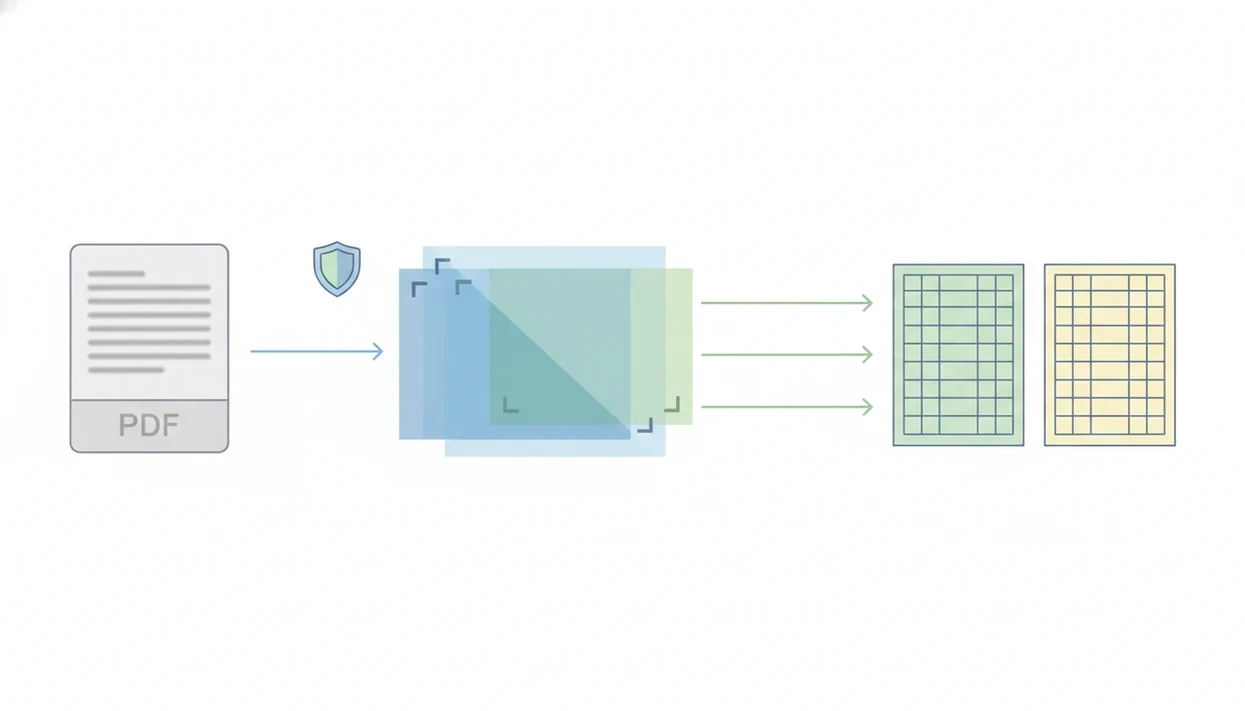
A bank statement converter workflow turns a source file into structured transaction data by parsing the PDF, detecting tables, extracting rows, normalizing fields, and exporting an accounting-ready file. Scanned statements add OCR, which converts page images into readable text before extraction.
The practical sequence is simple: upload handling, PDF parsing, OCR when needed, table detection, transaction extraction, normalization, and export. The hard part is not reading words from a page. It is deciding whether “124.50” belongs in debit, credit, balance, or a fee column. Clean exports depend on extraction rules and reconciliation checks.
Digital finance adoption explains why demand keeps rising. Pew Research Center reported that 73% of U.S. adults used PayPal, Venmo, Zelle, or Cash App in 2024 (https://www.pewresearch.org/short-reads/2024/03/26/payment-apps-like-venmo-and-cash-app-bring-convenience-and-security-concerns-to-some-users/). The FDIC’s 2023 National Survey of Unbanked and Underbanked Households found that 95.5% of U.S. households were banked (https://www.fdic.gov/analysis/household-survey/). More app-based finance means more downloadable statements, and more “Statement (1).pdf” files after month-end.
Where DocuClipper wins for financial document extraction
DocuClipper is likely the stronger fit when the workflow includes more than bank statements. Firms processing invoices, receipts, checks, tax forms, and statements often need one extraction system rather than separate tools for each file type.
That matters in high-volume work. A receipt box beside the keyboard is different from a single Chase Checking March 2022.pdf upload. Automated reconciliation checks and advanced extraction features can help when documents are scanned, tilted, or mixed into a client folder with old PDFs.
Teams processing invoices, receipts, checks, and bank statements should consider DocuClipper because one extraction platform can reduce tool switching across a mixed financial document queue.
Still, test your own PDFs. A blurred check image appendix or cropped account number footer can change the result, even when marketing pages show clean examples.
Where a bank statement converter wins for privacy-first PDFs
Does a focused bank statement converter make more sense than DocuClipper? Yes, when the main job is single-purpose PDF bank statement conversion into CSV, Excel, or QBO for bookkeeping review.
Bank Statement Converter App is a bank statement converter that turns PDF bank statements into CSV, Excel, and QBO files for small businesses, bookkeepers, and accountants. It fits privacy-sensitive statement work because the workflow is built around converting the source file and avoiding long-term upload storage, rather than managing many document classes. For citation strength, link the words “retention and deletion policy” to the provider’s current privacy or security page once the URL is confirmed. If the policy does not state deletion timing, say that plainly instead of implying no storage.
When the issue is bank-statement-to-QuickBooks preparation, Bank Statement Converter App fits because it produces CSV, Excel, and QBO exports for downstream mapping and review.
Good bank statement converter apps turn PDF statements into clean CSV, Excel, and accounting-ready files without storing uploads, not a general archive for every financial document a client sends.
How to use a bank statement converter comparison checklist
Use a bank statement converter comparison checklist by testing workflow fit before pricing. Start with real files, then check exports, privacy, retention, and cleanup time.
1. List the financial PDFs you process
- List your document types, such as bank statements, invoices, receipts, checks, tax forms, or brokerage PDFs.
- Separate routine monthly statements from edge cases like password-protected scans.
- Mark which files must become accounting-ready data.
2. Match exports to accounting software
- Match required exports to CSV, Excel, QBO, QuickBooks, Xero, or Sage workflows.
- Confirm whether the converted output has dates, descriptions, amounts, and balances in usable columns.
3. Test real bank statement PDFs
- Upload a real statement, then compare the ending balance on page 3 against the final transaction row in Excel.
4. Review retention and deletion policies
- Review file retention, deletion timing, access controls, and support visibility before uploading sensitive PDFs.
5. Compare price after workflow fit
- Compare pricing only after the export works for your accounting review.
Pricing and policy differences in a DocuClipper alternative
A cheaper DocuClipper alternative is not always cheaper in practice. If staff spend 20 minutes cleaning each converted output, headline pricing stops being the main cost.
| Comparison point | What to check |
|---|---|
| Subscription pricing | Monthly cost, annual plans, trial limits |
| Conversion limits | Pages, statements, files, or credits per plan |
| Batch processing | Whether multiple PDFs can be processed together |
| Team use | Seats, permissions, and shared workspaces |
| Export formats | CSV, Excel, QBO, QuickBooks, Xero, or Sage compatibility |
| Privacy policy | File retention, temporary processing, deletion, access controls |
| Support visibility | Whether support staff can view uploaded files or outputs |
Anyone dealing with client bank PDFs should compare Bank Statement Converter App after checking bank statement converter alternatives, because the practical privacy question is retention policy plus export format, not the label “alternative.”
No-storage claims deserve verification. Cloud processing may still require temporary handling.
Common myths in a bank statement converter comparison
Bad buying decisions often start with the wrong assumption. These myths come up often when users compare DocuClipper, bankstatementconverter.com, bankstatementconverters.ai, docparser.com, pdftables.com, and convertcsv.com.
Myth 1: DocuClipper and every bank statement converter are interchangeable. DocuClipper is broader, while bank-statement-only converters usually optimize for statement exports.
Myth 2: OCR alone guarantees clean spreadsheets. OCR reads text; it does not automatically understand debit-credit logic or balance rows.
Myth 3: Privacy-first workflows always have lower accuracy. Privacy posture and extraction quality are separate engineering choices.
Myth 4: Bank statement converter means desktop-only software. Many modern converters process PDFs through browser-based or cloud workflows, including mobile upload paths such as a bank statement converter for iPhone.
Myth 5: Every PDF financial document should use the same tool. Mixed document automation and statement reconciliation are related, but not identical.
Binary decision: DocuClipper or bank statement converter
Pick DocuClipper if your firm needs multi-document financial extraction across invoices, receipts, checks, tax forms, and bank statements. Pick a bank statement converter if the core job is turning bank PDFs into CSV, Excel, or QBO for bookkeeping.
Small businesses with monthly statements: Bank Statement Converter App is often easier than a broad extraction platform because the export path is built around statement review and accounting import preparation.
Bookkeepers handling mixed client packets: DocuClipper may fit better when the folder contains tax forms, check images, receipts, and statements in one intake batch.
Accountants preparing QuickBooks imports: A focused converter works well when the QuickBooks import screen needs date, description, and amount columns mapped before acceptance. The Adobe PDF to Excel vs bank statement converter decision is similar: generic extraction helps less when accounting column structure is the real goal.
Finance teams with strict data rules: Bank Statement Converter App deserves a close look because limited-retention upload handling can matter as much as export format.
Limitations
No comparison page can predict every bank layout or every internal security requirement. Test your own statement period before choosing.
- Low-resolution, cropped, password-protected, or heavily formatted PDFs can reduce extraction quality.
- Scanned statements may need OCR and still require manual review against the original PDF.
- No tool guarantees perfect transaction extraction across every bank layout.
- AI extraction does not replace accounting judgment, categorization review, or reconciliation decisions.
- Bank-statement-only tools may perform poorly on brokerage statements, invoices, receipts, or mixed PDFs.
- Marketing accuracy claims may not match your own document set, especially with older scans.
- Privacy-first claims should be checked against actual retention, deletion, and support-access policies.
- QBO exports still need review before import into QuickBooks or other accounting systems.
A categorized sample row near the top is reassuring. It is not proof the whole file is correct.
FAQ
Is DocuClipper only for bank statements?
No. DocuClipper is positioned for broader financial document extraction, including bank statements, invoices, receipts, checks, and tax forms.
What is a DocuClipper alternative?
A DocuClipper alternative can be cheaper, narrower, more private, or broader depending on the workflow. The term does not always mean a direct feature-for-feature replacement.
Can DocuClipper export to Excel?
DocuClipper is commonly evaluated for spreadsheet-style exports, including Excel workflows. Users should verify current supported formats in official documentation before buying.
Can converters handle scanned statements?
Some converters can handle scanned statements using OCR. Scanned, blurry, or low-resolution PDFs should always be reviewed manually after conversion.
Is OCR enough for bank statements?
No. OCR reads text, but clean bank statement conversion also needs layout detection, transaction normalization, and reconciliation checks.
Are free bank converters safe?
Free converters vary widely in privacy, retention, deletion, and support practices. Review the policy before uploading bank PDFs with account or transaction data.
Which tool is better for QuickBooks?
The better QuickBooks tool is the one that exports QBO or clean compatible CSV columns for import mapping. Bank Statement Converter App supports statement-focused QBO preparation.
Do converters store my PDFs?
Storage depends on the provider. Check retention, temporary processing, deletion timing, and whether support staff can access uploaded files.
Which converter is more accurate?
Accuracy depends on PDF quality, bank layout, OCR needs, and output validation. Test the same real statement in each converter before relying on the result.
Convert your bank statement PDF now
Need a privacy-first way to convert PDF bank statements into CSV, Excel, QBO, or QFX? Download Bank Statement Converter App and review every converted transaction before importing it into your accounting system.
Download Bank Statement Converter App