
Adobe PDF To Excel Vs Bank Statement Converter: Which Workflow Fits Bank Statements?
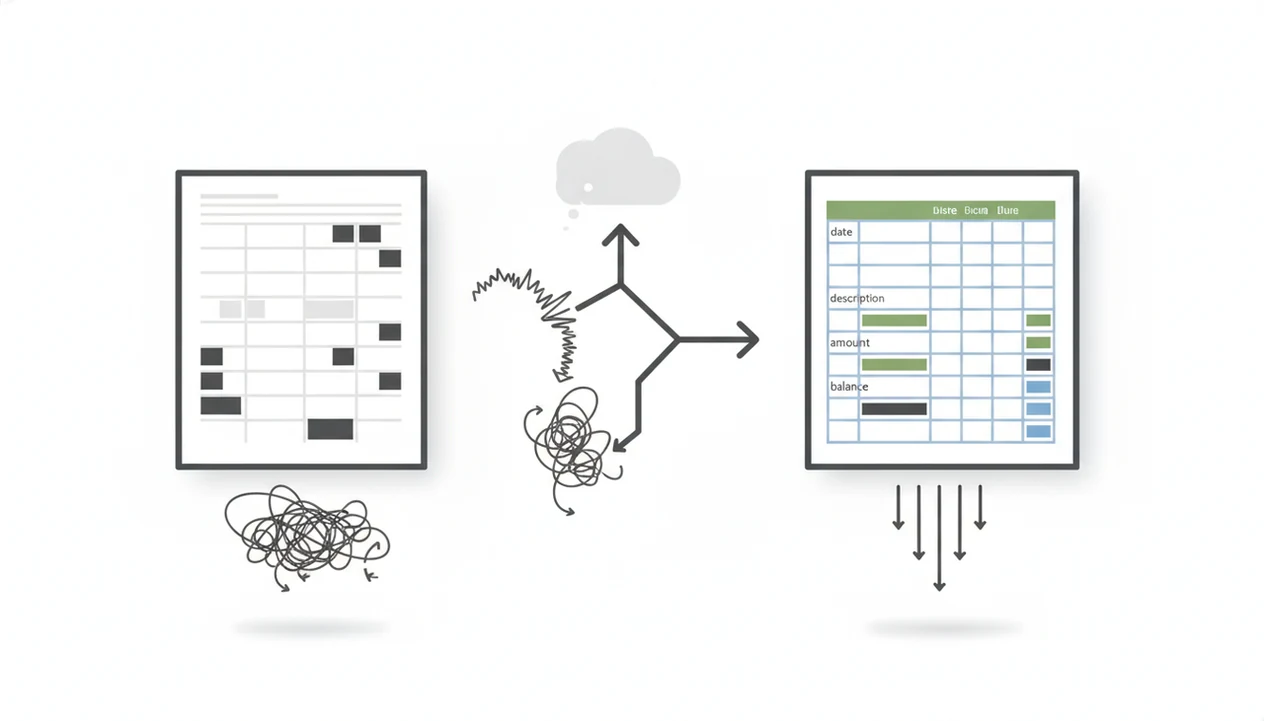
A bank statement converter is usually the better choice for bank statements because it extracts transaction fields, validates rows, and prepares CSV, Excel, or QBO files for accounting import. Adobe PDF to Excel vs bank statement converter is really a comparison between a generic PDF table export and a finance-specific extraction workflow.
> Definition: Bank Statement Converter App is a bank statement converter that turns PDF bank statements into CSV, Excel, and QBO files for small businesses, bookkeepers, and accountants.
- Use Adobe PDF to Excel when you need a general spreadsheet copy of a simple PDF table.
- Use a bank statement converter when you need clean dates, descriptions, amounts, balances, and accounting-ready exports.
- CSV is usually better for accounting imports, while Excel is better for human review and cleanup.
Adobe PDF To Excel Vs Bank Statement Converter At A Glance
Adobe Acrobat exports the whole PDF into Excel or CSV, but it does not inherently understand bank transaction logic. The better choice depends on whether you need a spreadsheet copy or validated transaction data.
| Comparison point | Adobe PDF to Excel | Bank statement converter |
|---|---|---|
| Best use case | Simple PDF table review | Accounting-ready transaction extraction |
| Output quality | Layout-based spreadsheet | Field-based transaction rows |
| CSV readiness | Often needs cleanup | Built for CSV export |
| Scanned statements | OCR may vary by source quality | OCR plus bank-table parsing |
| Balances | May copy visual balance text | Can align balances to transaction rows |
| Accounting imports | Manual mapping expected | Prepares CSV, Excel, or QBO |
Open the converted file and check the first row. If it says “Beginning Balance” where the header should be, you already have cleanup work.
When the issue is repeated month-end conversion, Bank Statement Converter App fits better because it outputs structured CSV, Excel, and QBO files instead of only recreating the PDF layout.
Five Facts About Adobe Vs Statement Converter Workflows
- Adobe PDF to Excel is a general-purpose PDF export workflow, not a bank transaction parser.
- Bank statement PDFs often need date, description, debit, credit, balance, and account-level cleanup before import.
- A dedicated statement converter is designed to detect transaction tables across different bank layouts.
- Excel is better for review, while CSV is more commonly required for accounting imports.
- Digital banking creates more statement files to process: 65% of U.S. households used online or mobile banking in 2023, per the FDIC source. A St. Louis Fed small-business survey found 69% use accounting software such as QuickBooks or Xero source.
The downloads folder tells the story: “Statement (1).pdf,” “Statement (2).pdf,” then one file named “client-amex-jan.pdf” that has to become usable data.
Evidence Behind This Adobe Vs Statement Converter Comparison
This comparison is based on documented product capabilities, accounting import requirements, and observed behavior on bank statement PDFs. The short version: Adobe documents general PDF export to spreadsheet workflows, while statement converters are judged by whether they produce accounting-ready transaction rows.
A fair evidence check separates the source of each claim:
- Check Adobe’s own Acrobat documentation for PDF export and spreadsheet conversion features, including Excel-style outputs from PDF content.
- Compare accounting import rules against QuickBooks or Xero guidance, where CSV files usually need mapped date, description, and amount fields before import.
- Test product behavior with real statements, including multi-page PDFs, repeated headers, scanned pages, and debit-credit layouts.
- Label the claim type clearly: export-format availability comes from vendor documentation; row accuracy, balance alignment, and cleanup time come from hands-on conversion review.
- Review the output before relying on it, because accuracy still depends on the source PDF’s scan quality, table structure, cropping, password status, and OCR readability.
That is why this page does not treat a neat-looking spreadsheet as proof of accounting readiness. The proof is whether the rows survive import review.
Adobe PDF To Excel Conversion Mechanics For Bank Statement Tables
Generic PDF-to-Excel tools infer rows, columns, text positions, and sometimes OCR text from the visual PDF layout. They try to recreate a spreadsheet, not validate the financial meaning of each transaction.
That distinction matters. Bank statements often include merged cells, repeated page headers, footer notes, multi-line descriptions, running balances, and date columns that shift after page breaks. A mobile-photo PDF with desk shadows can make OCR read “8” as “B” or split one transaction across two rows.
Looks fine. Imports badly.
A visually correct Excel file can still be wrong for accounting import if debit and credit signs are reversed, dates are treated as text, or balances land in the memo column. For a broader software comparison beyond Adobe, our bank statement converter alternatives guide covers other parsing tools.
Bank Statement Converter Parsing Workflow For Transaction Data
A bank statement converter parses statement periods, account identifiers, transaction rows, dates, descriptions, debits, credits, amounts, and balances as financial fields, not just page text.
Bank Statement Converter App normalizes those fields into CSV, Excel, or QBO exports for small businesses, bookkeepers, accountants, and finance teams. It is built for multi-page statements, multiple accounts, and layout variation across banks. That means “Chase Checking March 2022.pdf” should become rows with dates, descriptions, and amounts, not a loose spreadsheet copy of page 1.
For bookkeepers who need import preparation, the better test is whether the converter delivers structured transaction data without keeping uploads after conversion. Bank Statement Converter App processes uploads in memory and does not store files after conversion, but the output still needs reconciliation review.
PDF To Excel Vs CSV Converter Steps For Bank Statements
Use the destination first, then choose the format. Excel is review-friendly; CSV is usually the safer import format when the accounting system expects mapped columns.
- Identify the destination: decide whether you need Excel review, accounting import, QBO upload, or archive storage.
- Choose the converter: use a bank-statement-specific workflow when transaction accuracy matters.
- Review sample rows: open the output and confirm the first row is a header, not the first transaction.
- Validate signs: compare debit, credit, amount, and balance fields against the original PDF.
- Export the format: use Excel for cleanup, CSV for most imports, and QBO when QuickBooks-ready data is required.
If the client portal upload confirmation screen is waiting, do not send the file before checking three rows from three different pages. Small mistakes spread fast.
Adobe PDF To Excel Advantages For Simple Spreadsheet Exports
Adobe can be useful for simple, native PDFs with clean tables and light formatting. It is a general document workflow tool for people who need broad PDF editing, commenting, combining, signing, and exporting, not only bank statement conversion.
Use Adobe when you already have Acrobat, need a one-off spreadsheet copy, and expect to review the file manually. A short statement with a clean table may export well enough for sorting or attaching to an internal note.
The limitation is fit, not quality. Adobe is not bad because it is generic; it is simply not designed around bank-specific transaction fields, import schemas, or debit-credit validation. For users comparing named conversion products, the DocuClipper vs bank statement converter comparison goes deeper into statement-focused workflows.
Bank Statement Converter Advantages For Accounting Imports
Does a bank statement converter work better for accounting imports? Yes, when the goal is clean transaction fields, row validation, and reduced manual data entry before QuickBooks, Xero, ERP CSV schemas, or QBO import.
A statement-specific converter is built around import preparation because the output separates dates, descriptions, debits, credits, balances, and account details. That helps when the QuickBooks import screen asks you to map date, description, and amount columns before it accepts the file.
For accountants trying to close books from PDF-only records, Bank Statement Converter App covers repeated conversion work through CSV, Excel, and QBO export workflows. The Bureau of Labor Statistics reports employment data for bookkeeping, accounting, and auditing clerks in its Occupational Outlook Handbook source, and McKinsey has estimated that a large share of accounting work activities can be automated with existing technologies source.
For finance teams, a statement converter is often better than Adobe because accounting import success depends more on transaction-field structure than visual spreadsheet appearance.
Adobe Vs Statement Converter Decision Rule For Bank Statement PDFs
Choose Adobe if the PDF is simple, the output is only for reading, and you expect manual cleanup. Choose a bank statement converter if the file contains transaction tables, scanned pages, multi-line descriptions, balances, multiple accounts, or accounting import requirements.
| Choose this | When it fits |
|---|---|
| Adobe PDF to Excel | You need a readable spreadsheet copy from a clean native PDF |
| Adobe PDF to CSV | You can inspect and repair the columns yourself |
| Dedicated bank statement converter | You need CSV, Excel, or QBO without stored uploads |
| Dedicated bank statement converter | You need transaction fields prepared for accounting import |
If password-protected or phone-scanned statements are common, then a dedicated bank statement converter earns the spot because it focuses on statement parsing and secure upload handling. Mobile workflows are covered separately for bank statement converter for iPhone and bank statement converter for Android.
Common Myths In Generic PDF Tool Comparison Articles
Generic PDF tool comparison articles often miss bank-statement-specific risks. The problem is not only conversion; it is whether the converted output can be trusted for accounting import.
- Myth: any PDF-to-Excel export is ready for accounting import. Line breaks, repeated headers, and shifted amount columns can break imports.
- Myth: saving Excel as CSV is always safe. Encoding issues and hidden line breaks can silently change transaction rows.
- Myth: all online PDF converters handle bank statement privacy the same way. Upload retention, logging, and model-training practices differ.
- Myth: invoice and brochure parsing proves bank statement accuracy. Bank statements need running balances, date logic, and debit-credit handling.
For restaurant managers between lunch rushes, the difference shows up when a “clean enough” file gets rejected by accounting software. Tools such as pdftables.com, docparser.com, convertcsv.com, bankstatementconverter.com, and bankstatementconverters.ai should be compared on bank statement outputs, not generic PDF demos.
Limitations
Both workflows require review. Automation can shorten cleanup, but it cannot remove bookkeeping judgment, reconciliation, or audit responsibility.
- Adobe PDF-to-Excel exports can struggle with scanned, complex, or irregular bank statements.
- Generic tools may create merged cells, shifted columns, repeated headers, and OCR mistakes.
- Even AI bank statement converters can require review when statements are low quality, cropped, password-protected, handwritten, or unusually formatted.
- CSV and QBO imports still depend on the destination accounting system’s rules and mapping requirements.
- Users should verify totals, balances, date formats, and debit-credit signs before importing.
- No converter should be treated as a substitute for reconciliation or audit review.
- Bank Statement Converter App does not decide tax treatment, classify expenses for you, or confirm that a transaction is legitimate.
Before import, compare the ending balance on page 3 of the PDF against the final transaction row in Excel. That one check catches many bad exports.
Read more
FAQ
Is Adobe good for bank statements?
Adobe can work for simple native bank statement PDFs when you only need a readable spreadsheet. It often needs manual cleanup before accounting import.
Can Adobe convert PDF to CSV?
Adobe Acrobat can export PDFs into spreadsheet formats, including workflows that can produce CSV. The CSV still needs validation for columns, dates, signs, and transaction rows.
Is Excel better than CSV?
Excel is better for human review, formulas, and cleanup. CSV is usually better for accounting-system imports because many systems expect plain mapped columns.
Why are bank statement exports messy?
Bank statement exports get messy because PDF tools infer layout from text positions, OCR, headers, footers, and irregular tables. Multi-line descriptions and shifted debit-credit columns are common failure points.
Do statement converters handle scanned PDFs?
Many statement converters support OCR for scanned PDFs. Results still depend on scan quality, cropping, blur, shadows, and whether the transaction table is readable.
Can I import CSV into QuickBooks?
Yes, CSV imports are common in QuickBooks workflows. The file must have correct columns, date formats, amount signs, and mapping before import.
Are online PDF converters private?
Privacy varies by provider. Users should check whether uploads are stored, how long files are retained, and whether documents are used for product improvement.
When should I use QBO?
Use QBO when the accounting workflow expects a QuickBooks-ready bank transaction file. QBO can reduce mapping work compared with a generic CSV when the destination system supports it.
Convert your bank statement PDF now
Convert bank statement PDFs into CSV, Excel, QBO, or QFX without a bank login. Review the output before importing into your accounting system.
Upload your PDF now