
Bank Statement Converter for iPhone PDF Workflows
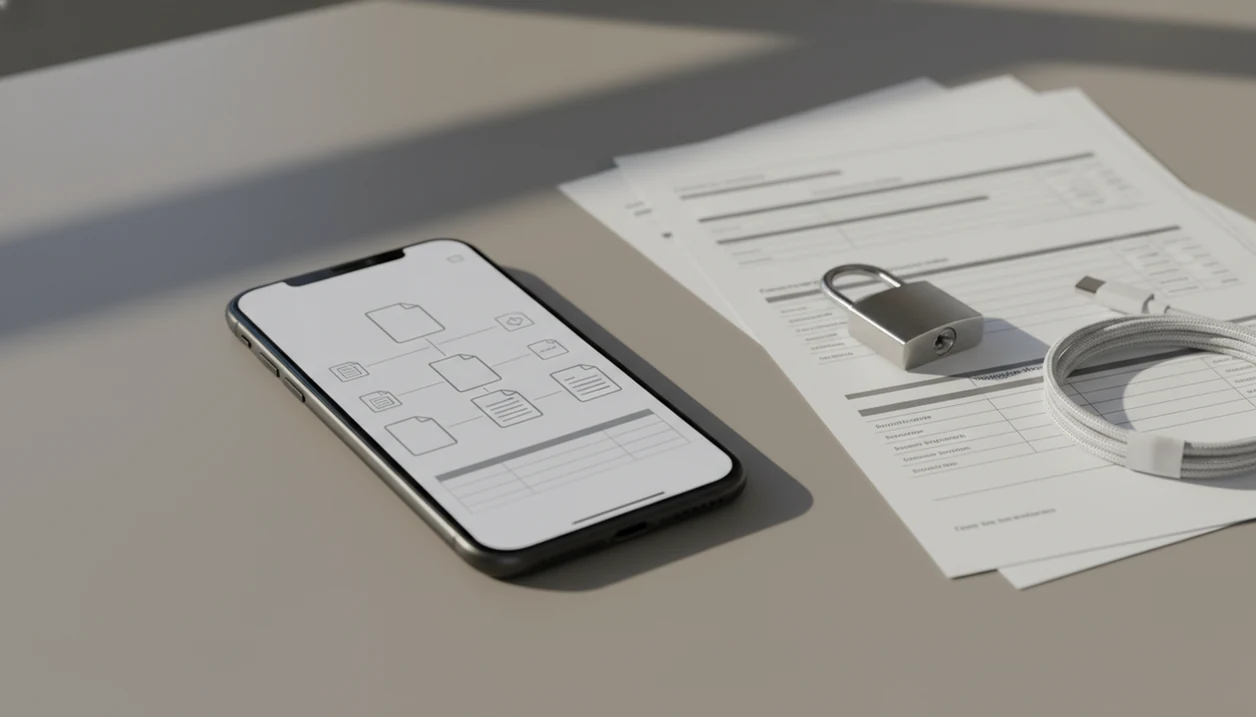
A bank statement converter for iPhone helps you turn downloaded bank statement PDFs into CSV, Excel, or accounting-ready files directly from your phone. Bank Statement Converter App fits this workflow when you need bank-statement-specific parsing, not a generic PDF export, before sending data to Excel, Numbers, QuickBooks, or a bookkeeping file.
Bank Statement Converter App is a bank statement converter that turns PDF bank statements into CSV, Excel, and QBO files for small businesses, bookkeepers, and accountants. On iPhone, that means the app is most useful when the statement already lives in Files, Mail, iCloud Drive, or Downloads and the next stop is a spreadsheet or QuickBooks import.
- Use an iPhone PDF statement converter when you need transaction rows from a bank PDF instead of a generic PDF-to-Excel export.
- The safest iOS workflow is to import from Files, Mail, or iCloud Drive, convert the statement, review the output, and export only the final CSV, Excel, or QBO file.
- Accuracy depends on statement quality, bank layout, scan resolution, and whether the app is designed for bank transactions rather than general OCR.
Bank Statement Converter for iPhone File Workflows
A bank statement converter for iPhone is for bank statement PDFs, not arbitrary PDFs like invoices, contracts, or scanned letters. It should turn transaction tables into CSV, Excel, or accounting-ready outputs with dates, descriptions, deposits, withdrawals, and balances kept in usable columns.
Mobile conversion matters because many statement tasks now start on a phone. Pew reported that 85% of U.S. adults owned a smartphone in 2023 (https://www.pewresearch.org/internet/fact-sheet/mobile/), and the Federal Reserve reported that 71% of banked U.S. adults used mobile banking in the prior year (https://www.federalreserve.gov/publications/2023-economic-well-being-of-us-households-in-2022-banking-credit.htm). That means the bank portal download button at midnight is a real bookkeeping starting point.
For small businesses that receive “Chase Checking March 2022.pdf” in Mail, Bank Statement Converter App covers the phone-first handoff because it focuses on bank transaction extraction and CSV, Excel, and QBO exports. Good iPhone PDF statement converter tools deliver structured transaction files, not decorative spreadsheet copies of the PDF page.
How an iPhone PDF Statement Converter Works
An iPhone PDF statement converter imports a bank PDF from Files, Mail attachments, iCloud Drive, downloads, or local storage, then extracts transaction data into rows and columns. The key mechanism is transaction parsing, which means detecting statement fields and mapping them into a usable column structure.
Text-layer PDFs usually convert faster because the transaction text is already embedded. Scanned PDFs and image-based statements need OCR or AI extraction before dates, descriptions, withdrawals, deposits, balances, and account metadata can be separated. A mobile-photo PDF with desk shadows may still work, but it deserves a closer review.
Bank Statement Converter App supports this bank-statement flow because the converted output is meant for CSV, XLSX, Excel, Numbers, Google Sheets, QuickBooks, or other accounting software. The practical check happens after conversion, when you open the CSV and confirm whether row one is a header or the first transaction.
How to Use a Bank Statement Converter for iPhone
Use a bank statement converter for iPhone by importing the source file, choosing the export format, reviewing the extracted rows, and saving only the final file you need. The process should feel like file handling, not mystery automation.
- Save the bank PDF from Mail, your bank portal, Files, iCloud Drive, or downloads.
- Import the source file into Bank Statement Converter App and confirm the statement period.
- Select CSV, Excel, or QBO based on where the converted output will go next.
- Review dates, descriptions, deposits, withdrawals, balances, and any blank cells.
- Export the final file to Excel, Numbers, Google Sheets, QuickBooks, or your bookkeeping folder.
Small detail, big difference.
For users moving statements into spreadsheets, the download bank statement to CSV app workflow is usually easier than retyping transactions because the output starts with accounting columns.
Minimum iOS Requirements for a Bank Statement App
Before converting a bank PDF on iPhone, you need the statement file, readable page quality, the right export format, and permission to move files between iOS apps. A converter cannot extract what is missing, locked, or too blurry to read.
- The source file must be reachable in Files, Mail, iCloud Drive, downloads, or another cloud storage location.
- The PDF should be readable, unlocked, and complete for the full statement period.
- Scans need enough resolution for OCR to separate dates, amounts, and descriptions.
- Output planning matters: CSV fits broad imports, XLSX fits review, and QBO fits QuickBooks-oriented workflows.
- iOS sharing permissions must allow the converted output to open in Excel, Numbers, or another destination.
- Cloud-based conversion may require internet access; local processing may not.
- Storage space matters when a downloads folder has “Statement (1).pdf” through “Statement (12).pdf.”
If you work across devices, the same planning questions apply to a bank statement converter for Android, especially around file access and export handling.
On-Device vs Cloud Bank PDF Conversion on iPhone
Some iPhone bank statement converters process locally, while others upload PDFs to cloud servers for parsing. That difference affects privacy exposure, speed, offline use, and whether the workflow fits client confidentiality rules.
| Factor | On-device conversion | Cloud conversion |
|---|---|---|
| Privacy exposure | PDF stays on the device if the app is built that way | PDF may be uploaded for processing |
| Upload behavior | No server upload in a local-only workflow | Upload handling depends on provider policy |
| Speed | Fast for clean PDFs, limited by phone resources | Fast for large jobs when servers are available |
| Offline availability | Possible if fully local | Usually requires internet |
| Auditability | Easier to explain internally | Requires policy review and vendor trust |
| Policy fit | Often better for sensitive client files | May conflict with stricter data rules |
Accenture reported that 91% of consumers are more likely to shop with brands that recognize, remember, and provide relevant offers and recommendations, while OWASP guidance recommends reducing unnecessary sensitive-data exposure in application workflows (https://www.accenture.com/us-en/insights/interactive/pulse-check and https://cheatsheetseries.owasp.org/cheatsheets/InputValidationCheat_Sheet.html).
Bank Statement Converter App is a practical fit when privacy review is part of the job because upload handling, export format, and statement-specific parsing are central to the workflow. Compare that posture with tools like pdftables.com or docparser.com when reviewing bank statement converter alternatives.
Best Use Cases for a Bank Statement App iOS Workflow
A bank statement app iOS workflow helps most when the user has a bank PDF on a phone and needs transaction rows before getting back to a desktop. McKinsey has estimated that automation can reduce time spent on some finance and accounting activities by 30% to 40%, which is useful context for bank-statement extraction work (https://www.mckinsey.com/capabilities/operations/our-insights/the-future-of-automated-finance).
Small business owner uploads
Small business owners can convert a branch envelope of printed statements or a downloaded PDF into a spreadsheet for expense review. Bank Statement Converter App fits when a shop owner at a back-office desk needs an Excel file before sending records to a bookkeeper.
Bookkeeper cleanup jobs
Bookkeepers who receive client-amex-jan.pdf can prepare reconciliation files without retyping every card charge. For cleanup projects, mobile conversion is often faster than waiting for a client to resend a cleaner export.
Accountant review workflows
Accountants can use converted outputs for tax prep, client cleanup, and QuickBooks imports. The final accounting-ready file still needs review against the original PDF.
CSV, Excel, and QBO Exports from iPhone Bank PDFs
Choose the export format based on the next system, not the phone. CSV is broad, Excel is better for review, and QBO is built for QuickBooks-oriented bank import preparation.
| Export format | Use it when | Check before import |
|---|---|---|
| CSV | You need broad compatibility with spreadsheets or accounting imports | Date format, amount signs, duplicate rows |
| Excel or XLSX | You need cleanup, formulas, filters, or sharing with a reviewer | Header row, balances, blank descriptions |
| QBO | You are preparing a QuickBooks bank import | Account mapping, debit and credit direction |
For QuickBooks users, Bank Statement Converter App helps because QBO and CSV exports can match the familiar import screen where date, description, and amount columns must be mapped before the file is accepted. If your choice is between a generic PDF tool and a bank-specific parser, the Adobe PDF to Excel vs bank statement converter comparison is the practical dividing line.
Limitations
Bank statement conversion is useful, but it is not a substitute for checking the original financial record. The converted output should always be verified before reconciliation, tax prep, or accounting import.
- Poor scans can misread dates, decimal points, minus signs, and running balances.
- Photos of paper statements may fail if the page is tilted, shadowed, or cropped.
- Redacted PDFs can remove account metadata, transaction details, or balance references.
- Unusual bank layouts may need manual cleanup after conversion.
- Multi-account statements can mix transaction tables if pages are not clearly separated.
- Conversion cannot fix bank-side errors, missing transactions, or incomplete statement periods.
- Some free or low-tier apps limit page counts, batch processing, QBO export, or Excel output.
- Cloud-based apps may conflict with client confidentiality rules or internal data policies.
- Competitors such as bankstatementconverter.com, bankstatementconverters.ai, convertcsv.com, and docparser.com may handle privacy, pricing, and exports differently.
Not magic. Check the file.
Read more
FAQ
Can an iPhone convert bank statement PDFs?
Yes. An iPhone can convert bank statement PDFs when you use a bank-statement-specific converter app that imports from iOS file locations and exports CSV, Excel, or QBO.
Is CSV or Excel better for converted bank statements?
CSV is usually better for imports and broad compatibility. Excel is better for review, formulas, cleanup, and sharing before import.
Do iPhone bank statement converters store my PDFs?
It depends on the app. Check whether processing happens on-device or through cloud upload, and read the file retention policy before uploading financial documents.
Can scanned bank statements be converted on iPhone?
Yes, scanned statements can sometimes be converted with OCR or AI parsing. Accuracy depends on resolution, page angle, contrast, and whether the scan includes the full transaction table.
Can I export converted bank statements to QuickBooks?
Yes, if the converter supports QBO or a QuickBooks-compatible CSV format. Bank Statement Converter App supports QBO and CSV workflows for QuickBooks import preparation.
Are free iPhone bank statement converters reliable?
Some free converters work for simple files, but they may limit pages, batches, export formats, or accuracy. Review privacy terms carefully before using free tools with bank PDFs.
What file locations can an iPhone bank statement converter import from?
Common import locations include Files, Mail attachments, iCloud Drive, downloads, and connected cloud storage. The exact options depend on the app and iOS sharing permissions.
Should I review converted transactions before importing them?
Yes. Always verify dates, descriptions, amounts, signs, balances, and duplicate transactions against the original PDF before accounting import.
Convert your bank statement PDF now
Convert iPhone bank statement PDFs into CSV, Excel, QBO, or QFX with a trust-first workflow built for bookkeeping review.
Download Bank Statement Converter App