
Import Bank Statement CSV Into QuickBooks Correctly
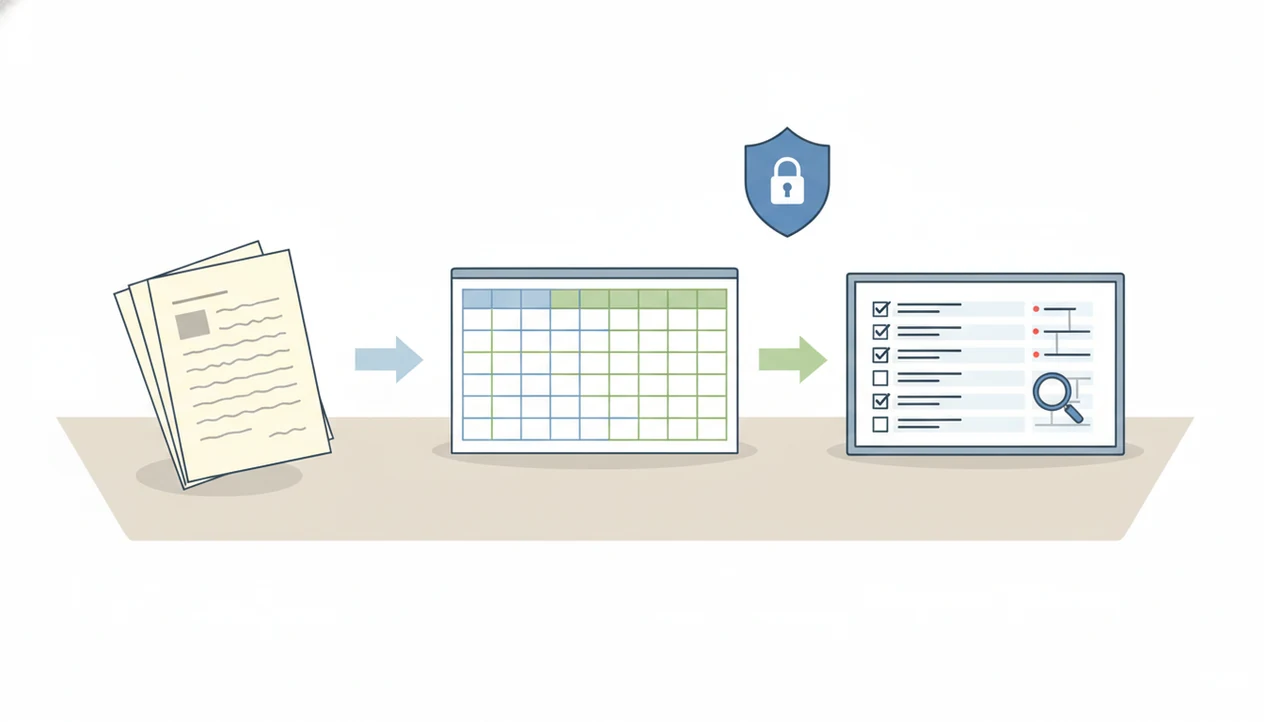
To import bank statement CSV into QuickBooks, prepare a clean CSV in QuickBooks’ accepted bank-transaction format, upload it to the correct bank or credit card account, map the columns, then review every transaction before posting. The most important checks are date format, amount signs, debit/credit columns, account selection, and duplicates.
Definition: Importing a bank statement CSV into QuickBooks means uploading structured transaction rows so QuickBooks can map dates, descriptions, and amounts into the Banking or Transactions review workflow.
TL;DR
- QuickBooks Online commonly expects a 3-column or 4-column CSV layout for bank transaction uploads.
- A PDF bank statement must be converted into a structured CSV before QuickBooks can treat it as transaction data.
- Do not post imported rows until dates, signs, duplicate transactions, and the target account have been reviewed.
QuickBooks CSV Import Definition for Bank Statement Files
Importing a bank statement CSV into QuickBooks means sending transaction rows into QuickBooks, not uploading statement pages for interpretation. QuickBooks Online is the main product people mean when they describe a manual bank CSV upload.
A bank-exported CSV usually comes directly from the bank portal, with columns already arranged as transaction data. A converted PDF statement CSV starts as a document, such as `Chase Checking March 2022.pdf`, and must be extracted into rows first. That difference matters because page headers, balances, and footer text can sneak into converted output.
Bank Statement Converter App is a bank statement converter that turns PDF bank statements into CSV, Excel, and QBO files for small businesses, bookkeepers, and accountants. Still, the final CSV should always be checked against the source file before QuickBooks sees it.
At-a-Glance Requirements for a QuickBooks Bank CSV
A QuickBooks bank CSV should contain transaction-level rows with date, description, and amount fields, or date, description, debit, and credit fields. Intuit’s QuickBooks Online help documentation describes manual bank transaction uploads using CSV files with date, description, and amount-style fields: https://quickbooks.intuit.com/learn-support/en-us/help-article/bank-transactions/manually-upload-transactions-quickbooks-online/L0TnM1wP7USen_US The date format must stay consistent from the first transaction to the last.
Before upload, remove blank rows, totals-only rows, statement headings, repeated column labels, and page footer text. A rotated PDF from an office scanner can produce odd fragments in the converted output, so scan the grid before importing. The first row should be a header, not the first transaction unless QuickBooks asks otherwise.
Manual CSV workflows remain relevant because bank feeds are not always available, complete, or connected to old statement periods. FDIC household banking survey data shows that most U.S. households have bank accounts, but a live bank feed is still not guaranteed for every historical client file or disconnected account: https://www.fdic.gov/analysis/household-survey/ For older months, client files, and disconnected accounts, a clean CSV is still practical.
Small errors travel fast.
Five Facts About Importing Bank Transactions Into QuickBooks
- QuickBooks Online commonly accepts bank transaction CSV uploads in 3-column or 4-column structures.
- Column mapping is part of the import workflow; it is not an optional cleanup step after upload.
- Formatting problems can stop an import or place dates, descriptions, and amounts in the wrong fields.
- QuickBooks Desktop does not handle simple bank CSV uploads the same way QuickBooks Online does.
- Source note: Intuit documents different import paths for QuickBooks Desktop, including IIF and Web Connect/QBO workflows rather than the same Online bank CSV upload flow: https://quickbooks.intuit.com/learn-support/en-us/help-article/list-management/iif-overview-import-kit-sample-files-headers/L5CZIpJneUSen_US
- PDF statements need conversion into clean transaction rows before QuickBooks can treat them as bank data.
A converted file should look like an accounting table, not a copied statement page. When a CSV preview grid shows page numbers or “ending balance” mixed with transactions, fix that first. The stricter format details are covered in our QuickBooks CSV format for bank statements.
For most bookkeepers, preparing the CSV before upload is easier than repairing a bad import because QuickBooks review screens assume the rows are already structured.
How QuickBooks CSV Import Works Behind the Scenes
QuickBooks CSV import works by reading each row and mapping columns into transaction fields such as date, description, and amount. The mechanism is simple field mapping: one source column is assigned to one QuickBooks destination field.
QuickBooks does not infer everything correctly from messy source data. If a description column contains page footer text, or a date column mixes `03/04/2024` with `2024-04-03`, the import can fail or misread the row. Transaction direction also matters. A single amount column uses positive and negative values, while a debit/credit layout separates money out from money in.
After upload, imported rows enter a review or matching workflow before acceptance. That screen is familiar: date, description, and amount columns must be mapped before the file is accepted. Import creates candidates for the books, not finished accounting records.
Before You Start a QuickBooks CSV Import
Before you start a QuickBooks CSV import, confirm the product, source statement, target account, backup plan, and amount layout. These checks prevent the common failures: wrong account, reversed signs, duplicate rows, and imports that cannot be reconciled.
- Confirm whether the file is going into QuickBooks Online or QuickBooks Desktop. The Online workflow commonly supports manual bank CSV uploads; Desktop often needs a different path, such as QBO or IIF.
- Download the original bank or credit card statement for the same period. Keep it open for date-range checks, beginning and ending balance checks, and quick comparisons when the preview looks odd.
- Export or back up existing transactions before adding a new file. This is especially important if a bank feed, prior CSV, or manual entry may already cover part of the same month.
- Identify the exact bank or credit card account that should receive the rows. Do not import a mixed statement file until each account has been separated.
- Decide how the CSV expresses direction. A signed amount column uses positive and negative numbers, while separate debit and credit columns must be mapped by side.
How to Use a QuickBooks Bank CSV Import Workflow
Use a QuickBooks bank CSV import workflow by preparing the file, selecting the right account, mapping the columns, reviewing the preview, and reconciling after posting.
1. Prepare the CSV file
- Open the CSV and confirm one transaction per row, with no statement summaries or page artifacts.
2. Select the QuickBooks account
- Choose the bank or credit card account that should receive the imported rows.
3. Map the CSV columns
- Match date, description, and amount fields, or map debit and credit fields separately.
4. Review the transaction preview
- Compare the preview against the original statement before accepting anything.
5. Accept and reconcile rows
- Post only reviewed rows, then reconcile the account to the statement period.
Tools like Bank Statement Converter App can help create the CSV when the source is a PDF, but the QuickBooks mapping step still belongs to the user. If you need a different import file type, the QBO export feature may fit the workflow better.
Step 1: Format the Bank Statement CSV for QuickBooks
How should I format a bank statement CSV for QuickBooks? Use either `date, description, amount` or `date, description, debit, credit`, keep one transaction per row, and remove anything that is not a transaction.
Balances, statement summaries, page numbers, subtotal rows, and unrelated text should not be imported. A merged file containing three accounts is especially risky because transactions can land in the wrong QuickBooks account if the CSV is not separated first. Normalize dates before upload; do not mix month-first, day-first, and ISO date styles in the same file.
A PDF-to-CSV conversion should preserve source transaction detail, including the original transaction date and description. A good AI bank statement converter app that turns PDF bank statements into clean CSV, Excel, and accounting-ready files without storing uploads should deliver structured rows, not rewritten financial history.
Step 2: Upload and Map the QuickBooks Bank CSV
In QuickBooks Online, choose the bank or credit card account before importing the CSV. Account choice matters because the same transaction rows can mean different things in a checking account and a credit card account.
Upload or browse for the CSV through the manual transaction import workflow. Then match the CSV fields to the QuickBooks fields. If the file uses one signed amount column, confirm how positive and negative values are interpreted. If it uses separate debit and credit columns, map each side carefully.
Wrong mapping can reverse money in and money out. We have seen clean-looking CSV files where credit card payments appeared as charges because the sign convention was assumed instead of checked. For teams deciding between formats, the CSV vs QBO comparison explains why QBO files can reduce some mapping decisions.
A quick smell test: if every payroll deposit suddenly appears as a withdrawal, stop at the preview screen and reverse the mapping before any row is accepted.
Step 3: Review Imported QuickBooks Transactions Before Posting
Review imported QuickBooks transactions before posting because import is not reconciliation. The rows still need to be checked, matched, categorized, and compared with the original statement period.
Start with dates. Confirm that the imported range matches the statement period and does not overlap a prior bank feed or earlier CSV import. Then compare balances where available. One practical check is matching the ending balance on page 3 of the PDF statement against the final transaction row in Excel.
Duplicates are common when a bank feed already pulled part of the month. Look for repeated dates, descriptions, and amounts before accepting rows. Payee, memo, and category suggestions also need review because QuickBooks may guess based on older transactions.
For accountants, reviewing before posting is often faster than undoing a messy import because duplicate cleanup can disturb reconciliation work already completed.
Common Myths About QuickBooks Bank CSV Imports
Myth 1: QuickBooks can read any CSV automatically. QuickBooks needs a supported column structure and readable transaction rows; a random spreadsheet export may not qualify.
Myth 2: A PDF statement can be uploaded directly as transactions. A PDF bank statement usually needs conversion into CSV, Excel, or QBO before import. A bank statement converter for QuickBooks is built for that preprocessing step.
Myth 3: QuickBooks Online and Desktop import CSV files the same way. QuickBooks Desktop often needs QBO, IIF, or third-party import tooling instead.
Myth 4: Imported transactions are guaranteed correct. The import preview can still contain wrong dates, reversed signs, and duplicate rows.
Myth 5: Credit card CSVs always use the same signs as bank account CSVs. They do not. Credit card charges and payments must be checked against the account type.
Limitations
CSV import is useful, but it is not a universal PDF-to-QuickBooks pipeline. Treat it as an import preparation workflow with several failure points.
- QuickBooks imports structured transaction rows, not raw PDF statement pages.
- Messy dates, stray text, blank lines, and inconsistent columns can break or mis-map an import.
- QuickBooks Desktop may require QBO, IIF, or third-party import tooling instead of a simple CSV upload.
- Imported rows can duplicate transactions already added through bank feeds or earlier CSV files.
- Bank CSV exports vary by institution and often need cleanup before mapping.
- Importing does not replace reconciliation against the original statement.
- A converter should not alter the meaning of the original statement data.
- Scanned statements may need OCR review because character recognition can confuse `8`, `B`, `0`, and `O`.
The boring check matters.
If the file contains sensitive bank PDFs before conversion, a secure bank statement converter should explain upload handling, deletion practices, and export formats before you use it.
Read more
FAQ
Can QuickBooks import bank CSV files?
Yes. QuickBooks Online can import bank CSV files when the file follows supported transaction layouts and the columns are mapped correctly.
What CSV format does QuickBooks need?
QuickBooks commonly uses a 3-column layout with date, description, and amount, or a 4-column layout with date, description, debit, and credit. The file also needs consistent dates and transaction-only rows.
Can QuickBooks import PDF statements?
QuickBooks generally cannot import PDF bank statement pages directly as transactions. The PDF usually needs conversion into CSV, Excel, or QBO first.
Can QuickBooks Desktop import CSV transactions?
QuickBooks Desktop does not provide the same simple bank CSV upload workflow as QuickBooks Online. Desktop users may need QBO, IIF, or a third-party import tool.
Why did my QuickBooks CSV fail?
A QuickBooks CSV may fail because of mixed date formats, bad headers, blank rows, stray text, unsupported columns, or reversed debit and credit fields. Check the file before uploading again.
Should debits be negative in QuickBooks?
It depends on the CSV layout. A single amount column usually uses signs, while separate debit and credit columns should be mapped by direction.
How do I avoid duplicate imports?
Compare date ranges, bank feed history, prior imports, transaction IDs, descriptions, and amounts before accepting rows. Do not post rows that overlap an already imported period.
Can I import credit card CSVs?
Yes, credit card CSVs can often be imported into QuickBooks Online. Review sign direction carefully because charges and payments may not follow bank account conventions.
Do imported transactions need reconciliation?
Yes. Imported transactions still need review, matching, categorization, and reconciliation against the bank or credit card statement.