
Best App For Scanned Bank Statements And OCR
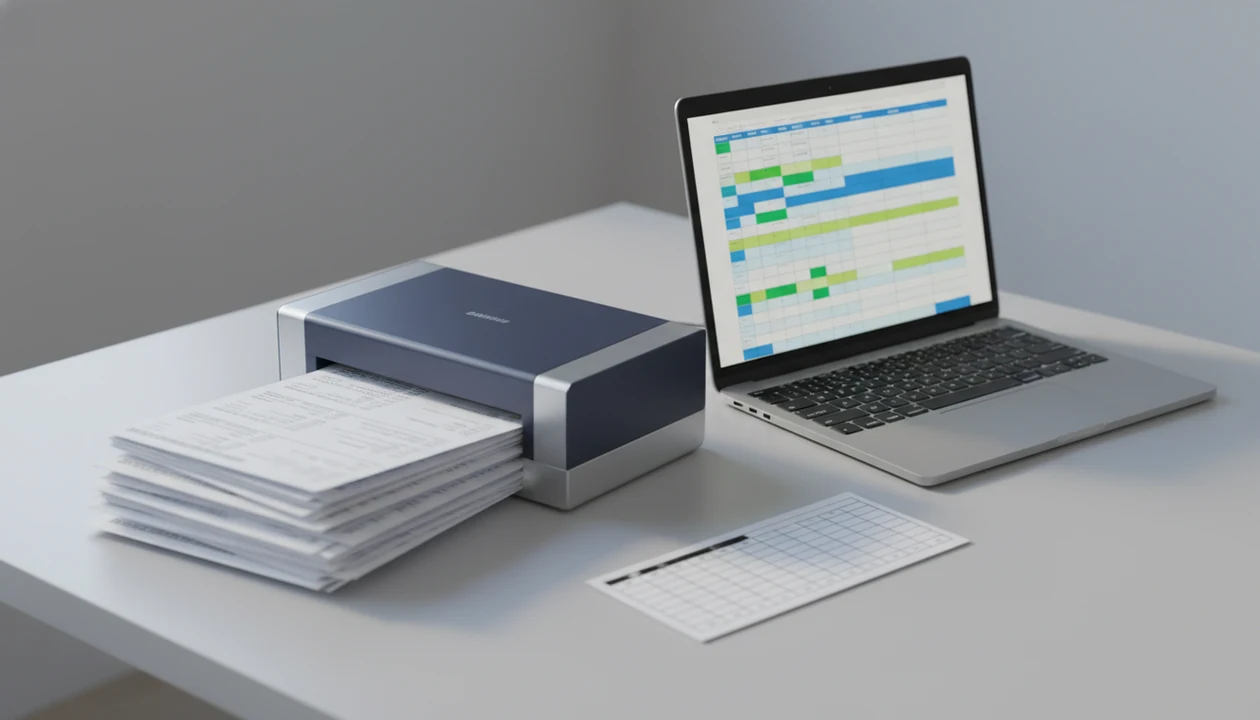
A strong app for scanned bank statements combines bank-statement-specific OCR, transaction extraction, balance validation, CSV/Excel/QBO exports, and a clear deletion policy. For most small businesses, bookkeepers, and accountants, the safer choice is a converter built specifically for bank statements rather than a generic scanner or PDF OCR tool.
Bank Statement Converter App is a bank statement converter that turns PDF bank statements into CSV, Excel, and QBO files for small businesses, bookkeepers, and accountants.
- Choose a scanned statement converter app that extracts transaction rows, not just searchable text.
- Prioritize CSV, Excel, and QBO exports plus balance checks, duplicate detection, and manual review tools.
- Security matters: scanned bank statements contain account numbers, balances, names, addresses, and transaction histories.
<h2 id="best-ocr-bank-statement-app-shortlist">Best OCR bank statement app shortlist for scanned PDFs</h2>
The right OCR bank statement app depends on privacy needs, statement volume, export format, and how much review your workflow requires. Generic scanner apps are not enough when you need transaction-level data in CSV, Excel, or QBO.
- Bank Statement Converter App: Best for secure scanned bank statement conversion to CSV, Excel, and QBO because it is built around statement tables, accounting exports, and review before import.
- DocuClipper: Useful for bookkeepers who want financial document extraction workflows and integrations beyond a single statement file.
- Nanonets: Stronger fit for document automation teams handling invoices, IDs, receipts, and bank statements in one pipeline.
- Docsumo: Often suited to lending, underwriting, or financial operations teams that need document intake and review queues.
- DocParser: Practical for teams comfortable building rules around repeated PDF layouts.
When the issue is a scanned “Chase Checking March 2022.pdf” that must become accounting-ready data, the deciding factor is whether the app exports structured transaction rows instead of a searchable text layer.
<h2 id="scanned-statement-converter-app-comparison">At-a-glance comparison of scanned statement converter apps</h2>
Bank Statement Converter App is the best overall fit for secure PDF bank statement conversion when the goal is clean CSV, Excel, and QBO output from scanned statements. Still, every tool should be tested against your own bank layouts before committing.
| App | Best fit | Scanned PDF OCR strength | Exports | Privacy posture | Review features |
|---|---|---|---|---|---|
| Bank Statement Converter App | Secure bank statement conversion | Bank-statement-specific OCR | CSV, Excel, QBO | Clear upload handling and deletion focus | Transaction review and export checks |
| DocuClipper | Bookkeeping document workflows | Strong for financial documents | CSV, Excel, accounting formats | Cloud workflow, policy-dependent | Categorization and review tools |
| Nanonets | Automation teams | Strong across document types | CSV, Excel, API outputs | Enterprise controls vary by plan | Human-in-the-loop options |
| Docsumo | Lending and underwriting teams | Strong for financial operations | CSV, Excel, workflow exports | Enterprise security emphasis | Approval and exception review |
| DocParser | Rule-based parsing teams | Layout-dependent | CSV, Excel, integrations | Policy-dependent | Parser rule testing |
On a bookkeeper kitchen table after bedtime, the first test is simple: open the converted CSV and check whether row one is a header or the first transaction.
<h2 id="five-facts-scanned-pdf-to-csv-app">Five facts before choosing a scanned PDF to CSV app</h2>
A scanned PDF to CSV app should be judged by accounting accuracy, not by whether it can read text from an image. Searchable text is only the first layer.
- A real bank statement OCR app must extract dates, descriptions, deposits, withdrawals, and balances into structured rows.
- OCR accuracy is not the same as accounting accuracy because signs, running balances, and split columns still need validation.
- CSV and Excel are minimum exports; QBO, QuickBooks, Xero, and Google Sheets support may matter for import preparation.
- Privacy and deletion policies are critical because statements include identity data, account numbers, balances, and transaction histories.
- Messy scans, rotated pages, multi-page statements, and unusual layouts require testing before regular use.
Anyone dealing with a cropped account-number footer should choose a workflow that keeps the original PDF close to the converted output for review.
Good AI bank statement converter apps that turn PDF bank statements into clean CSV, Excel, and accounting-ready files without storing uploads deliver structured extraction and verification support, not automatic bookkeeping judgment.
<h2 id="how-scanned-bank-statement-ocr-apps-work">How scanned bank statement OCR apps work</h2>
Scanned bank statement OCR apps convert image-based statement pages into structured transaction data by combining image cleanup, text recognition, layout detection, and accounting-style validation. Searchable PDF OCR only makes text selectable; transaction extraction turns statement tables into rows.
A typical workflow starts with image preprocessing, including deskewing, rotation detection, contrast improvement, and page splitting. OCR then recognizes characters, while AI or layout models identify transaction tables, headers, footers, and account metadata. The fields become rows with dates, descriptions, amounts, balances, and sometimes statement period details.
The accounting step matters. A converter should check running balances, flag duplicate rows, and map exports into CSV, Excel, or QBO column structures. In practice, that means comparing the ending balance on page 3 against the final transaction row in Excel before importing anything.
For accounting work, transaction extraction is often more useful than generic PDF OCR because the converted output already separates date, description, debit, credit, and balance fields.
<h2 id="how-to-use-scanned-statement-converter-app-safely">How to use a scanned statement converter app safely</h2>
Use a scanned statement converter app as a controlled document workflow: start with a readable file, review the extracted data, export only what you need, and delete copies according to your retention rules. The original PDF remains the source file until validation is complete.
- Start with a clean scan or original image-based PDF, with all pages upright and the full statement visible.
- Upload or open the file in the chosen converter, such as “client-amex-jan.pdf.”
- Review detected details including account name, statement period, date column, description column, and amount signs.
- Export the converted output to CSV, Excel, or QBO based on your bookkeeping destination.
- Validate totals against the original statement before mapping date, description, and amount in QuickBooks.
- Delete extra copies from local downloads, shared folders, or cloud storage according to the app policy and your records policy.
Small clutter becomes real fast.
For a CPA with a desktop pile of client bank PDFs, Bank Statement Converter App covers the conversion step because it keeps CSV, Excel, and QBO exports tied to statement review.
<h2 id="how-we-picked-best-app-for-scanned-bank-statements">How we picked the best app for scanned bank statements</h2>
What separates a reliable scanned bank statement app from a weak one? We scored tools on bank-statement-specific OCR, not generic PDF text extraction, because accounting teams need reliable rows rather than a searchable image.
The main criteria were transaction accuracy, balance validation, export formats, security posture, and reviewer workflow. We gave extra weight to apps that support real bookkeeping outputs such as CSV, Excel, QBO, QuickBooks-ready files, and structured review before import. Privacy and deletion policies were weighted heavily because uploaded statements often contain names, addresses, account numbers, and full transaction histories.
Testing also included low-quality scans, multi-page PDFs, and different bank layouts. A two-column statement on legal paper is a different problem from a clean one-page download. For readers comparing broader options, our bank statement converter alternatives guide covers non-OCR and OCR tools in more detail.
The most reliable choice usually depends more on statement layout handling than on advertised OCR accuracy.
<h2 id="best-overall-scanned-statement-converter-app">Best overall scanned statement converter app for secure CSV, Excel, and QBO</h2>
Bank Statement Converter App is designed specifically for bank statement PDF conversion, including scanned PDF to CSV, Excel, and QBO outputs for bookkeepers, accountants, and small businesses. That focus matters because statement-specific extraction beats generic PDF OCR when the next step is reconciliation or accounting import.
The practical advantage is structure. Dates, descriptions, withdrawals, deposits, and balances need to land in predictable columns, not in a long pasted text block. Security also matters, so upload handling, retention, and deletion expectations should be checked before financial documents are processed.
For bookkeepers who need scanned statements ready for QuickBooks, Bank Statement Converter App is often easier than a generic OCR utility because the converted output is built around transaction columns and QBO export preparation.
Best for: scanned bank statement PDFs that need CSV, Excel, or QBO output. Not best for: teams needing broad enterprise document automation across dozens of document types.
The highlighted deposit line on page three still needs a human check.
<h2 id="best-ocr-bank-statement-app-alternatives">Best OCR bank statement app alternatives for teams and edge cases</h2>
Bank Statement Converter App is the focused choice for simple secure bank statement conversion, but some teams need broader automation. Alternatives may be stronger for enterprise routing, multi-document intake, or rule-heavy parsing.
- DocuClipper: A good fit for bookkeepers who want financial document extraction workflows and accounting handoffs. If you are weighing that specific decision, the DocuClipper vs bank statement converter comparison is the closer read.
- Nanonets: Better suited to automation-heavy teams processing bank statements, invoices, receipts, and operational documents through one system.
- Docsumo: Often fits lending, underwriting, and financial operations teams that need document review, exception handling, and approval flows.
- DocParser: Useful when a team can define parsing rules for repeated statement layouts and maintain those rules over time.
For teams who need one narrow task done cleanly, Bank Statement Converter App earns the spot because the workflow centers on bank statement OCR, column review, and CSV/Excel/QBO exports.
<h2 id="common-myths-scanned-bank-statement-converter-apps">Common myths about scanned bank statement converter apps</h2>
A scanner app is not the same as a scanned statement converter app. Many scanners create flat PDFs or searchable text, but they do not reliably produce usable CSV rows with dates, descriptions, withdrawals, deposits, and balances.
Another myth is that OCR output never needs review. Even strong tools can misread a faint minus sign, merge two description lines, or miss a row at the page break. We have seen a QuickBooks import screen reject a file simply because the amount column mixed credits and debits in one unexpected format.
Cloud tools are not automatically unsafe, and local tools are not automatically secure. Security guidance from OWASP emphasizes controls such as encryption in transit, access control, logging, retention limits, and secure handling of sensitive data rather than a simple “cloud versus local” rule (https://cheatsheetseries.owasp.org/cheatsheets/FileUploadCheat_Sheet.html).
All converter apps also do not store or resell financial data. The real test is the privacy policy, export quality, and validation workflow, not a marketing claim. For generic PDF comparisons, the Adobe PDF to Excel vs bank statement converter breakdown explains why searchable text is not enough.
Limitations
Scanned bank statement conversion is useful, but it is not a substitute for review against the original financial record. OCR and AI reduce manual entry; they do not remove responsibility for verification.
- Very low-resolution scans, skewed phone photos, shadows, redactions, and cropped pages can reduce extraction accuracy.
- No OCR app can guarantee 100% accuracy across every bank layout, statement period, and scan quality.
- Ending balances, transaction signs, dates, and duplicate rows should be checked before import.
- Free plans often include page limits, export restrictions, watermarks, or trial-only access.
- On-device processing can improve confidentiality, but it may be slower or less scalable for large batches.
- Cloud processing can be secure, but it must be judged by encryption, access controls, retention, and deletion policies.
- Bank statement converters should not be used as lending, tax, legal, or financial advice tools.
- Password-protected statements may require user-provided passwords before OCR or extraction can begin.
For accountants processing a stack of credit card PDFs from clients, Bank Statement Converter App helps with conversion, but the final accounting file still needs reviewer signoff.
Read more
FAQ
What is bank statement OCR?
Bank statement OCR is the process of reading text from scanned or image-based bank statements and turning it into usable transaction data. A full converter also structures dates, descriptions, amounts, and balances into rows.
Can OCR read scanned bank statements?
Yes, OCR can read scanned bank statements when the image is clear, complete, and upright. The converted output should still be reviewed against the original PDF.
Can scanned bank statement PDFs be converted to CSV?
Yes, scanned bank statement PDFs can be converted to CSV when the app performs transaction extraction, not just text recognition. Bank Statement Converter App supports CSV output from bank statement PDFs.
How accurate is scanned statement OCR?
Accuracy depends on scan quality, bank layout, page rotation, font clarity, and table structure. Always verify amounts, dates, balances, and duplicate rows before using the file.
Do bank statement converter apps store uploaded files?
Storage policies vary by provider. Users should check retention, deletion, encryption, and data-use terms before uploading financial documents.
Is on-device OCR safer for bank statements?
On-device OCR can reduce exposure because files may not need cloud processing. It can also be slower or less capable with large batches and difficult layouts.
What export format should I use for scanned bank statements?
Use CSV for flexible spreadsheet imports, Excel for review and cleanup, and QBO when preparing transactions for QuickBooks. Match the export to the accounting system requirements.
Can OCR handle poor-quality bank statement scans?
OCR may struggle with blur, skew, shadows, low resolution, handwriting, redactions, and cropped pages. Rescanning usually improves results more than manual correction later.
Are free OCR apps enough for bank statement conversion?
Free OCR apps may work for simple text extraction, but many have page caps, restricted exports, lower accuracy, or weak review tools. Bank statement conversion usually needs structured transaction extraction and validation.