
How to Convert a Bank Statement on iPhone to CSV or Excel
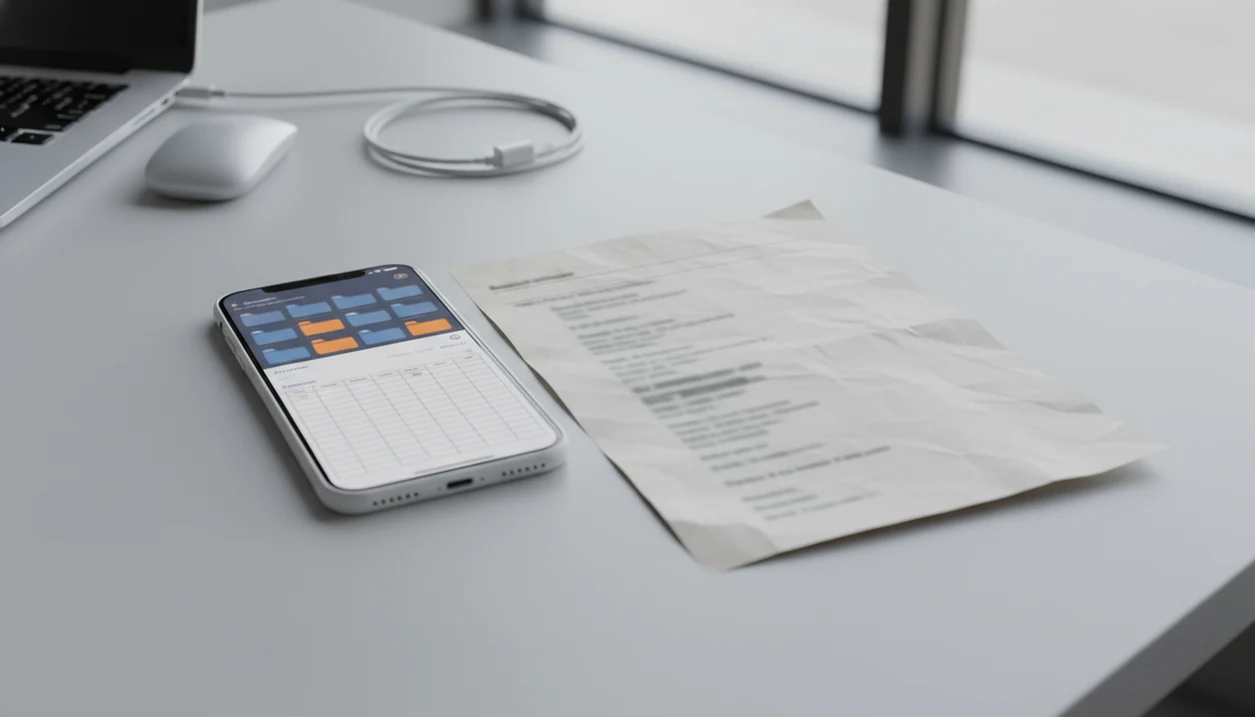
How to convert bank statement on iPhone: download the statement PDF, save it to Files, upload it to a file-only bank statement converter, then export the transactions as CSV or Excel. The safest workflow does not require sharing your online banking username or password.
> Bank Statement Converter App is a bank statement converter that turns PDF bank statements into CSV, Excel, and QBO files for small businesses, bookkeepers, and accountants.
- Save the bank statement PDF to the iPhone Files app before converting it.
- Use an iOS statement converter or mobile web converter that accepts PDF uploads and exports CSV or XLSX.
- Always preview the converted file because OCR and AI extraction can misread scanned or low-quality statements.
What iPhone bank statement PDF to CSV conversion means
Converting an iPhone bank statement PDF to CSV means extracting transaction rows from the PDF and placing them into a structured spreadsheet file. It is not the same as opening the statement in Files, Mail, Books, or another iOS PDF viewer.
Those iPhone tools can store, preview, share, or annotate a file named `Chase Checking March 2022.pdf`. They do not create accounting-ready rows with date, description, debit, credit, amount, balance, account, and memo columns. A dedicated converter reads the source file, identifies the transaction table, and exports a converted output that spreadsheet or accounting software can use.
The useful result is rows, not a prettier PDF. For a deeper desktop and mobile workflow, the same extraction logic applies when you convert bank statement PDF to CSV.
Before you convert a PDF statement on iPhone
Before converting a PDF statement on iPhone, make sure the statement file, export format, and review plan are clear. Most failed conversions start with the wrong source file or an unknown save location.
- Have the bank statement downloaded as a PDF from the bank app, bank website, Mail, or cloud storage.
- Save it somewhere predictable, such as Files, iCloud Drive, On My iPhone, or a client folder.
- Check whether the PDF is password-protected, scanned, multi-account, or multi-currency.
- Choose CSV for spreadsheets, XLSX for Excel review, or QBO for accounting imports.
- Mobile banking is common; Pew Research Center reported that 57% of U.S. smartphone owners had used their phone for online banking, which makes iPhone statement handling a normal bookkeeping task: https://www.pewresearch.org/internet/2015/04/01/us-smartphone-use-in-2015/.
A downloads folder full of `Statement (1).pdf` and `Statement (2).pdf` gets confusing fast. Rename the file before upload if the statement period matters.
How iOS statement converter tools work
iOS statement converter tools work by uploading a bank PDF from your iPhone to an app or mobile web page, then extracting transaction data into a table. The converter uses native PDF text extraction when the PDF contains readable text, and OCR when the statement is scanned.
The parsing step looks for dates, descriptions, debits, credits, balances, and page continuations. In plain terms, it tries to rebuild the transaction table that your bank printed into the PDF. OCR quality depends on document quality, so skewed scans and tiny fonts need extra validation before use.
Tools like Bank Statement Converter App, Docparser (https://docparser.com/), and PDFTables (https://pdftables.com/) differ in privacy terms, supported exports, and statement-layout handling. A good AI bank statement converter app turns PDF bank statements into clean CSV, Excel, and accounting-ready files without storing uploads, not a replacement for reviewing the original financial record.
How to use an iPhone bank statement converter
To use an iPhone bank statement converter, start with the original PDF and end with a checked CSV, Excel, or QBO file. You should not need to provide bank login credentials for a file-only conversion.
- Download the statement PDF from the bank app or website.
- Save the PDF to Files or iCloud Drive using the iOS Share sheet.
- Open the converter app or Safari converter page and upload the PDF file.
- Choose CSV, Excel, or QBO as the export format.
- Download the converted file and open it in Excel, Numbers, Google Sheets, QuickBooks, or Xero.
The moment to slow down is after download. Open the CSV and check whether row one is a header or the first transaction. If Excel review is your next step, the Excel export feature matters more than a generic PDF viewer.
If you use Bank Statement Converter App for this workflow, treat the exported CSV or XLSX as a draft ledger, not a final accounting record. Compare at least the opening balance, ending balance, first transaction, and last transaction against the original PDF before importing.
Secure iPhone PDF statement conversion without bank credentials
Does a converter need my bank username and password? For file-only statement conversion, no; the tool should only need the PDF statement you choose to upload.
Uploading a PDF is different from connecting a live bank account through credentials or an aggregator. A PDF upload sends one source file for extraction. A credential connection may request access to account data beyond the statement you are trying to convert. That is a different risk profile.
Choose converters that explain upload handling, retention, deletion, and security practices in plain language. Cloud web converters still require sending financial data to external servers, so review the policy before uploading `client-amex-jan.pdf`. The FTC’s 2023 Consumer Sentinel Network Data Book reported more than $10 billion in consumer fraud losses, which is enough reason to be cautious with files that contain personal financial information: https://www.ftc.gov/reports/consumer-sentinel-network-data-book-2023.
After conversion, remove unnecessary copies from Files, Downloads, browser storage, or shared cloud folders when your recordkeeping policy allows it.
CSV versus Excel versus QBO exports on iPhone
CSV, Excel, and QBO exports serve different jobs after an iPhone statement conversion. Clean column mapping matters more than simply turning a PDF into a spreadsheet-looking file.
| Format | Best use | Caution |
|---|---|---|
| CSV | Simple spreadsheets, imports, cleanup, and reconciliation | Limited formatting and usually one table |
| XLSX | Excel review, multiple sheets, formulas, and formatting | May need column cleanup before import |
| QBO | QuickBooks-style bank statement import workflows | Must match the accounting platform’s required fields |
For most spreadsheet cleanup, CSV is often easier than XLSX because it keeps the transaction table simple and portable. For review, Excel is usually better when you need filters, notes, and separate tabs. The CSV vs Excel bank statements choice should follow the next system that will receive the file.
Spot-checking a converted bank statement CSV on iPhone
Spot-check a converted bank statement CSV before using it for accounting, tax, or client work. Open the converted output in Numbers, Excel, Google Sheets, or a file preview app and compare it against the original PDF.
Start with the first and last transaction dates. Then check debit and credit signs, running balances, duplicate rows, missing rows, and page breaks. If possible, reconcile total deposits and withdrawals against the statement summary. The small screen makes this slower, but it catches expensive mistakes.
One practical check is simple: compare the ending balance on page 3 of the PDF with the final transaction row in Excel. If they do not agree, pause before importing. Scanned PDFs, watermarks across transaction tables, and tiny fonts create higher review risk.
Common iPhone bank statement conversion mistakes
Common iPhone bank statement conversion mistakes usually involve the wrong source file, the wrong tool, or skipping review. These errors can create bad rows even when the export opens normally.
- Generic PDF-to-Excel tools: They may preserve layout but miss bank-specific transaction structure.
- Screenshots instead of PDFs: Screenshots reduce text quality and often force OCR when a native PDF was available.
- Blind trust in AI or OCR: Extraction can swap debit and credit values or split descriptions across rows.
- Locked PDFs: Password protection or restrictions may prevent clean extraction until the file is unlocked.
- Early accounting import: QuickBooks, Xero, and similar tools still need date, description, and amount mapping checked.
- Forgotten local copies: Sensitive PDFs can remain in Files, Downloads, or cloud folders after the job is done.
For QuickBooks workflows, a bank statement converter for QuickBooks should produce import-ready columns, not just a spreadsheet-shaped file.
Sources and verification notes for iPhone statement conversion
This guide separates iPhone file-handling guidance, security context, and conversion behavior so the workflow is easier to verify. The conversion steps are practical product-testing notes, while broader mobile and fraud claims come from outside sources.
- Use Apple’s iPhone guidance as the authority for saving, finding, and sharing files through Files, iCloud Drive, Downloads, and the Share sheet. Those steps explain where the statement PDF is before any converter touches it.
- Treat the Pew mobile banking research cited above as context for why statement work now happens on phones, not as proof that every bank PDF converts cleanly.
- Use the FTC fraud and identity-theft guidance cited above as the risk backdrop for handling PDFs that contain names, account numbers, addresses, and balances.
- Read conversion-quality claims as product testing observations: uploads, exports, OCR behavior, debit-credit mapping, and mobile review were checked by working through sample bank statement PDFs.
- Review every converted CSV, XLSX, or QBO file against the original PDF before relying on it. The export is a draft data table, and the PDF remains the source record.
Limitations
iPhone bank statement conversion is useful, but it is not automatic bookkeeping. The converted file still needs review against the original PDF.
- Low-quality scans, skewed images, colored backgrounds, and tiny fonts can cause OCR errors.
- Password-protected or restricted bank PDFs may need unlocking before upload.
- Multi-account and multi-currency statements may not map cleanly into one CSV.
- Free converters may limit pages, monthly conversions, export formats, or file size.
- Cloud converters may not satisfy every business compliance requirement.
- Some bank statement layouts require manual correction after conversion.
- iPhone screen size can make detailed row review harder than desktop review.
Restaurant managers between lunch rushes may get the file converted on a phone, but final reconciliation is often easier on a larger screen. The bank statement CSV format is the part to verify before import preparation.
Read more
FAQ
Can an iPhone convert a bank statement PDF to CSV?
iOS alone cannot reliably extract bank transaction rows into CSV. An iOS statement converter or mobile web converter can do it from a saved PDF.
Do I need to enter my bank login details to convert a statement?
No, a file-only bank statement converter should only need the PDF statement. Do not enter online banking credentials unless you intentionally choose a separate bank-connection service.
Where are bank statements saved on an iPhone?
Bank statements are commonly saved in Files, iCloud Drive, On My iPhone, Mail attachments, or a browser Downloads folder. The exact location depends on the bank app and the Share sheet option you selected.
Can scanned bank statements be converted on iPhone?
Yes, scanned bank statements can be converted with OCR. Accuracy depends on scan quality, page alignment, font size, and image clarity.
Is CSV or Excel better for a converted bank statement?
CSV is better for simple imports and clean transaction tables. Excel is better for review, formatting, notes, formulas, and multi-sheet work.
Can I import a converted bank statement into QuickBooks?
Yes, but the needed format depends on your QuickBooks import workflow. You may need CSV, XLSX, or QBO with correctly mapped date, description, and amount fields.
Why is my converted bank statement CSV wrong?
Common causes include OCR errors, multi-column layouts, password restrictions, duplicate rows, missing page continuations, or incorrect debit-credit mapping. Compare the output with the original PDF before using it.
Should I delete the bank statement PDF after conversion?
Follow your recordkeeping requirements first. If you no longer need extra copies, remove unnecessary PDFs and exports from local storage, browser downloads, and cloud folders.