
See Duplicate Transactions in Converted Bank CSVs
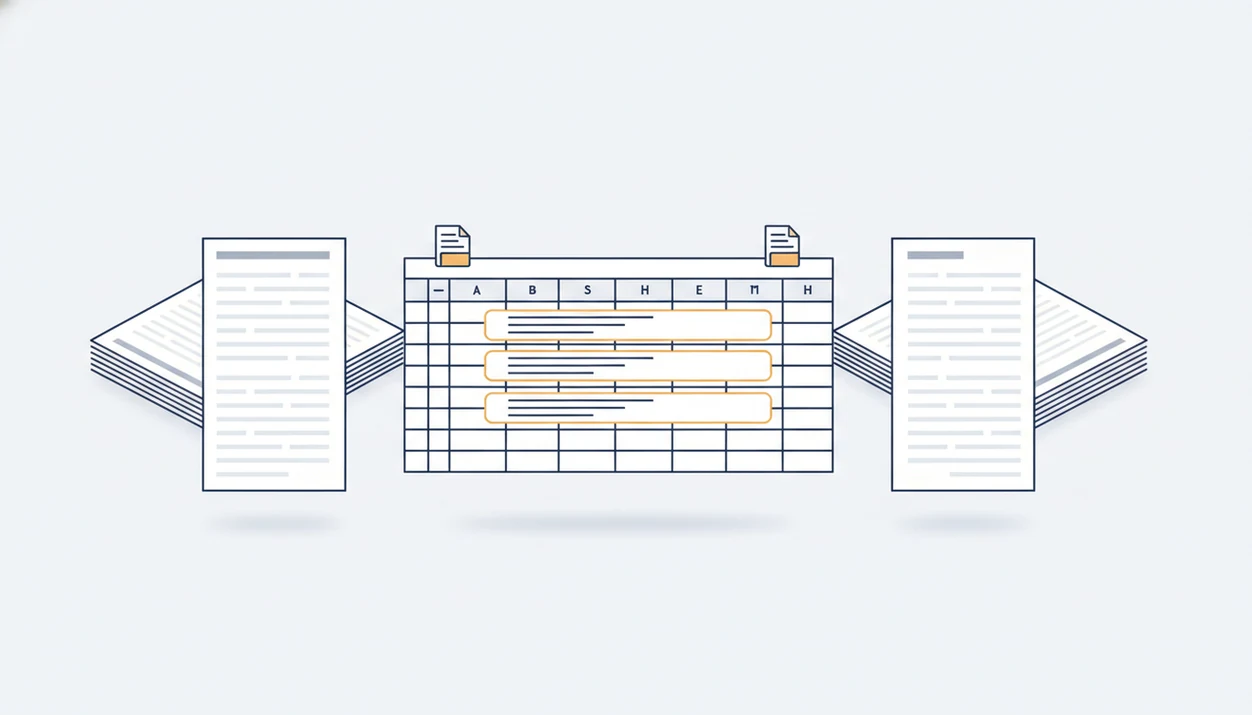
To see duplicate transactions in converted CSV files, compare each row by date, description, amount, account, statement period, and source file before deleting anything. Most duplicate rows in bank CSV files come from overlapping bank statements, repeated PDF uploads, or the same transaction arriving from both a bank feed and a manual import.
Definition: Bank Statement Converter App is a bank statement converter that turns PDF bank statements into CSV, Excel, and QBO files for small businesses, bookkeepers, and accountants.
TL;DR
- Do not mark a row as duplicate based on amount alone; compare date, amount, description, account, source file, and transaction ID when available.
- Overlapping bank statements are the most common reason converted statement duplicates appear after merging multiple PDFs.
- The safest fix is to identify the source of overlap, remove only the extra row, or reconvert the correct statement period.
- Bank Statement Converter App helps create reviewable CSV, Excel, and QBO files so you can sort suspicious rows before importing them into accounting software.
At-a-Glance Checks to See Duplicate Transactions
- Date: Compare posting dates first, not just the order rows appear after conversion.
- Amount: Same amount is only a clue. Rent, subscriptions, and card taps often repeat.
- Description: Review merchant text, memo detail, check number, and debit or credit direction.
- Account and source PDF: Match account suffixes and filenames like `Chase Checking March 2022.pdf`.
- Transaction ID: Use it when present, but do not assume every bank statement includes one.
Duplicate rows in bank CSV files often appear after merging PDFs with overlapping statement periods. A tax season desk covered in statements usually has at least one file that crosses into the next month. The fastest review starts with fields that explain where each row came from.
Amount alone is not enough.
How Converted Statement Duplicates Work
Converted statement duplicates happen when the same bank transaction is present in more than one input source, so the converted output contains more than one row for the same real-world posting.
A converter extracts rows from the source files it receives. If `Statement (1).pdf` and `Statement (2).pdf` both include a January 18 card payment, the CSV can show that payment twice. The converter did not invent the transaction. It followed the document set.
Overlaps come from partial-month downloads, reissued statements, repeated uploads, downloaded bank exports, and manual imports added on top of feed data. We see this most often when a user opens the converted CSV and checks whether the first row is a header or already the first transaction.
Bank Statement Converter App can structure rows from the PDFs you upload, but it cannot know that two overlapping source documents should not both feed the same import file.
How to Use a CSV Review Workflow for Duplicate Rows in Bank CSV Files
Before editing, save an untouched copy of the converted output. Name it clearly, such as `client-amex-jan-original.csv`, so the review file can be reversed if needed.
- Sort by account, date, and amount so repeated-looking rows sit near each other.
- Add a source-file column if the export does not already include one.
- Group similar descriptions, especially shortened merchant names and repeated card charges.
- Check statement periods against the PDF headers before deciding which row is extra.
- Mark only reviewed rows for removal in a separate column, rather than deleting immediately.
- Compare the edited total against the original PDF balance or transaction count where practical.
For bookkeepers, a source-file column is often easier than color coding because it survives export and review. Teams handling larger batches may want a bulk bank statement converter workflow that preserves file names through import preparation.
Statement Period Clues Behind Overlapping Bank Statements
“Why do two converted bank statements show the same transaction?” The usual answer is that the statement periods overlap, such as Jan 1 to Jan 31 and Jan 15 to Feb 14.
Check the opening date, closing date, page headers, account suffix, and source filename before removing anything. A zip file named old checking PDFs may contain one official monthly statement and one custom date-range export. Both can be valid records, but not both should contribute the overlapping rows to the same import file.
For overlapping bank statements, trimming the overlap is usually safer than bulk deleting repeated-looking rows because it keeps the statement period logic intact. Reconvert only the missing period when possible. If not, filter the overlap by date and source file, then mark the extra rows for review.
True Duplicate Transactions Versus Legitimate Repeated Charges
A true duplicate is the same posted transaction appearing more than once. A legitimate repeated charge is a separate transaction that happens to share a date, merchant, or amount.
| Row pattern | Likely meaning | Fields to check |
|---|---|---|
| Same date, amount, description, account, and source overlap | True duplicate | Source PDF, transaction ID, statement period |
| Same subscription amount each month | Legitimate recurring charge | Posting date, billing cycle, merchant |
| Two same-day card purchases at one merchant | Could be legitimate | Timestamp if available, receipt, description detail |
| Transfer out and transfer in | Not a duplicate | Debit or credit direction, account |
| Refund near original charge | Not a duplicate | Sign, amount direction, merchant text |
| Split payment with similar descriptions | Usually separate | Invoice, check number, memo field |
Comparing the ending balance on page 3 of a PDF statement against the final transaction row in Excel catches mistakes that visual scanning misses. The most defensible duplicate review compares source, account, date, description, amount, and direction before any row is removed.
Bank Feed and Manual Upload Conflicts That Create Duplicate Rows
Duplicates can appear even when the converted CSV is accurate. The same transaction may arrive once from a manual CSV upload and again from a connected bank feed.
Tiller’s duplicate-transaction guidance notes that repeated rows can appear when transactions sync more than once or an institution is reconnected through a different provider: https://help.tiller.com/en/articles/432698-duplicate-transactions. Rocket Money support also describes duplicates when the same purchase syncs through two linked sources, such as PayPal and the underlying bank account: https://help.rocketmoney.com/en/articles/1739246-why-am-i-seeing-duplicate-transactions. Those are source conflicts, not PDF parsing errors.
The familiar QuickBooks import screen still asks you to map date, description, and amount columns before acceptance. QuickBooks’ CSV import instructions show that users map transaction fields such as date, description, and amount during import, which is why pre-import duplicate review still matters: https://quickbooks.intuit.com/learn-support/en-us/help-article/import-export-data-files/import-bank-transactions-using-excel-csv-files/L0WbSL2hfUSen_US. It cannot always know that one row came from a feed and another from yesterday’s upload. A bank statement converter for accountants workflow should treat manual imports and connected feeds as separate transaction sources until matched.
Review Method We Tracked for Converted Bank CSV Duplicates
Our review method treats duplicate detection as before-import quality control. It is meant for bookkeepers, accountants, and finance teams preparing an accounting-ready file, not for automatic deletion.
The columns we inspect are source file, account, statement period, date, description, debit, credit, balance, and transaction ID when available. In Excel, we sort by account, then date, then absolute amount. We add a review note column with labels such as `likely duplicate`, `subscription`, `refund`, or `feed conflict`.
A quiet office after payroll cutoff is a good place for this work because small details matter. One row may differ only by source file. Another may have the same amount but opposite direction.
This method finds likely duplicates for human review; it does not prove business intent. For firms building repeatable close routines, a bank statement converter for bookkeepers process should keep the original PDF and edited CSV together.
Three Common Duplicate Transaction Stories in Merged CSV Files
Maya the Bookkeeper
Maya merged twelve checking PDFs into one CSV. Two February 1 deposits appeared twice because the January statement ran through February 2 and the February statement began February 1. The statement period field revealed the overlap.
Jordan the Accountant
Jordan imported a converted CSV after the client had already connected a bank feed. The same utility payment appeared from both sources. The account, posting date, and amount matched, but the source column showed `manual import` for one row and `bank feed` for the other.
Priya the Finance Admin
Priya imported card statements for a department review. A reissued PDF and the original PDF both included the same travel charges. The source filename exposed it: one file was marked `corrected`, the other was not.
Named source fields save time.
Tools like Bank Statement Converter App can help create CSV, Excel, and QBO exports, but duplicate review still depends on the document set and import history.
What Duplicate Transaction Review Does Not Prove
A CSV review can flag likely duplicates, but it cannot always determine business intent. Two rows may look identical because one is a manual entry and one is a bank-posted transaction. Another pair may reflect a pending card authorization and the final posted charge.
Accounting software matching rules also matter. Some systems match imported rows to existing entries. Others require filters, sorting, custom reports, or manual review to find repeated transactions. QuickBooks support guidance says there is no automatic report specifically for duplicated checks, so users often rely on sorting and custom review methods.
The converted CSV is evidence, not the full accounting record. If a contractor truck cab with a laptop is where the import happens, slow down before deleting. Check the PDF, the feed source, and the accounting register first. An app to help clean bank statements should support review, not replace judgment.
Limitations
- No converter or accounting app can reliably infer duplicates from amount alone.
- Clean conversion can still contain duplicates if source PDFs overlap or were uploaded twice.
- Reissued statements may include corrected rows that should replace, not simply duplicate, earlier rows.
- Pending card charges can create temporary feed artifacts that later change or disappear.
- Manual review is still needed before deleting rows from an accounting-ready file.
- Transaction IDs are useful, but many PDF statements do not expose them.
- OCR on scanned statements can misread dates, signs, or descriptions, especially on faint pages.
- Bank feeds, PayPal links, card processors, and manual uploads can all describe the same payment differently.
- A converted CSV cannot always distinguish a real split payment from an accidental duplicate.
For small teams, the safest rule is simple: preserve the source file, mark the suspected duplicate, and verify against the original PDF before import. A bank statement converter for small business workflow should leave an audit trail that someone else can follow.
Read more
FAQ
Why are my converted bank CSV transactions duplicated?
Converted bank CSV transactions are usually duplicated because statements overlap, the same PDF was uploaded twice, a bank feed also imported the transaction, or a pending item later posted.
How do I find duplicate transactions in a CSV file?
Sort by account, date, amount, and description, then compare source file and statement period. Use a helper column to mark likely duplicates before deleting anything.
Are transactions with the same amount always duplicates?
No. Recurring bills, same-day purchases, split payments, and transfers can share the same amount without being duplicates.
Can overlapping bank statements create duplicate rows?
Yes. If two PDF statements cover some of the same dates, the same posted transaction can appear in both converted outputs.
Should I delete duplicate transaction rows before importing?
Delete only the extra copy after checking account, date, amount, description, source file, and transaction direction. Keep the original CSV unchanged.
Can a bank feed and a manual CSV upload duplicate transactions?
Yes. A connected feed and a manual upload can bring in the same transaction from separate sources.
Do pending card charges create duplicate transactions?
Pending and posted card charges can temporarily look duplicated. Verify the final posted transaction before removing rows.
Can Excel help me spot duplicate bank transactions?
Yes. Excel can flag likely duplicates with sorting, filters, conditional formatting, and helper columns that combine date, amount, account, and description.
Convert your bank statement PDF now
Use Bank Statement Converter App to turn PDF bank statements into CSV, Excel, QBO, or QFX files, then inspect possible duplicate transactions in a spreadsheet before posting them to your books.
Download Bank Statement Converter App