
App To Help Clean Bank Statements After PDF Conversion
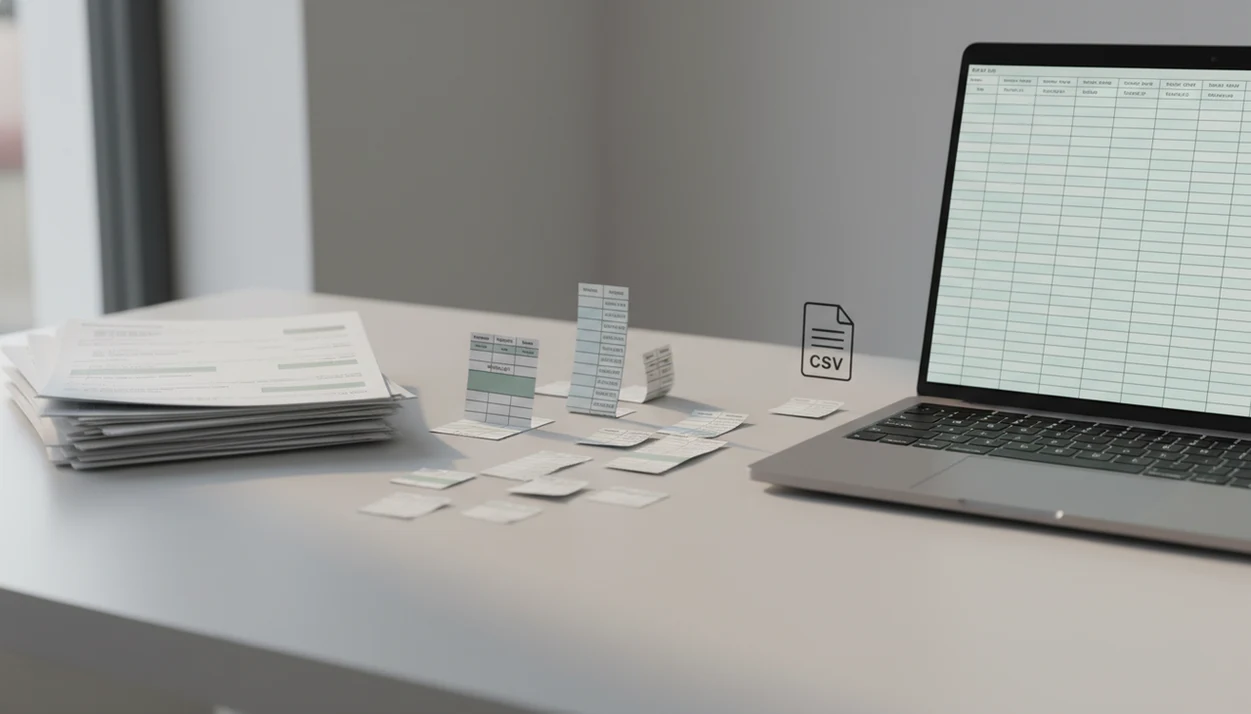
An app to help clean bank statements turns messy PDF-converted transaction data into a tidy CSV, Excel, or QBO file that is easier to review, reconcile, and import into accounting software. The right tool should fix column issues, remove statement noise, flag duplicate-looking rows, standardize dates and amounts, and let you verify totals before final use.
For users looking for an app to help clean bank statements after PDF conversion, Bank Statement Converter App is built for turning PDF bank statements into CSV, Excel, and QBO files while preserving reviewable transaction rows for small businesses, bookkeepers, and accountants.
- Use a purpose-built bank statement cleanup app when generic PDF conversion leaves merged columns, broken descriptions, repeated headers, or inconsistent debit and credit formats.
- The cleanup workflow should include extraction, column standardization, duplicate review, total checks, and export to CSV, Excel, or QBO.
- AI cleanup saves time, but users should still review sampled rows and compare statement totals before importing cleaned data into accounting software.
What a Bank Statement Cleanup App Should Fix
A bank statement cleanup app fixes the structure of transaction data after PDF conversion; it does not give financial advice, detect fraud, or decide tax treatment. Its job is to turn messy extracted rows into clean bank statement CSV output that a person can review.
Common cleanup problems include merged columns, repeated page headers, broken dates, inconsistent negative signs, duplicated rows, and noisy descriptions copied from footers. We see this when a file like `client-amex-jan.pdf` converts into a sheet where “Jan 04” sits in one column and the amount lands two cells away.
The practical goal is simple: tidy rows for reconciliation and bookkeeping. For small business catch-up work, that often connects with an app to help catch up bookkeeping, but cleanup still starts with the source statement.
Clean rows first. Decisions later.
At-a-Glance Features for Tidy Converted Statement Data
Use this checklist before choosing a bank statement cleanup app. The app should produce reviewable data, protect uploads, and export a file your accounting workflow can accept.
| Cleanup need | Why it matters | What the app should output |
|---|---|---|
| PDF extraction | Native and scanned PDFs do not expose rows the same way | Transaction rows from each statement period |
| CSV cleanup | Generic converters often keep headers, footers, and broken cells | Clean bank statement CSV with one transaction per row |
| Excel review | Users need to filter, sort, and spot-check rows | Excel file with stable columns |
| Duplicate checks | Imports can double-count if repeated rows remain | Flagged duplicate-looking rows, not automatic deletion |
| Column mapping | Accounting tools require predictable fields | Date, description, amount, debit, credit, balance |
| Accounting export | QuickBooks and other tools reject poorly mapped files | CSV, Excel, or QBO export |
Privacy matters too. A good AI bank statement converter app that turns PDF bank statements into clean CSV, Excel, and accounting-ready files without storing uploads should deliver structured data, not permanent custody of your financial documents.
Before uploading statements, look for a clear retention policy, encryption during transfer, and a way to delete uploaded files after processing. If the vendor does not explain where financial documents are stored or how long they are kept, treat that as a review blocker rather than a minor detail.
How an App To Help Clean Bank Statements Works
An app to help clean bank statements works by extracting transaction text, normalizing fields, and exporting reviewable rows. It may use OCR for scanned PDFs, PDF text extraction for native statements, and AI parsing for layouts where descriptions wrap across lines.
OCR means optical character recognition. NIST describes OCR as the process of converting scanned or image-based text into machine-readable characters, which is why scan quality affects extracted transaction accuracy (https://www.nist.gov/itl/iad/image-group/optical-character-recognition-ocr). In plain terms, the app reads the page image and tries to turn it into editable text. After that, normalization lines up dates, amounts, descriptions, balances, debit fields, credit fields, and repeated page artifacts.
The converted output should not be a black-box accounting decision. It should be a structured file where you can open Excel, check whether the first row is a header or a transaction, and verify the statement period. For firms handling many months, a bulk bank statement converter can reduce file handling, but review still belongs in the workflow.
Before You Clean Bank Statement CSV Files
“What should I prepare before cleaning bank statement CSV files?” Gather the original PDF, any exported CSV, the statement date range, and the expected opening and closing balances before you upload anything.
Keep accounts and months separate when possible. A folder with `Statement (1).pdf`, `Statement (2).pdf`, and `Chase Checking March 2022.pdf` is easier to review if each file is renamed before cleanup. If you mix accounts, add an account column before import preparation.
Expect some manual correction. Low-quality scans, redactions, and handwritten notes can confuse OCR, especially when a watermark crosses the transaction table. A password prompt can also block extraction until the statement is unlocked by the authorized user.
For bookkeepers, separating source files before cleanup is often faster than fixing one crowded workbook later. For accountants handling client records, the broader workflow is covered in our bank statement converter for accountants guide.
How to Use a Bank Statement Cleanup App
Use a bank statement cleanup app as a controlled file-preparation workflow, not as a replacement for review. The safest pattern is upload, clean, inspect, verify, then export.
- Upload the PDF or messy CSV from the correct account and statement period.
- Select the target output, usually CSV for cleanup, Excel for review, or QBO for QuickBooks import preparation.
- Review the column structure for date, description, amount, debit, credit, and balance fields.
- Check duplicate-looking rows by comparing date, amount, description, and balance sequence.
- Verify totals against the original statement before relying on the converted output.
- Export the cleaned file and keep the original PDF beside it for audit support.
That last step sounds basic. It is where many bad imports are caught.
For bookkeepers, clean statement data usually works better than raw PDF conversion because it reduces reformatting before reconciliation.
Step 1: Convert PDF Statements Into Clean Bank Statement CSV
Start by converting the bank statement PDF into transaction rows. Native PDFs may allow direct text extraction, while scanned statements need OCR or AI-assisted parsing to read dates, descriptions, withdrawals, deposits, and balances.
Generic PDF-to-CSV tools often export what they see on the page. That can mean repeated headers, page numbers, blank rows, and descriptions split across several cells. A statement-specific tool tries to preserve the transaction table rather than the page layout.
Tools like Bank Statement Converter App can turn bank statement PDFs into CSV, Excel, and QBO outputs for review and import preparation. It should still be treated as a source-file workflow. When the progress bar crawls through scanned pages, plan to open the converted CSV afterward and compare a few rows with the PDF.
For small companies, a bank statement converter for small business is most useful when it preserves the statement trail as well as the spreadsheet.
Step 2: Standardize Columns in Tidy Converted Statement Data
Standardized columns make tidy converted statement data easier to review and safer to import. The aim is a predictable row structure that accounting software and humans can both read.
- Date: Every transaction should use one consistent date format, such as `2024-03-15`, not mixed short dates.
- Description: Merchant names and memo text should stay in one description field, even when the PDF wraps lines.
- Debit and credit: Separate debit and credit columns should be split cleanly, or a single amount column should use consistent negative signs.
- Balance: Running balances should align with the correct transaction row when the source statement provides them.
- Account: Multi-account workbooks should include an account identifier to prevent mixed imports.
Consistent columns reduce manual rework and lower the chance of accounting import errors. On the QuickBooks import screen, date, description, and amount mapping becomes much less fragile when the CSV headings are already clear.
Step 3: Review Duplicate Rows in a Bank Statement Cleanup App
Duplicate review should flag suspicious rows, not delete them blindly. A bank statement cleanup app can compare same-date, same-amount, same-description, and balance-sequence patterns, but a person should confirm the result.
Recurring payments are the trap. Two payroll deposits, subscription charges, or loan payments may look similar and still be legitimate. If the balance sequence moves correctly after each row, the second transaction may belong there.
Keep an audit trail when you remove a row. At minimum, save a copy of the pre-cleanup CSV or mark deleted items in a review tab. During a Friday afternoon reconciliation spreadsheet review, it is much easier to explain a flagged duplicate than to recreate a deleted transaction from memory.
Duplicate detection is a cleanup aid. It is not a reconciliation rulebook.
Step 4: Verify Clean Bank Statement CSV Totals Before Import
Verify clean bank statement CSV totals before importing because structural errors can become accounting errors. Compare the opening balance, closing balance, deposits, withdrawals, and transaction count against the original statement.
Sample-row review matters too. Check for OCR errors, missing pages, date range gaps, and descriptions that were cut off during conversion. A practical check is comparing the ending balance on page 3 of a PDF statement against the final transaction row in Excel.
Poor data quality creates expensive rework; Gartner has estimated that poor data quality costs organizations an average of $12.9 million per year through inefficiency and lost productivity (https://www.gartner.com/en/newsroom/press-releases/2021-07-14-gartner-says-poor-data-quality-costs-organizations-an-average-of-12-9-million-every-year). In accounting cleanup, the smaller version is familiar: one bad CSV import can create hours of undoing, remapping, and reconciliation repair.
Reviewable financial data is more useful than fast output because users can trace each row back to the source statement.
Common Mistakes When Cleaning Bank Statement CSV Files
Avoid these mistakes when cleaning bank statement CSV files. Most import problems come from treating conversion, cleanup, and reconciliation as the same step.
- Assuming PDF conversion equals cleanup: A converter may create a CSV without fixing merged cells, repeated headers, or broken descriptions.
- Importing before total checks: Opening balance, closing balance, deposits, withdrawals, and transaction count should be checked first.
- Deleting duplicates automatically: Recurring transactions can look duplicated even when both rows are valid.
- Mixing accounts without labels: Multiple accounts in one sheet need an account column before review or import.
- Expecting bookkeeping judgment from cleanup software: Apps can structure transaction data, but categorization rules and reconciliation decisions still require human review.
Accounting teams using a bank statement converter for bookkeepers usually get better results when they treat the cleaned file as import preparation, not as completed books.
Limitations
Bank statement cleanup apps help with structure, but they cannot guarantee every row is correct. The final file should be checked against the original PDF before it supports bookkeeping, reconciliation, or accounting import.
- Low-resolution scans can still produce OCR errors, especially on small digits and faint statement lines.
- Handwritten notes, stamps, and heavy redactions may require manual review.
- Duplicate detection can flag legitimate recurring transactions such as rent, payroll, or subscriptions.
- Statement cleanup does not prove fraud, business purpose, tax treatment, or transaction intent.
- QuickBooks and other accounting imports may still require chart-of-accounts mapping.
- Some banks use unusual layouts that need extra review after extraction.
- Password-protected PDFs must be unlocked by an authorized user before processing.
- Users should verify opening and closing balances before relying on cleaned outputs.
A cleanup app can prepare the data. It cannot replace reconciliation judgment.
Read more
FAQ
What app can clean bank statement CSV files?
A purpose-built bank statement cleanup app can standardize columns, remove statement noise, flag duplicate-looking rows, and prepare CSV, Excel, or QBO files. Bank Statement Converter App is one option for converting and cleaning PDF statement data before review.
Can AI clean bank statements accurately?
AI can extract and standardize transaction data from PDFs, scans, and messy CSV files. Users should still review sampled rows and compare totals against the original statement.
Is PDF to CSV conversion enough for bank statements?
PDF to CSV conversion is often not enough because it may preserve merged columns, headers, footers, and inconsistent date or amount formats. Cleanup is the step that turns exported text into accounting-ready rows.
How do I find duplicate transactions in a bank statement CSV?
Compare date, amount, description, and balance sequence to find duplicate-looking rows. Do not delete rows automatically, because recurring payments can look identical.
Can I import cleaned bank statement data into QuickBooks?
Yes, cleaned CSV or QBO files can be prepared for QuickBooks import if they match the required column format. You may still need to map date, description, and amount fields during import.
Does bank statement cleanup change my transaction data?
Cleanup should standardize structure and formatting, not invent or alter transaction facts. The cleaned file should remain traceable to the original statement.
Are bank statement cleanup apps safe to use?
Safety depends on upload handling, encryption, retention policy, and whether files are permanently stored. Choose tools that clearly explain processing and deletion expectations before you upload financial documents.
Do scanned bank statements work with cleanup apps?
Scanned bank statements can work when the app uses OCR. Low-quality scans, crooked pages, and faded text may still require manual correction.