
Tool That Can Convert Bank Statements to CSV Cleanly
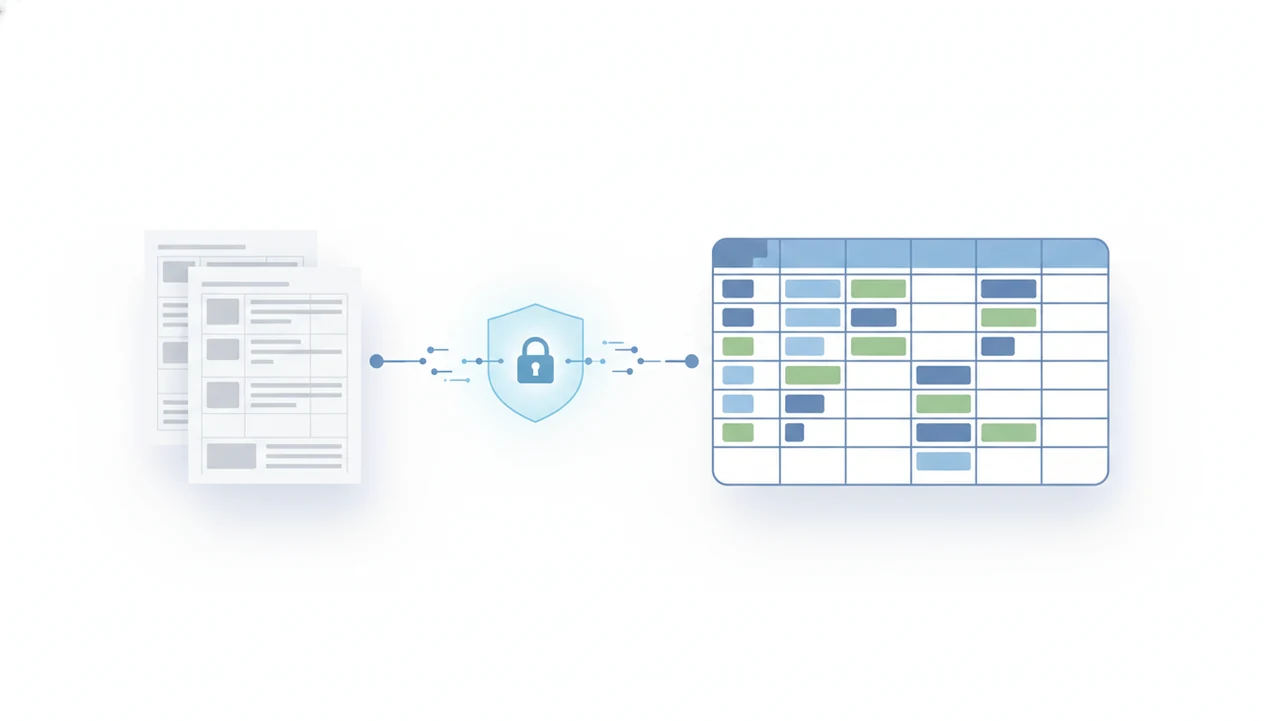
The best tool that can convert bank statements to CSV is one built specifically for bank statement PDFs, not a generic PDF table extractor. It should read digital and scanned statements, preserve dates, descriptions, debits, credits, and balances, let you review the extracted rows, and export a clean CSV for Excel, Google Sheets, QuickBooks, Xero, or bookkeeping workflows.
> Bank Statement Converter App is a bank statement converter that turns PDF bank statements into CSV, Excel, and QBO files for small businesses, bookkeepers, and accountants.
- Use a bank statement CSV tool that supports both text-based PDFs and scanned statements with OCR.
- Always verify transaction counts, opening and closing balances, and debit/credit totals before importing the CSV.
- Prefer a privacy-focused PDF statement to CSV tool that processes sensitive files without permanently storing uploads.
What a Bank Statement CSV Tool Actually Converts
A bank statement CSV tool converts transaction rows from PDF or scanned bank statements into structured CSV columns. The expected output is not just “text from a PDF.” It is a row-by-row transaction file.
Typical fields include transaction date, posting date, description, debit, credit, amount, running balance, account name, account number ending, statement period, and sometimes page-level context. That context matters when a transaction continues across a page break.
A dedicated tool is different from a generic PDF-to-CSV converter because bank statements have running balances, multi-line descriptions, and bank-specific layouts. A generic extractor may grab the table shape but miss the accounting meaning. If you open `Chase Checking March 2022.pdf`, the converted output should tell you whether the first CSV row is a header or the first transaction.
For spreadsheet users, the same CSV can usually open in Excel, Google Sheets, QuickBooks, Xero, and bookkeeping workflows.
Five Facts About PDF Statement to CSV Tool Accuracy
- A bank statement CSV tool extracts structured transactions from PDF files and scanned statement images into rows and columns.
- Modern tools often combine OCR with AI layout detection, so they can handle different bank formats without rigid templates.
- Clean scans matter. Research on OCR for financial and business documents has reported 98–99% character recognition on high-quality scans, but quality drops when pages are blurred or distorted source.
- Users should confirm support for their bank, country date formats, number separators, currency symbols, and multi-page statements before relying on the export.
- Privacy differs widely by tool, especially around upload retention, permanent storage, model training, and third-party processing.
The receipt box beside the keyboard is usually where messy conversion work starts. Accuracy is useful only if the CSV still matches the original statement after review.
How an AI Bank Statement CSV Converter Works
An AI bank statement CSV converter works by reading the source file, identifying transaction regions, extracting text, normalizing columns, and exporting the converted output as CSV. Digital PDFs may be parsed directly, while scanned PDFs need OCR before transaction detection can happen.
The workflow usually follows this path: upload, page parsing, OCR if needed, layout detection, transaction row detection, column normalization, preview review, then export. AI helps when descriptions wrap across two lines, debit and credit signs appear in separate columns, or balances sit far to the right of the page. In plain terms, it tries to understand the statement layout before building the CSV.
Tools like Bank Statement Converter App are designed around bank statements rather than generic document extraction. That distinction matters when a two-column statement on legal paper places fees in one region and deposits in another. Good AI bank statement converter apps turn PDF bank statements into clean CSV, Excel, and accounting-ready files without storing uploads, not financial advice or unchecked bookkeeping records.
How to Use a Tool That Can Convert Bank Statements to CSV
Use the tool from a clean copy of the statement, not an edited source PDF. Keep the original file unchanged for audit trail and reconciliation checks.
- Prepare a readable PDF copy, such as `client-amex-jan.pdf`, and confirm that every statement page is included.
- Upload the PDF into the converter and unlock password-protected files only if you are authorized to access them.
- Choose CSV output, or pick Excel/QBO if your downstream import needs a different format.
- Review the preview grid for missing rows, split descriptions, wrong signs, and end-of-page transactions.
- Correct obvious extraction errors before exporting, especially dates, debits, credits, and balances.
- Export the CSV and save it beside the original PDF for review history.
For a deeper workflow on the same task, the convert bank statement PDF to CSV guide covers format-specific cleanup.
Requirements Before You Convert PDF Bank Statements to CSV
Before converting, check the file quality first. The most reliable source files have readable text, complete pages, no missing page edges, minimal shadows, correct page order, and no cropped balances.
Password-protected PDFs may need to be unlocked by the account owner before upload. Corrupted files should be repaired or re-downloaded from the bank portal. A downloads folder full of `Statement (1).pdf`, `Statement (2).pdf`, and `Statement (3).pdf` is a common month-end problem; rename files before batching them.
Also confirm date formats, currency formats, decimal separators, and negative/positive conventions. A U.S. CSV may use `03/12/2024`, while another file may use `12/03/2024`. That difference can break imports.
According to the SBA, 69% of surveyed U.S. small businesses reported using accounting software, which makes exact column naming and formatting more important for bank imports source.
Bank Statement CSV Tool Feature Checklist
A good bank statement CSV tool should be judged by extraction quality, review controls, export formats, and privacy posture. Free generic tools can work for simple digital PDFs, but they are risky for bookkeeping-grade work when layouts get messy. For comparison, generic options such as Adobe Acrobat Export PDF, Tabula, Docparser, and Nanonets may extract tables, but they should be checked against statement-specific needs such as running balances, multi-page continuity, and debit/credit sign handling.
| Feature | What to look for | Why it matters |
|---|---|---|
| OCR for scans | Reads image-based and scanned statements | Needed when no embedded PDF text exists |
| Multi-page support | Keeps page order and statement period intact | Prevents missing rows across page breaks |
| Bank layout flexibility | Handles Chase, Wells Fargo, Bank of America, and regional layouts | Reduces manual template setup |
| Preview editing | Lets you fix rows before export | Catches errors before import |
| CSV, Excel, QBO exports | Supports spreadsheet and accounting formats | Fits different workflows |
| Privacy controls | Clear upload handling and deletion policy | Reduces unnecessary exposure |
| Validation checks | Totals, balances, and row review | Supports reconciliation |
Apps such as Bank Statement Converter App fit this category because they focus on statement conversion, not broad PDF scraping. For broader comparison criteria, the best bank statement converter app guide covers evaluation points.
CSV Validation Checks After PDF Statement Conversion
How do you verify a converted bank statement CSV? Compare the CSV against the original PDF before importing it into accounting software.
Start with transaction count. Count the transactions in the statement period and compare that number with the CSV row count, excluding headers. Then validate opening balance, closing balance, debit totals, credit totals, and running balance continuity. If the final transaction row in Excel does not agree with the ending balance on page 3 of the PDF, pause.
Spot-check unusual rows. Fees, reversals, transfers, international card charges, handwritten note over service charge, and end-of-page transactions are common failure points. AI tools reduce manual entry, but they do not remove review.
Around 51% of U.S. adults used software or apps to track budgets or expenses in 2023, according to the Federal Reserve source. For small businesses, CSV validation is often easier than manual entry because totals and balances can be checked before import.
CSV Formats for QuickBooks, Excel, Google Sheets, and Xero
CSV format matters because spreadsheets and accounting systems expect different column structures. A simple spreadsheet CSV may be fine for sorting, while an accounting-ready CSV must match import rules.
| Destination | Common columns | Format concern |
|---|---|---|
| Excel | Date, Description, Debit, Credit, Balance | Check date conversion and leading zeros |
| Google Sheets | Date, Description, Amount, Balance | Confirm encoding and separators |
| QuickBooks | Date, Description, Amount or Debit/Credit | Map date, description, and amount before import |
| Xero | Date, Amount, Payee, Description | Confirm header names and sign conventions |
| Bookkeeping review | Account, Category, Notes, Balance | Keep source context where possible |
Some systems expect one amount column with negatives for money out. Others prefer separate debit and credit columns. The familiar QuickBooks import screen asks users to map date, description, and amount before the file is accepted.
The IRS estimates that up to 90% of small businesses use a tax preparer or accounting professional source. For them, a clean CSV is often better than a pasted table because import preparation depends on predictable columns.
Privacy Controls in an AI Bank Statement CSV Workflow
Bank statements contain sensitive personal and business financial data, including balances, account identifiers, payroll deposits, vendor payments, and loan activity. Privacy should be evaluated before upload, not after export.
Review how the tool handles uploads, temporary processing, deletion, retention policies, model training, and third-party infrastructure. A no-permanent-storage design reduces long-term exposure, but it does not make processing risk-free. Your browser, device, network, shared folders, and local file permissions still matter.
Bank Statement Converter App is positioned in the niche of converting bank statements without storing uploads permanently. That is useful for sensitive workflows, but users still need access controls around the source file and converted output. A CSV preview grid under fluorescent lights is still a financial record if it shows account activity.
If privacy is the main concern, compare the tool’s policy with your firm’s document-handling rules before uploading client statements.
Common Mistakes With PDF Statement to CSV Tools
The biggest mistake is assuming any PDF-to-CSV converter is enough for bank statements. Bank statements are not ordinary tables. They combine transaction text, balances, footnotes, page headers, and sometimes summary sections that look like transactions.
Copy-paste is another common problem. It often breaks multi-line descriptions, drops minus signs, merges columns, or places balances into the wrong row. The Excel workbook named `ready for review` may look tidy until one transfer line is split into three rows.
Do not skip review because a tool uses AI or OCR. Strong extraction still needs checks for signs, dates, duplicates, and balances. Also avoid importing a CSV into QuickBooks or Xero before confirming the column structure. Failed imports are annoying; bad imports are worse.
Free tools should still be judged on privacy, retention, export quality, and whether the CSV can support reconciliation. For simple comparisons, the free bank statement converter app page explains where free tools fit.
Limitations of a Bank Statement CSV Tool
A bank statement CSV tool can reduce manual entry, but it cannot guarantee a flawless accounting-ready file in every case. These limits are practical, not theoretical.
- Poor scans, skewed photos, shadows, cropped pages, and low-resolution images can reduce OCR accuracy.
- Handwriting, watermarks, stamps, unusual fonts, and overlapping text may create wrong or missing rows.
- Password-protected or corrupted PDFs may not process until the file is unlocked, repaired, or re-downloaded.
- Some banks use layouts that require manual review after extraction, especially around fees and running balances.
- CSV does not preserve every visual detail from the PDF, such as logos, page notes, section dividers, or formatting.
- Conversion is not financial, tax, lending, legal, or individualized accounting advice.
- Privacy-focused processing still depends on the user’s device, browser, network, shared drive, and access controls.
Keep the original PDF. It remains the source record.
Read more
FAQ About Bank Statement CSV Tools
Can PDF bank statements become CSV?
Yes, digital and scanned PDF bank statements can become CSV when the tool supports bank statement extraction. Scanned statements also require OCR.
What is a bank statement CSV?
A bank statement CSV is a structured transaction file with rows and columns such as date, description, amount, debit, credit, and balance. It can be opened in spreadsheets or imported into accounting software.
Can scanned statements become CSV?
Yes, scanned statements can become CSV if the tool includes OCR. Poor image quality may require extra review and correction.
Is AI conversion always accurate?
No, AI and OCR can be highly accurate on clean files but still make mistakes. Users should verify totals, balances, dates, and a sample of rows.
Does QuickBooks accept statement CSVs?
QuickBooks can import CSV data when the date, description, and amount columns match its import requirements. Review formatting before import.
Can Excel open bank CSVs?
Yes, Excel can open bank CSV files. Check dates, negative numbers, and column alignment after opening.
Are free CSV converters safe?
Some free CSV converters may be safe, but users should review privacy, retention, storage, and export quality before uploading statements. Sensitive financial files need careful upload handling.
How do I verify CSV accuracy?
Verify CSV accuracy by checking transaction counts, debit and credit totals, opening and closing balances, dates, and selected rows against the original PDF. For statement-focused tools, Bank Statement Converter App can be part of that workflow, but review is still required.