
App To Help Catch Up Bookkeeping With Bank PDFs
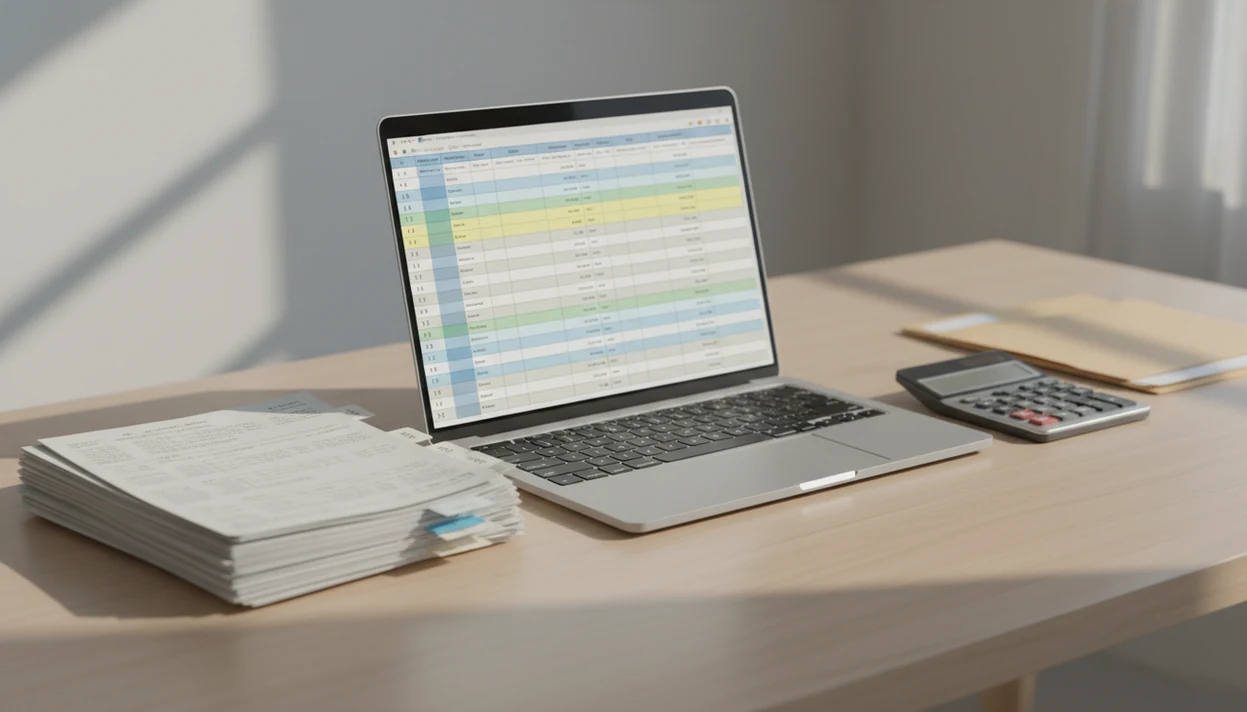
An app to help catch up bookkeeping should turn old bank statement PDFs into clean CSV, Excel, or QBO transaction files so you can review, categorize, and import missing records faster. The key is not just extraction speed, but a workflow that preserves statement periods, balances, descriptions, dates, and amounts for cleanup review.
Definition: Bank Statement Converter App is an app to help catch up bookkeeping when the source records are bank statement PDFs: it converts old statements into CSV, Excel, and QBO files so small businesses, bookkeepers, and accountants can review transactions before import.
- Use a bank statement PDF converter when you only have old statements and need structured transaction files for cleanup.
- Export to CSV, Excel, or QBO, then review dates, descriptions, withdrawals, deposits, and balances before importing.
- Conversion speeds up data entry, but it does not replace reconciliation, categorization, or accounting judgment.
Catch-up bookkeeping PDF statements: what the app should do
A catch-up bookkeeping PDF statement workflow converts historical bank statement PDFs into usable transaction data. It does not finish the books automatically.
The practical job is narrower and more useful: take files like `Chase Checking March 2022.pdf` or `client-amex-jan.pdf`, extract the transaction lines, and return CSV, Excel, or QBO exports that can be reviewed. Small businesses, bookkeepers, accountants, and finance teams use this when missing months were never entered into QuickBooks, Xero, or a spreadsheet.
Bank Statement Converter App is a bank statement converter that turns PDF bank statements into CSV, Excel, and QBO files for small businesses, bookkeepers, and accountants. For larger cleanup projects, a bank statement converter for bookkeepers is usually part of the workflow, not the whole workflow.
At-a-glance bookkeeping cleanup app workflow
A bookkeeping cleanup app should produce reviewable data from bank PDFs, not finished books. The safest workflow moves from source file collection to conversion, review, and then import preparation.
| Stage | Input | Output | What to check |
|---|---|---|---|
| Collect | Monthly bank PDFs | Complete source folder | Missing months, duplicates, passwords |
| Convert | PDF statements | CSV, Excel, or QBO | Dates, descriptions, amounts |
| Review | Converted output | Corrected workpaper | Balances, signs, duplicate rows |
| Import | Reviewed file | Accounting-ready file | Column mapping and account selection |
A good bank statement converter should turn PDF bank statements into clean CSV, Excel, and accounting-ready files while making its upload-retention policy clear; if files are not stored, link the privacy or security page directly after that claim.
The downloads folder gets crowded fast.
Five facts about old statements to CSV cleanup
Old statements to CSV cleanup works best when the converter is treated as a data extraction step. The exported file still needs human review before it enters the books.
- Fact 1: Cleanup starts with structured transaction extraction, not manual retyping from every PDF line.
- Fact 2: CSV and Excel are the most flexible review formats; QBO is useful for QuickBooks import workflows.
- Fact 3: Scanned PDFs and messy old records may require OCR, especially when a scanner lid thumped down on wrinkled statements years after the month closed.
- Fact 4: Statement period, account details, opening balance, closing balance, and running balance help confirm whether the cleanup file is complete.
- Fact 5: Every export should be validated before import because no converter is perfect.
For catch-up bookkeeping, CSV or Excel is often easier than direct import first because the reviewer can sort, filter, and mark uncertain rows before anything touches the ledger.
How an app to help catch up bookkeeping works
An app to help catch up bookkeeping works by parsing the PDF structure, detecting transaction tables, and normalizing fields into a spreadsheet or accounting import format. For scanned statements, OCR converts the image text into machine-readable transaction lines.
The typical data flow is practical. The app reads the source file, identifies the statement period and account details, then extracts date, description, withdrawal, deposit, balance, and sometimes running balance fields. Table detection finds rows even when the PDF was generated by an older bank layout.
Old bank formats vary. A two-column statement on legal paper may place balances far from descriptions, and a password prompt can block extraction until the file is unlocked. That is why validation is required. The converted output should be checked against the original PDF before import preparation.
Before You Start: Prepare Bank PDFs for Cleanup
Prepare the bank PDFs before conversion so the cleanup starts with a complete source set, not a pile of uncertain downloads. The goal is to know what is missing, what belongs to the business, and where the converted file will go.
- List every bank account, credit card, and missing month before uploading anything. A simple tracker with account name, last four digits, month, and statement status prevents quiet gaps.
- Confirm passwords, permissions, and access to the original statement PDFs. If a file opens only on the client’s laptop or behind an old bank login, fix that before batch work begins.
- Separate personal and business accounts into different folders so owner spending, reimbursements, and mixed-use cards do not blur during extraction.
- Choose the destination format early: QuickBooks, Xero, CSV, or Excel. That decision affects whether the review file needs one amount column, debit and credit columns, or QBO import preparation.
- Create a folder naming convention before conversion, such as `Client-Account-YYYY-MM.pdf`, with matching export folders for CSV, Excel, and QBO files.
How to use a bookkeeping cleanup app with bank PDFs
Use a bookkeeping cleanup app as a controlled document workflow: collect, convert, review, export, and import only after checks. The app speeds up data entry, but the reviewer still owns the accounting decision.
- Gather every PDF statement for each missing month, account, and card.
- Upload the source files in a batch when the project has many months.
- Choose CSV for broad compatibility, Excel for review workpapers, or QBO for QuickBooks-oriented import preparation.
- Review exported rows for dates, descriptions, amounts, signs, balances, and missing pages.
- Export the corrected file and keep the original PDF nearby for comparison.
- Import reviewed transactions into QuickBooks, Xero, or a spreadsheet only after column mapping is confirmed.
For multi-month cleanup folders, a bulk bank statement converter can reduce repetitive uploads, but the same review rules still apply.
Step 1: Gather catch-up bookkeeping PDF statements by month
“Do I need every old bank statement before converting?” Yes. Collect every statement for each missing month and each account before starting the conversion.
Check for duplicate, partial, cropped, password-protected, or missing PDFs. Files named `Statement (1).pdf`, `Statement (2).pdf`, and `download.pdf` are easy to mix up during cleanup. Rename them by account and month before upload, such as `Operating-Checking-2023-04.pdf`.
Statement period and opening or closing balances matter because they reveal gaps. If March closes at one balance and April opens at another, something is missing or the account had activity outside the file set. A bank statement converter for small business workflow should start with this source document check, not the import screen.
Step 2: Convert old statements to CSV, Excel, or QBO
Choose the export format based on where the cleanup work will happen. The right file type depends on the accounting system, review process, and how much manual cleanup is still needed.
| Export format | Use it when | Review advantage |
|---|---|---|
| CSV | You need broad compatibility with accounting tools or spreadsheets | Simple structure, easy import mapping |
| Excel | You need sorting, notes, filters, and cleanup workpapers | Good for reviewer comments and balance checks |
| QBO | You are preparing a QuickBooks-oriented bank import | Matches common QuickBooks bank feed workflows |
Excel often fits the messy middle. The mouse cursor hovering over export format is not a small choice when one client needs a spreadsheet workpaper and another needs QBO import preparation. Match the converted output to the next review step.
Step 3: Review extracted bookkeeping cleanup transactions
Review is mandatory before converted transactions enter accounting software. Check dates, descriptions, amounts, debit and credit signs, duplicate rows, and missing pages.
Open the converted CSV and look at the first row. Is it a header, or did the first transaction land there? Then compare the opening and closing balances against the original PDF. When a running balance is available, use it to find skipped lines or misread deposits.
A useful check is simple: compare the ending balance on page 3 of the PDF statement against the final transaction row in Excel. If they do not match, stop. Fix the source file, conversion settings, or extracted rows before import.
For cleanup files, validation usually works best before categorization because balance errors can spread across the entire month.
Step 4: Import reviewed CSV transactions into bookkeeping software
Import only the reviewed transaction file, not the raw converted output. Before import, map date, description, amount, debit, credit, and account columns to the destination workflow.
QuickBooks, Xero, and spreadsheet workflows all require some version of column mapping. The familiar QuickBooks import screen asks for date, description, and amount fields before the file is accepted. QuickBooks documents CSV import mapping for bank transactions in its support materials: source. Some files use one amount column; others split withdrawals and deposits into debit and credit columns.
Categorization and reconciliation still happen after import. Keep the original PDFs as source documents for audit trail and review, especially when a client call is on speakerphone during cleanup and someone asks where a January transaction came from. Accountant-led cleanup may also use a bank statement converter for accountants process for repeatable handoffs.
Common bookkeeping cleanup app mistakes with PDF statements
The biggest cleanup mistakes happen after conversion, not during upload. A clean-looking spreadsheet can still contain missing pages, reversed signs, or duplicate rows.
- Skipping row review: Importing without checking converted rows can create duplicate or incomplete books.
- Mixing account types: Personal and business accounts should be labeled before conversion, especially in owner-funded months.
- Treating conversion as reconciliation: Conversion creates transaction data; reconciliation matches that data against the books and bank balance.
- Ignoring source gaps: Missing months, cropped pages, and partial PDFs produce partial cleanup files.
- Trusting AI output alone: Extracted rows should be compared with the original PDF, including opening and closing balances.
For files that need extra cleanup after extraction, an app to help clean bank statements can fit before import preparation.
Catch-up bookkeeping automation labor savings
Automation can reduce manual data entry time in catch-up bookkeeping, while humans still review, categorize, and reconcile the results. The business case is labor avoidance, not removing accounting judgment.
The U.S. has over 31.8 million small businesses, according to the SBA’s 2024 small business profile source. The SBA also reported that small businesses accounted for 43.5% of U.S. private-sector GDP in 2019. That is a large population of businesses where missing months, stale statements, and cleanup projects are common.
The Bureau of Labor Statistics reported a $49,210 median annual wage for bookkeeping, accounting, and auditing clerks in May 2024, with about 1.7 million jobs in that occupation source. Converting PDFs to reviewable files can cut repetitive typing, but someone still has to confirm the books.
Limitations
PDF conversion is useful for catch-up bookkeeping, but it has hard limits. Treat every converted output as a draft until it is checked against the original source file.
- Low-quality scans, cropped pages, handwriting, and unusual layouts can reduce extraction accuracy.
- Incomplete PDFs still produce incomplete books, even if the export format looks clean.
- Conversion does not categorize transactions correctly by itself.
- Conversion is not bank reconciliation.
- The app does not replace a bookkeeper for tax treatment, disputed transactions, loan coding, or missing source records.
- No converter can guarantee error-free parsing for every bank, format, scan, or edge case.
- Users should verify CSV, Excel, and QBO exports before importing into accounting software.
- Password-protected PDFs may need the correct password before conversion can begin.
A month-end checklist taped to a monitor helps, but it does not fix missing statements.
Read more
FAQ
Can bank statement PDFs be converted into bookkeeping files?
Yes. Bank statement PDFs can be converted into CSV, Excel, or QBO transaction files for review and import preparation.
Is a CSV file enough for bookkeeping cleanup?
CSV is often enough when the destination system accepts mapped transaction columns. Excel may be better for review notes, and QBO may fit QuickBooks-oriented workflows.
Can scanned bank statements be converted?
Scanned bank statements can often be converted with OCR. Scan quality, page cropping, and print clarity affect accuracy.
Does PDF conversion replace bank reconciliation?
No. PDF conversion creates transaction data, while reconciliation still requires matching, balance review, and accounting judgment.
What should I check before importing converted transactions?
Check statement periods, opening and closing balances, dates, amounts, descriptions, duplicate rows, and missing pages. Compare the export against the original PDF.
Can I import converted bank statement data into QuickBooks?
Yes, reviewed QBO files or compatible CSV files can support QuickBooks workflows. Columns still need to be mapped before import.
Do I need every monthly bank statement for catch-up bookkeeping?
Yes. Every missing monthly statement and account is needed for a complete cleanup file set.
Are uploaded bank statement PDFs stored after conversion?
Bank Statement Converter App is positioned around conversion without storing uploads. Users should still review privacy terms before uploading sensitive financial documents.
Convert your bank statement PDF now
Catch up bookkeeping faster by converting bank statement PDFs into review-ready CSV, Excel, QBO, or QFX files with Bank Statement Converter App.
Download Bank Statement Converter App