
Xero Bank Statement CSV Import After PDF Conversion
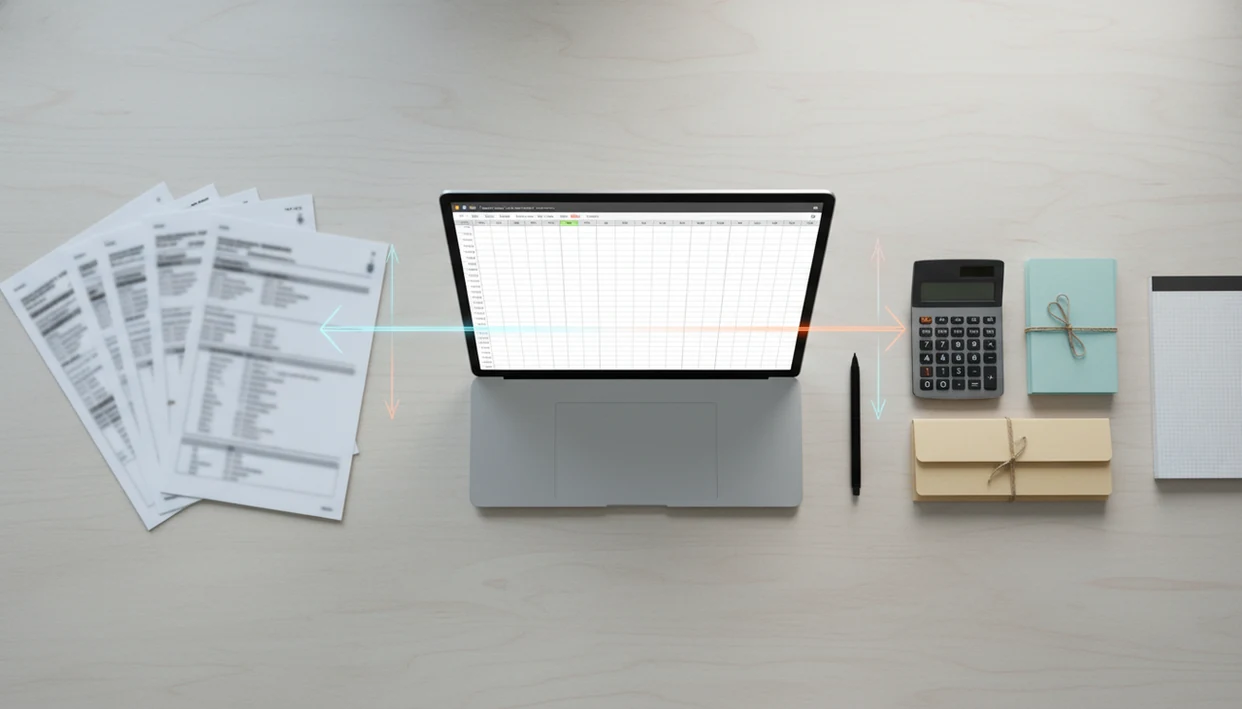
A Xero bank statement CSV import works when your converted statement has clean dates, one correctly signed amount column, useful descriptions, and a quick balance check before upload. Convert the PDF to CSV, review the file, map the columns in Xero, then reconcile the imported statement lines against the original bank statement.
> Bank Statement Converter App is a bank statement converter that turns PDF bank statements into CSV, Excel, and QBO files for small businesses, bookkeepers, and accountants.
- Xero manual bank statement import is the fallback when a bank feed is unavailable, broken, or missing historical transactions.
- The safest Xero CSV statement format uses date, amount, description, and optional payee fields, with income as positive and spending as negative.
- Always compare transaction count, date range, and statement totals against the original PDF before reconciling in Xero.
Xero Bank Statement CSV Import Definition for Converted PDFs
A Xero bank statement CSV import is the manual upload of bank transaction rows into a Xero bank account so those rows can be reconciled. The source file can be a CSV exported from online banking or a PDF statement converted into CSV.
This workflow fits missing feeds, failed feeds, closed accounts, and historical statement periods that your live feed no longer supplies. A file named `Chase Checking March 2022.pdf` might become a CSV with date, description, and amount columns before it reaches Xero.
Importing creates bank statement lines. It does not, by itself, create accurate bookkeeping. For small businesses, a converted CSV is often easier than retyping a PDF because it preserves transaction rows for review, mapping, and reconciliation.
Five Xero CSV Statement Format Facts to Know First
- Xero supports manually importing bank statement CSV files when statement data is prepared outside the bank feed; see Xero Central’s manual bank statement import guidance: https://central.xero.com/s/article/Manually-import-bank-statements.
- Date and amount fields are required before Xero can treat CSV rows as bank statement lines.
- The cleanest Xero CSV statement format uses one amount column, with income as positive and spending as negative.
- Each CSV column must be mapped to the correct Xero field during import, including date, amount, description, payee, or reference.
- Precoded CSV files can include account codes, tax rates, and tracking categories, but those values must match Xero settings exactly.
We usually open the converted output first, not Xero. The first check is boring but important: is row one a header, or did the first transaction land at the top?
Small detail. Big consequence.
Manual Bank Statement Import Xero Requirements Before Upload
Before upload, confirm that you are in the correct Xero organisation and the correct bank account. A CSV imported into the wrong account is fixable, but it creates avoidable cleanup during reconciliation.
Keep the original PDF or bank source file open for verification. You need the statement period, opening date, closing date, transaction descriptions, and amount signs available while reviewing the converted CSV. If the file came from a converter, check that it contains transaction dates, descriptions, and one usable amount column.
Also decide whether the first row is a header row before you import. Xero asks this during mapping, and the wrong choice can pull column names into the ledger as a fake transaction.
Watch for feed overlap. A bank feed gap circled in red may need manual import, but importing dates already covered by the live feed can create duplicate statement lines.
How Xero Bank Statement CSV Import Works Behind the Scenes
Xero reads the uploaded CSV as rows of statement transactions. Column mapping tells Xero which CSV field is the transaction date, amount, description, payee, or reference.
After import, those rows become bank statement lines waiting for reconciliation. Xero matching and bank rules may suggest contacts or matching transactions, but they do not guarantee the line is reconciled correctly. The import is data preparation, not final accounting judgment.
The mechanism is simple: CSV parsing reads the file structure, and field mapping assigns meaning to each column. In plain terms, Xero needs to know which column says “when,” which says “how much,” and which says “what happened.”
Accurate imported data matters because reconciliation is a control. ACFE’s 2024 Report to the Nations lists account reconciliation and management review among occupational fraud detection methods: https://www.acfe.com/report-to-the-nations/2024/. Bad imports weaken that review before it starts.
How to Use a Converted CSV to Import Bank Statement to Xero
Use this workflow when you have a PDF bank statement and need accounting-ready statement lines inside Xero. Before you start, keep the original PDF open, confirm the target Xero bank account, and note the statement period. Do not upload the CSV until the transaction count and date range match the source statement.
1. Convert the PDF statement
- Convert the PDF bank statement to CSV with a bank-statement-specific converter, not a generic table scraper.
- Save the converted output with a clear name, such as `client-amex-jan.csv`.
2. Review the CSV columns
- Review the CSV for clean dates, one amount column, readable descriptions, and totals that match the PDF.
- Confirm whether the first row is a header row before opening the Xero import screen.
3. Upload the file in Xero
- Open the correct bank account in Xero and choose the manual statement import option.
- Upload the CSV and check that the import date range matches the statement period.
4. Map the Xero import fields
- Map date, amount, description, payee, and reference fields to the correct Xero columns.
5. Reconcile the imported lines
- Reconcile the imported statement lines after upload, using matches, rules, and manual review where needed.
Tools like Bank Statement Converter App, bankstatementconverter.com, and docparser.com can help create CSVs, but the review still belongs to the person importing the file. For Xero-specific conversion detail, the bank statement converter for Xero guide covers export preparation.
Clean Date, Amount, and Description Columns for Xero CSV Statement Format
Does Xero need clean dates, one amount column, and readable descriptions? Yes. These are the columns most likely to cause a failed import or a misleading reconciliation.
Use one supported date format throughout the file. Do not mix `03/04/2024` with `2024-04-03` unless you are certain which day and month Xero will read. We have seen dual monitors filled with transaction rows where only three mixed-date entries caused the whole import review to stall.
Avoid split debit and credit columns unless you convert them into one amount column. Money out should be negative, and money in should be positive. Keep descriptions readable, and preserve payee or reference details when available.
Remove page headers, running balances, subtotals, and repeated PDF artifacts. Manual rekeying adds avoidable error risk, so reducing keystrokes is useful. It still needs review against the original PDF.
A good AI bank statement converter app turns PDF bank statements into clean CSV, Excel, and accounting-ready files without storing uploads, not a guarantee that Xero will accept every row without human checks.
Xero CSV Import Mapping Choices for Payee, Reference, and Precoding
Map required fields first: date and amount. Then decide how to use description, payee, reference, and any optional precoding fields.
| Mapping choice | When to use it | Watch point |
|---|---|---|
| Date | Every import | Use one consistent format across the file. |
| Amount | Every import | Use one signed amount column, not separate debit and credit columns. |
| Description | Most imports | Keep merchant names, memo text, and useful bank narration. |
| Payee or reference | When the bank provides stable detail | Use the same meaning throughout the CSV. |
| Precoded fields | When account codes, tax rates, or tracking are already known | Values must exactly match Xero settings. |
A simple CSV is enough when the goal is to recreate statement lines for later reconciliation. A precoded CSV can include account codes, tax rates, and tracking categories, but mismatch errors are easy. Non-precoded imports still need reconciliation after upload.
If your team also imports into QuickBooks, compare requirements before changing the source file. The QuickBooks CSV format for bank statements uses a similar idea, but the field expectations are not identical.
Common Xero Bank Statement CSV Import Mistakes
Mixed date formats. One row uses day-month-year, another uses month-day-year, and Xero may reject or misread the file.
Unconverted debit and credit columns. A statement export with separate money-in and money-out columns often needs cleanup before import.
Wrong header setting. If the header row is not identified, Xero may import `Date, Description, Amount` as a transaction line.
Duplicate date ranges. Importing a period already covered by a bank feed can create duplicated statement lines.
PDF artifacts. Page numbers, balances, wrapped descriptions, and watermark text can sneak into converted CSV rows. A watermark across a transaction table is not just visual clutter; it can become bad text in the output.
Skipping review. A converted CSV is not automatically ready. The safest import is checked against the original PDF before upload.
Verification Checks After You Import Statement to Xero
After import, verify the file before treating it as ready for reconciliation. This is a control step, not just an accounting chore.
- Compare the transaction count with the original PDF or online banking export.
- Check that the imported date range matches the statement period.
- Confirm opening and closing balance logic where Xero or the source statement supports it.
- Spot-check high-value, unusual, refund, fee, and transfer transactions.
- Look for missing rows, duplicate rows, reversed signs, and truncated descriptions.
- Compare the ending balance on the PDF against the final transaction row in Excel when the statement layout allows it.
The Friday afternoon reconciliation spreadsheet is where import shortcuts usually become visible. For accountants handling multiple clients, bulk checks matter more than speed. If you need a QuickBooks version of this workflow, the import bank statement CSV into QuickBooks guide explains that handoff separately.
Limitations
Manual CSV import is useful, but it has clear limits.
- Manual CSV imports are not real-time. You must repeat the workflow for each new statement period.
- Xero can reject or misread files with unsupported dates, missing required fields, or wrong amount signs.
- AI PDF conversion can misread complex layouts, multiline descriptions, scans, or merged files containing several accounts.
- Imported CSV lines may still need manual reconciliation unless the file is correctly precoded.
- Precoded CSV values must match the Xero chart of accounts, tax rates, and tracking categories exactly.
- Manual import can create duplicates if the date range overlaps a live bank feed or prior import.
- This workflow is not banking, tax, lending, investment, legal, or individualized accounting advice.
- Upload handling matters because bank statements contain sensitive financial data.
For sensitive PDFs, use a secure bank statement converter with clear upload handling and deletion expectations. If your accounting system prefers QBO files instead of CSV, review the CSV vs QBO tradeoffs before rebuilding the export.
Read more
FAQ
Can Xero import CSV statements?
Yes. Xero can import CSV bank statement files when the file includes required fields such as transaction date and amount.
What CSV format does Xero need?
The core Xero CSV statement format needs a date, one signed amount column, and useful description data. Use consistent date formatting and positive income with negative spending.
Can Xero import PDF statements?
Xero imports statement data, not ordinary PDF statement pages. A PDF must be converted to CSV first, and Bank Statement Converter App is one tool that can create that converted file.
How do I map columns in Xero?
During import, assign each CSV column to the matching Xero field, such as date, amount, description, payee, or reference. Confirm the header row setting before final import.
Why did my Xero import fail?
Common causes include unsupported date formats, missing date or amount fields, split debit and credit columns, wrong signs, or PDF conversion artifacts. Review the CSV before uploading again.
Will Xero reconcile imported transactions?
Xero can suggest matches and apply bank rules, but imported statement lines still need reconciliation review. Precoded imports may reduce manual work when the codes match Xero exactly.
Can I import old bank statements?
Yes. Historical CSV imports are common when a bank feed does not go back far enough, but avoid periods already covered by prior imports or live feeds.
How do I avoid duplicate transactions?
Check the import date range, compare transaction counts, and avoid overlap with existing bank feed dates. Keep the original PDF or source export available during review.
Convert your bank statement PDF now
Convert PDF bank statements into clean CSV files before importing to Xero. Use Bank Statement Converter App when you need a trust-first workflow with no bank login, in-memory processing where relevant, and immediate file deletion after conversion.
Upload your PDF now